
In Dynamics 365, to represent Boolean values (Yes/No), we use field with datatype “Two Option set”.
By default, the field appears as a toggle button or as a drop-down with Yes or No options. It is also possible to display the field as checkbox to improve user experience.
Please follow following steps to make the two-option set field as Checkbox:
- Goto make.powerapps.com
- Select your respective Environment and Solution
- Switch to Classic editor
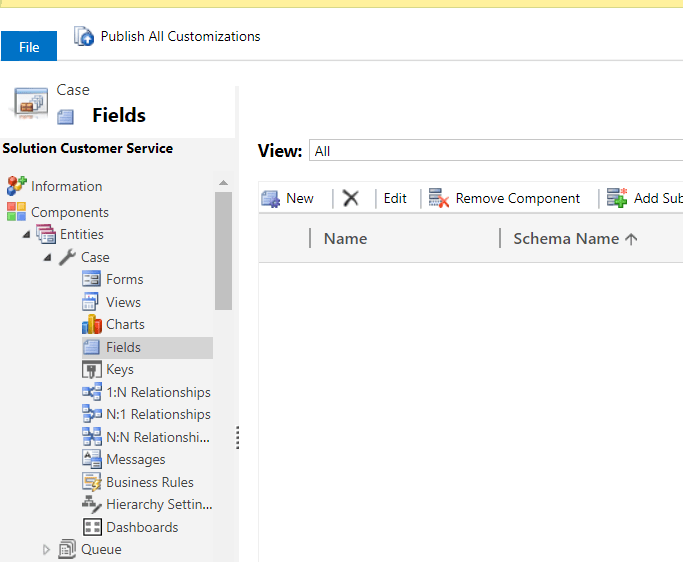
4. Create a Two-Option field or select the existing one. In this scenario, have created a field named “Form Submitted.”
5. Add the field on form.
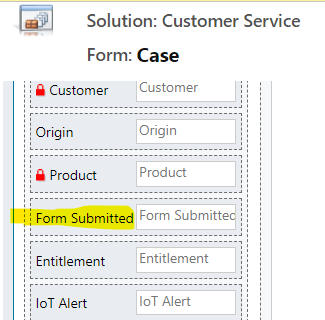
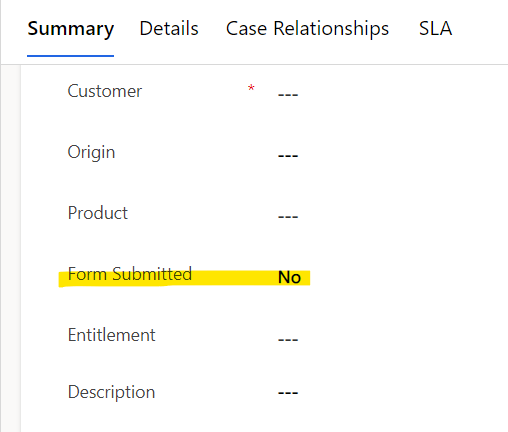
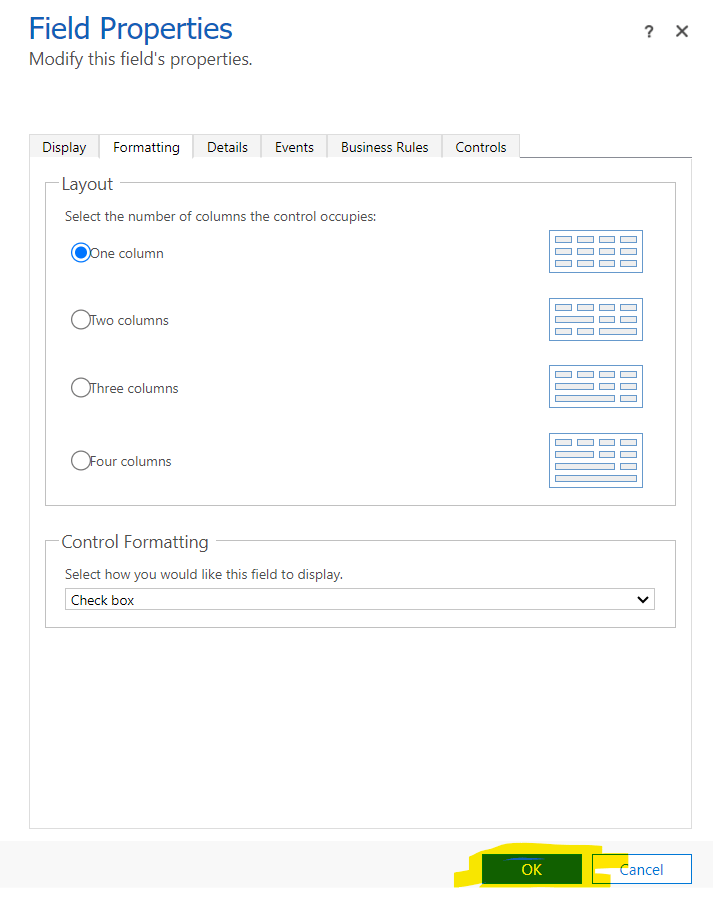
6. Click on the Two Option Set field to select it in the classic editor to open the “Field Properties” dialog.
7. Click on formatting and select “Checkbox” under Control Formatting – Select how you would like to display this field to make the two-option as checkbox
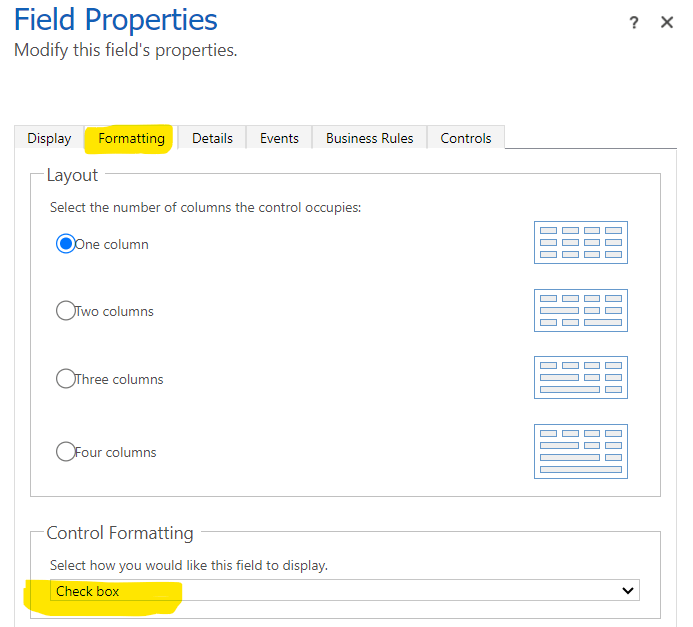
8. Click on “OK” to close the dialog box
9. Click on Save and Publish to make them available on the form.
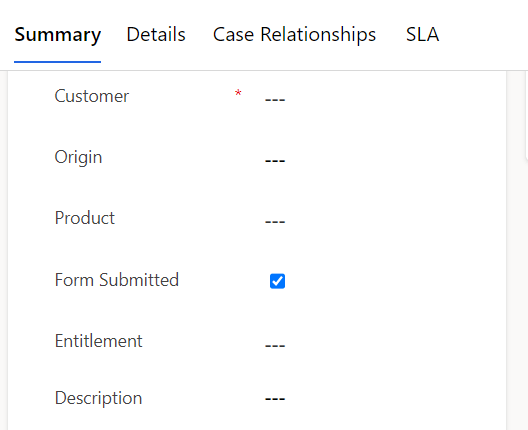
10. The form will now display your Two Option Set field as a checkbox.
Hope it helps!
Thank You! 🙂
#Let’s learn together

 Power Spark
Leave a comment