
Namaste everyone,
Scenario: If you want to report any issue related to your app or product, you must need to share Session Details along with the issue description to Product Support Team so that they can troubleshoot the issue and help you with the resolution.
In this article, we will learn how to get the Session details of Model Driven App and Canvas App.
Model Driven Apps:
If you are having an issue related to Model-Driven app and looking for Session ID then please follow below steps to get the Session ID:
- Open your Model-Driven app and reproduce an issue.
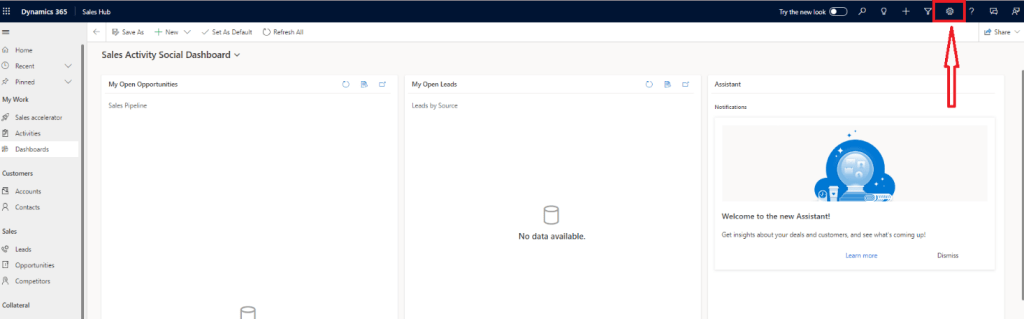
- Click on Settings (Gear icon) located at top-right corner of your screen.
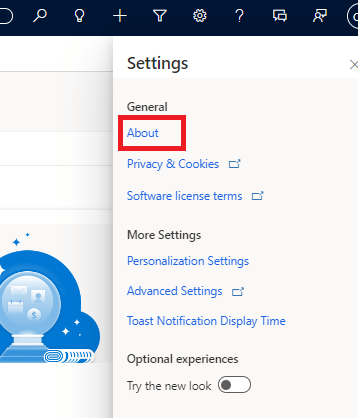
- Now, Click on “About”
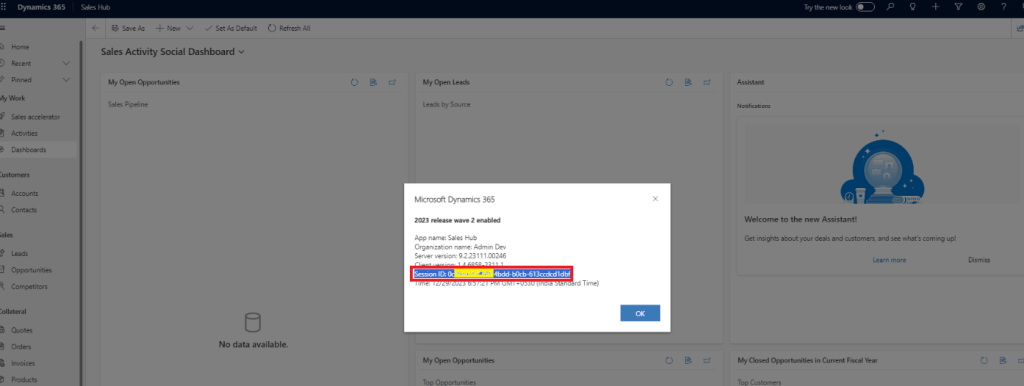
- Copy the Session ID and share it with Product Support for troubleshooting the product issue.
Canvas App:
If you are having an issue related to Canvas app and looking for Session ID, then please follow below steps to get the Session ID:
- Open the Canvas app in which you are facing an issue.
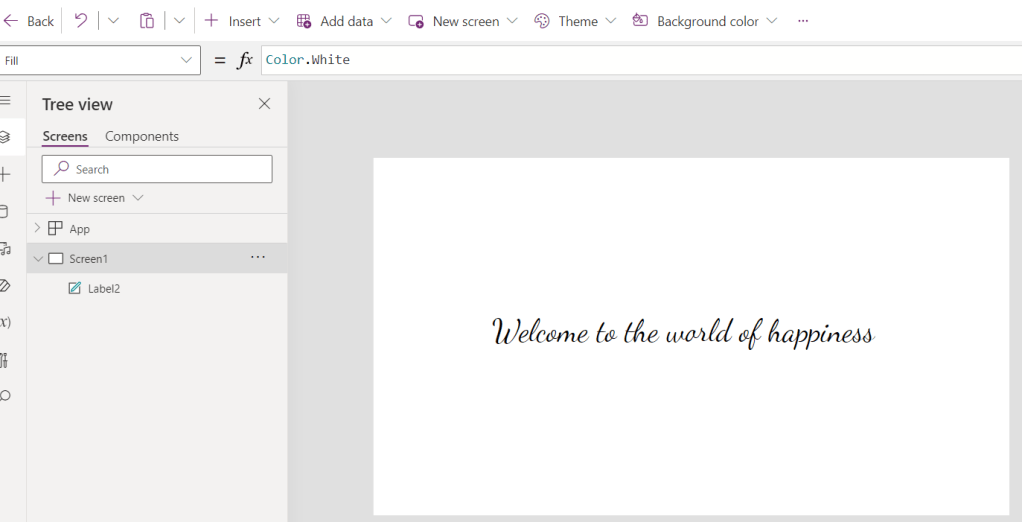
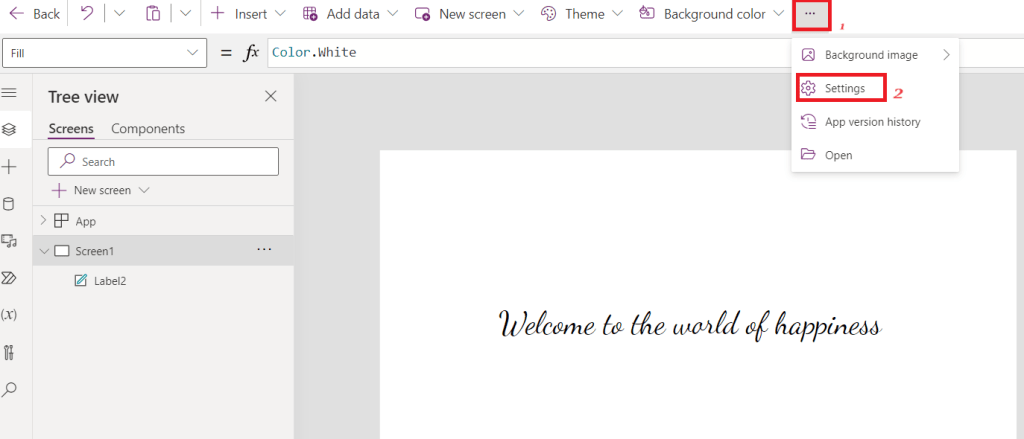
- Click on three dots (…) and then Settings.
- Now, click on Support.
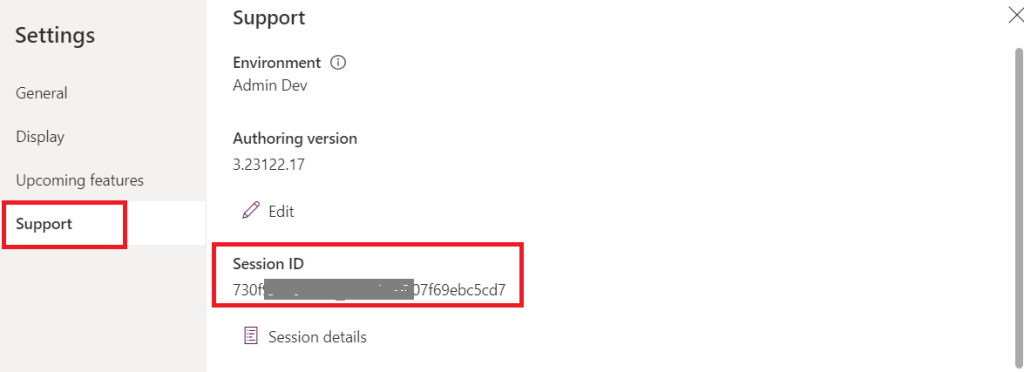
- Copy the Session ID and share it with Product Support Team
Note: Session ID will be changed on each refresh.
Hope it helps!
Please stay in touch with Power Spark by Shrangarika for more learnings.
Thank you for reading 😊
#Let’s_Learn_Together

 Power Spark
Leave a comment