
Namaste everyone,
In this blog, we will learn, how to enable Microsoft Power Automate in UCI. Please follow below steps to learn the same:
- Login to admin.powerplatform.microsoft.com with your credentials.
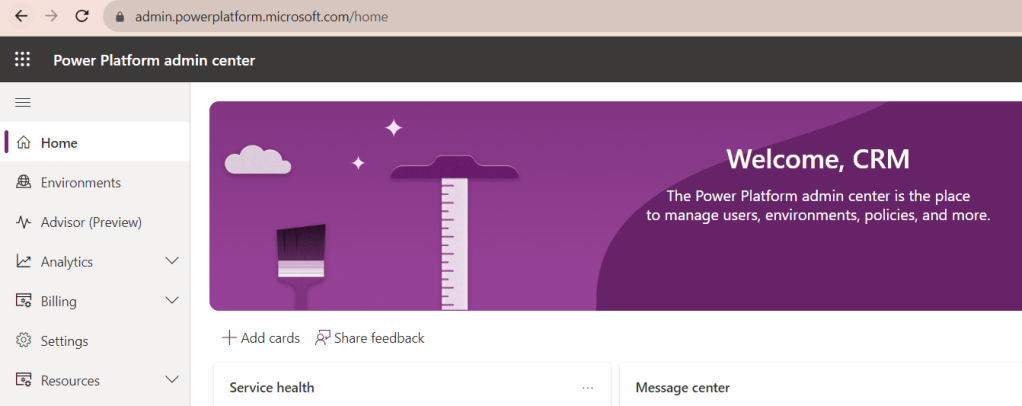
- Click on Environment and then select the environment where you want to enable PA.
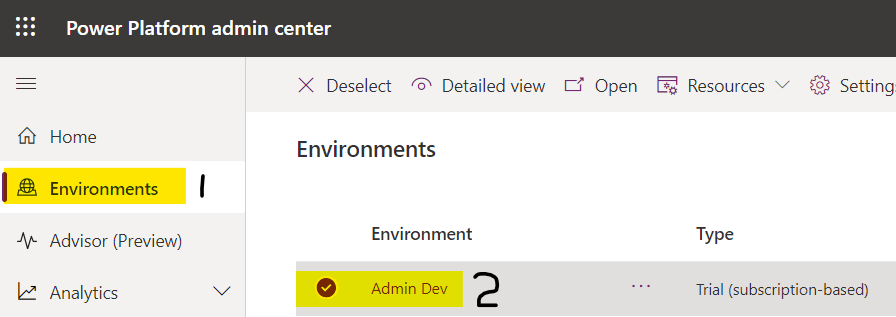
- Click on Settings

- Select Product then Behavior.
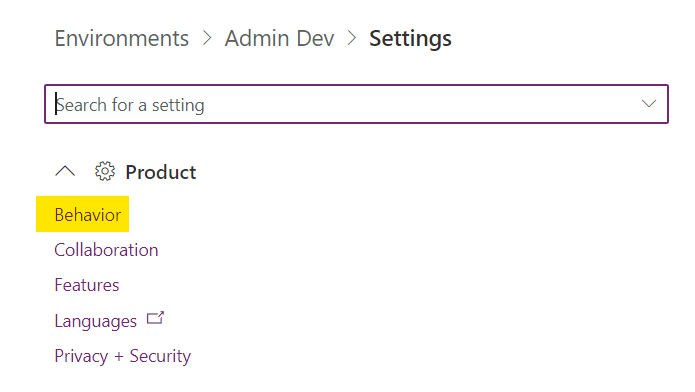
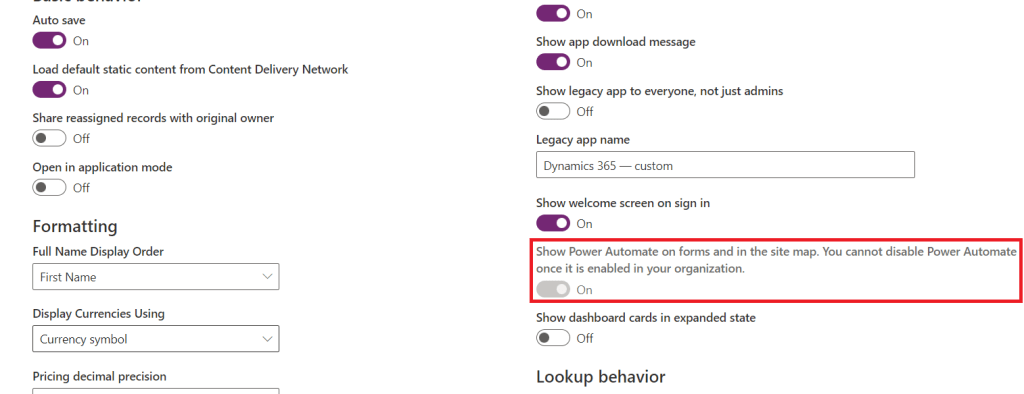
- Enable the option “Show Power Automate on forms and in the site map.” to On and click on Save.
- Open your App and open any Entity to see the Flow button.
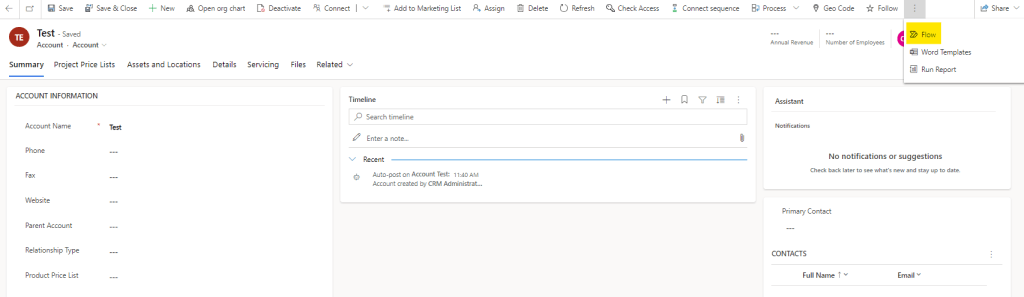
Note: Once you Enable Power Automate to Yes, we cannot disable this setting.
IMPORTANT!
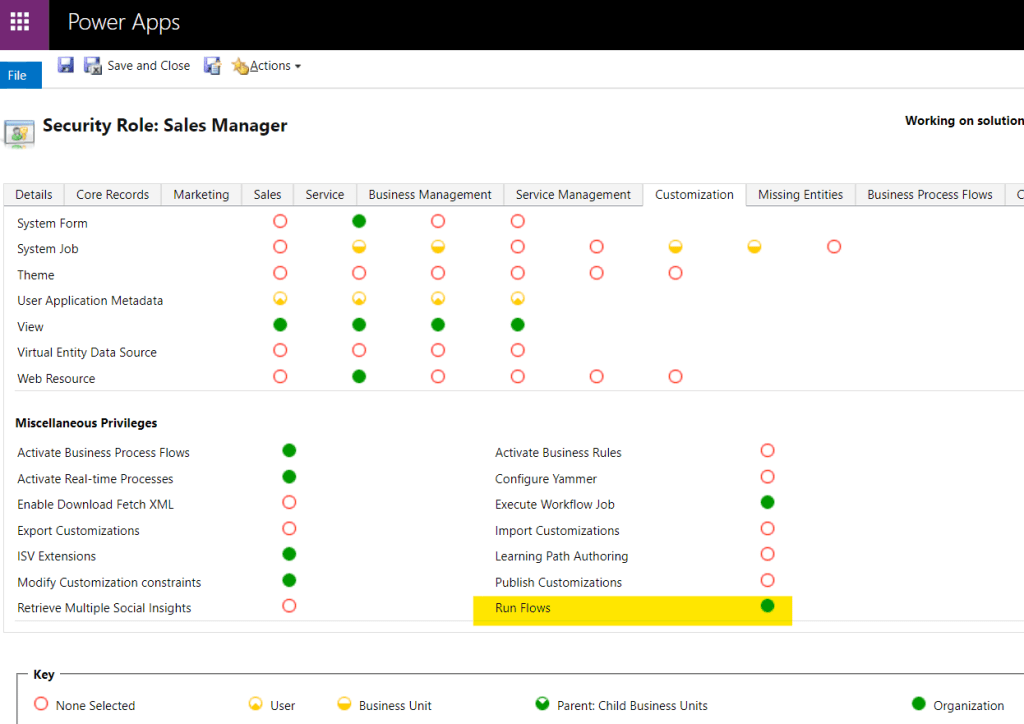
Even after enabling this setting, other than SYSTEM ADMIN, no other security roles user will be able to see this FLOW button.
For that, you may need to follow following steps:
Go to app >> Advanced Settings >> Security >> Security Role >> Select the role for which you want to enable that button >> Customization >> Run Flow (Give it organization level access)
Hope it helps!
Thanks for reading!
Stay tuned with “Power Spark by Shrangarika” for continuous learning.
Thank you 🙂
#Let’s_Learn_Together

 Power Spark
Leave a comment