
Namaste everyone,
In this blog, we will learn how to block certain attachments in Dynamics 365.
Scenario: If I do not want the user to select zip files as an attachment in Dynamics 365 CRM then we can block it by following below steps:
- Login to Power Platform Admin Center. Here is the link: https://admin.powerplatform.microsoft.com/
- Click on “Environment” and select your respective environment.
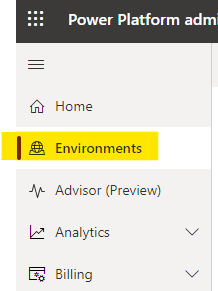
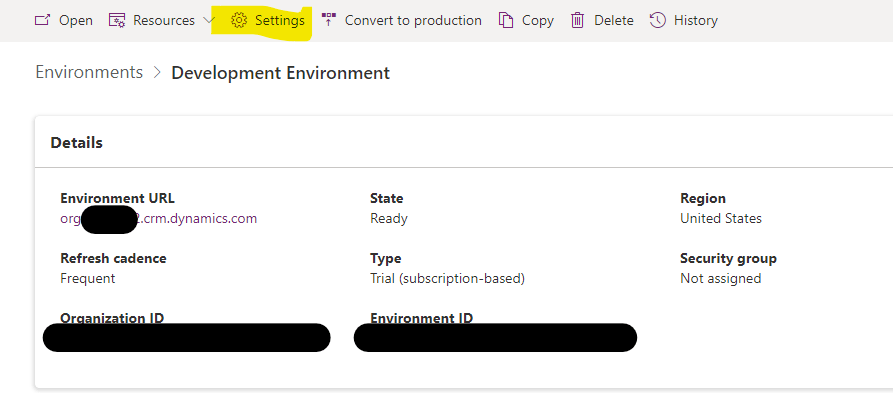
- Click on “Settings”.
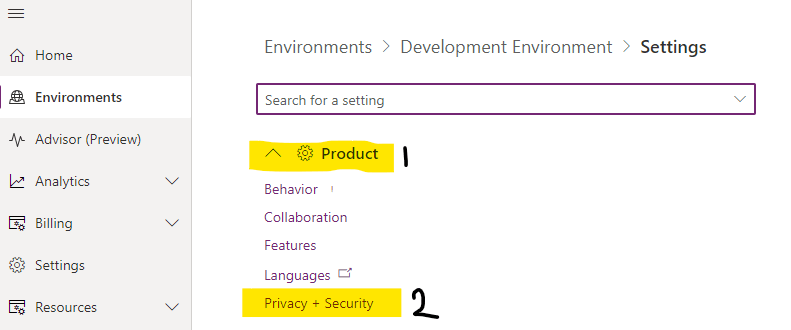
- Click on “Product” and Select “Privacy + Security”.
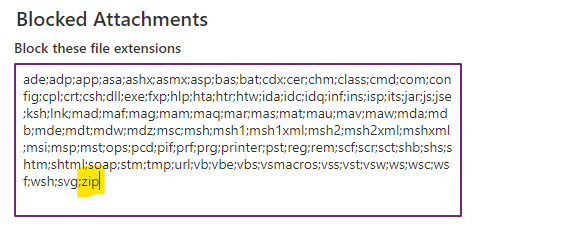
- Here you will see all the default blocked attachments under Blocked Attachments >> Block these file extensions.
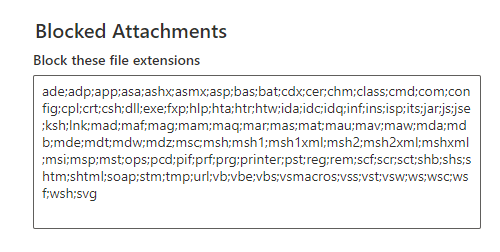
- Here you may add the extension which you want to block. In our example, we are blocking zip files to be added hence add “;zip” and Save the settings from bottom right corner.
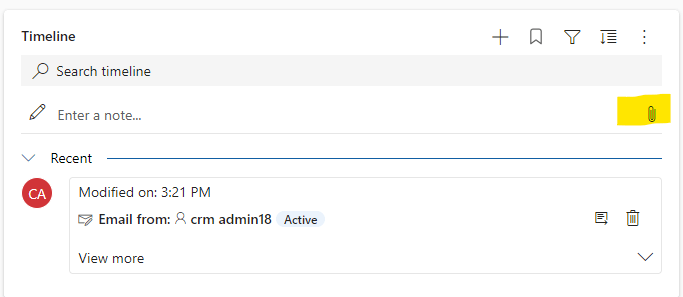
- Now, open any entity where timeline section has been enabled. Here, I have selected “Accounts” entity’s record. Then click on “Attachment” icon as shown below:
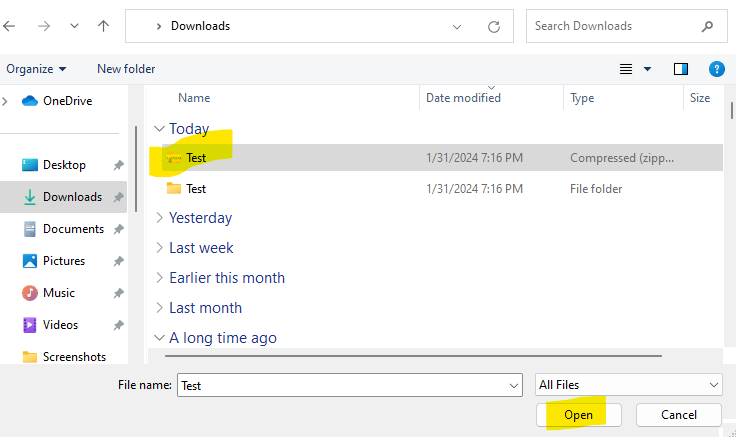
- Select any zip file and click “Open”.
- Click on “Add note” option.
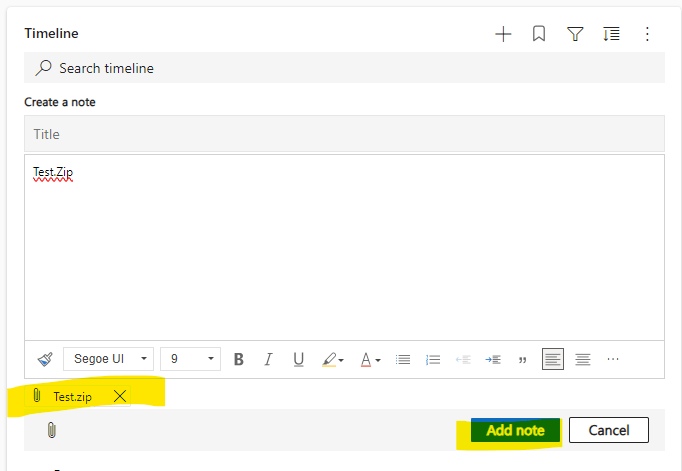
- When you click on “Add note” option, following error message will be displayed.
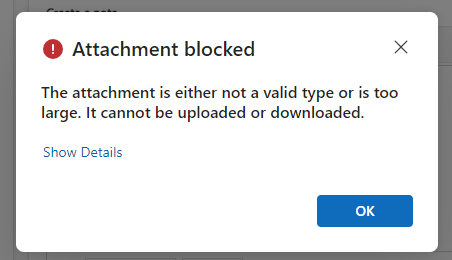
By following above steps, you will be able to block any attachment extensions. You can try to block any other attachment extension by repeating same steps.
Hope it helps!
Thanks for reading!
#Let’s_Learn_Together
Stay tuned with Power Spark for continuous learning.
Thank you 🙂

 Power Spark
Leave a comment