
Namaste Everyone,
Hope you all are doing good!
Scenario: If we want to know everything what’s happening around our “Priority/Critical” customers then we can go to their specific records and check the details. But what if we do not want to manually open the records each time to check the status/details? Well, Microsoft has given us a solution, and this is where the “Follow” functionality comes in.
As we all know, we can “Follow” and “Unfollow” records of out of the box entities example- Accounts, Contacts, Case, Leads etc. in Dynamics CRM as shown in below image:

Currently, “Follow” button is visible and as soon as you will click on “Follow” button, you will see “Unfollow” button to unfollow the record. Above is the example of “Account” entity record.
But do you know you can also “Follow/Unfollow” records of custom entities by enabling “Activity Feed” for the specific table. How? Let’s learn!
Here, we have created a custom entity called “Ornaments” and as shown below, currently “Follow” option is not visible.

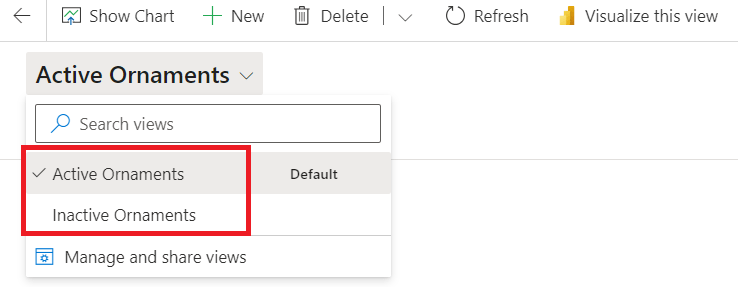
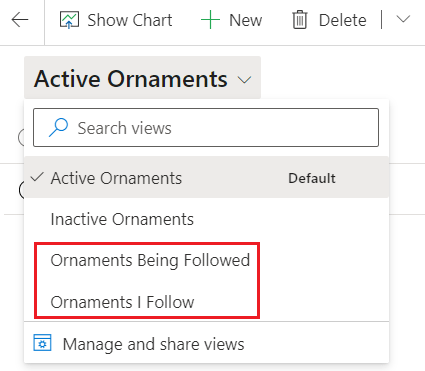
Also, you may only see 2 views under the grid of this custom entity i.e., Active Ornaments and Inactive Ornaments. Once you enable this feature, you will be able to see more views. Example – “Ornaments I Follow” and “Ornaments Being Followed”.
Please follow below step by step procedure to set up the functionality:
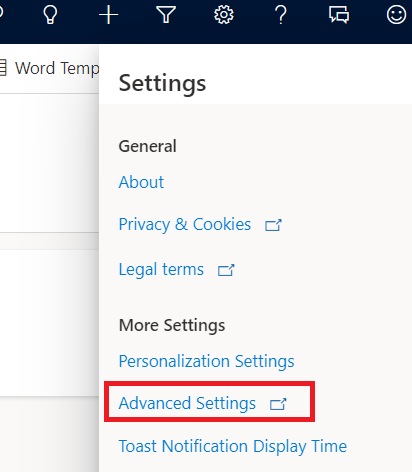
- Open your app wherein you have added your custom entity then click on gear icon at the top-right corner of your screen and then “Advanced Settings”.
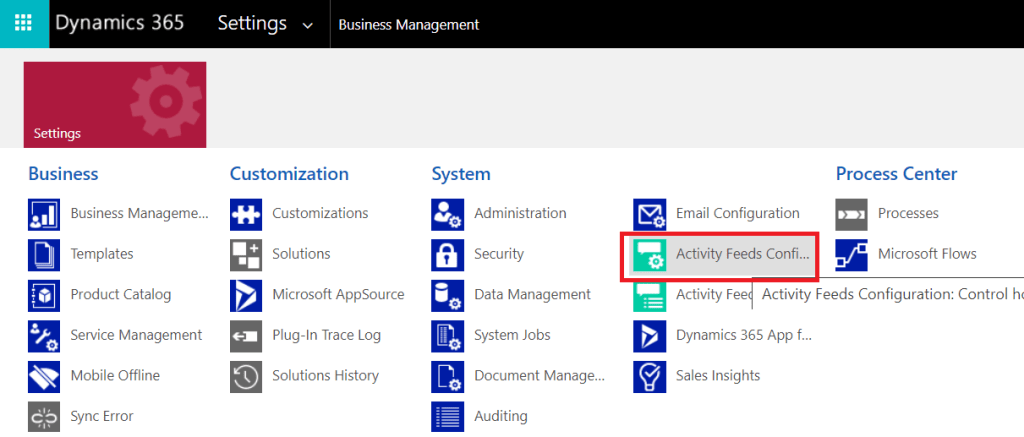
- Click on “Activity Feeds Configuration” under System Settings.
- Look for your custom entity for which you want to set-up “Follow/Unfollow” functionality. Here, I am looking for “Ornaments” which currently is in “Inactive” state.
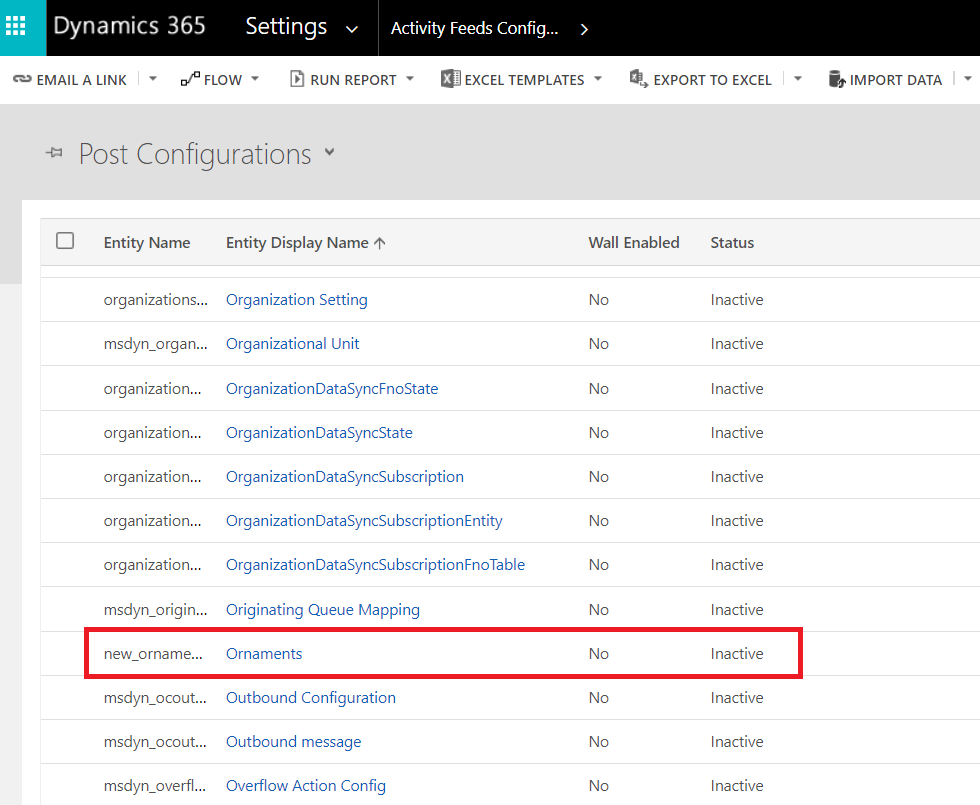
- Now, select the entity and click on “Activate”.
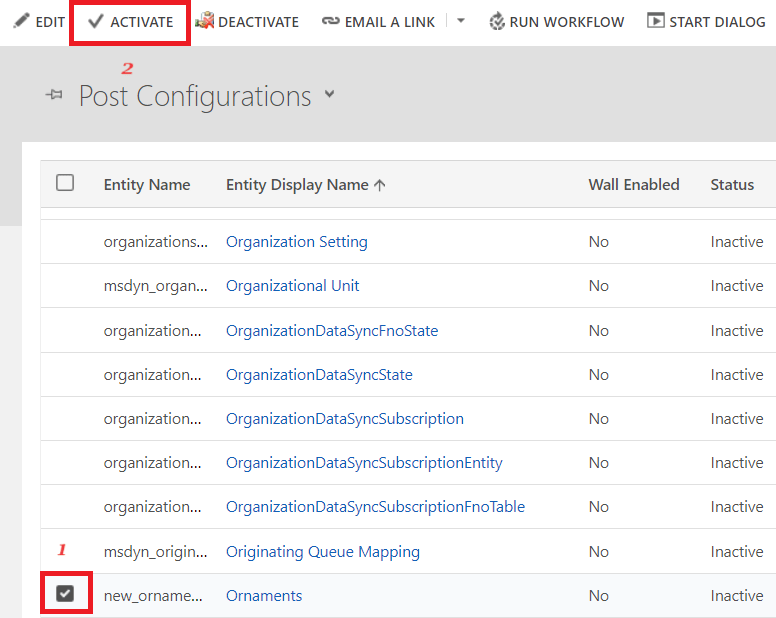
- A confirmation pop-up will appear, click again on “Activate” to confirm.

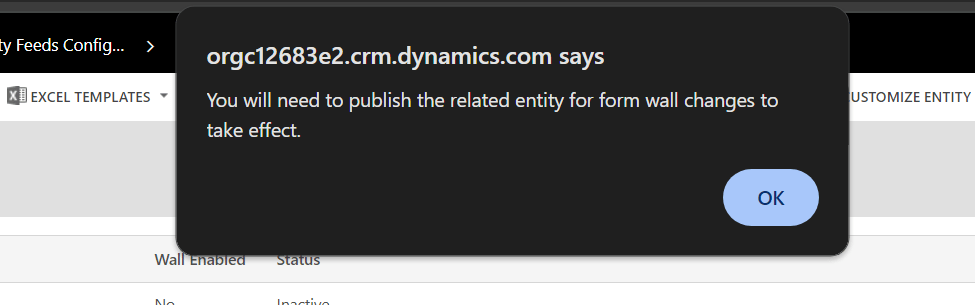
- Now, you will see an alert to publish your entity. Go to the solution and publish your Custom entity to reflect the changes.
- Now, if you will open grid, you will be able to see two more views i.e., “Ornaments I follow” and “Ornaments Being Followed” as shown below:
- Now, open a record of “Ornament” entity, you will be able to see “Follow” button as shown below:

Note: If you still won’t be able to see the “Follow” button then you need to check the “Follow” privileges on each security role and check a different security privilege within the security role for “Post configuration”.
Hope it helps!
#Let’s_Learn_Together
Stay tuned with Power Spark for continuous learning.
Thanks for reading!


 Power Spark
Leave a comment