
In this blog post, we will learn how to use navigateTo() method in JavaScript.
navigateTo() method is a built-in method that allows you to navigate a specified table list, table record, HTML web resource, or custom page.
This method can be useful when you want to programmatically redirect the end user to a different page or resource based on some logic or condition. The navigateTo() method takes an object as a parameter, which has two properties: pageInput and navigationOptions
“pageInput” is an object that defines the page or resource to navigate to. It has the following properties:
- entityName
- entityId
- pageType
- data
“navigationOptions” is an object that defines how the navigation should be performed. It has the following properties:
- target
- height
- width
- position
Requirement:
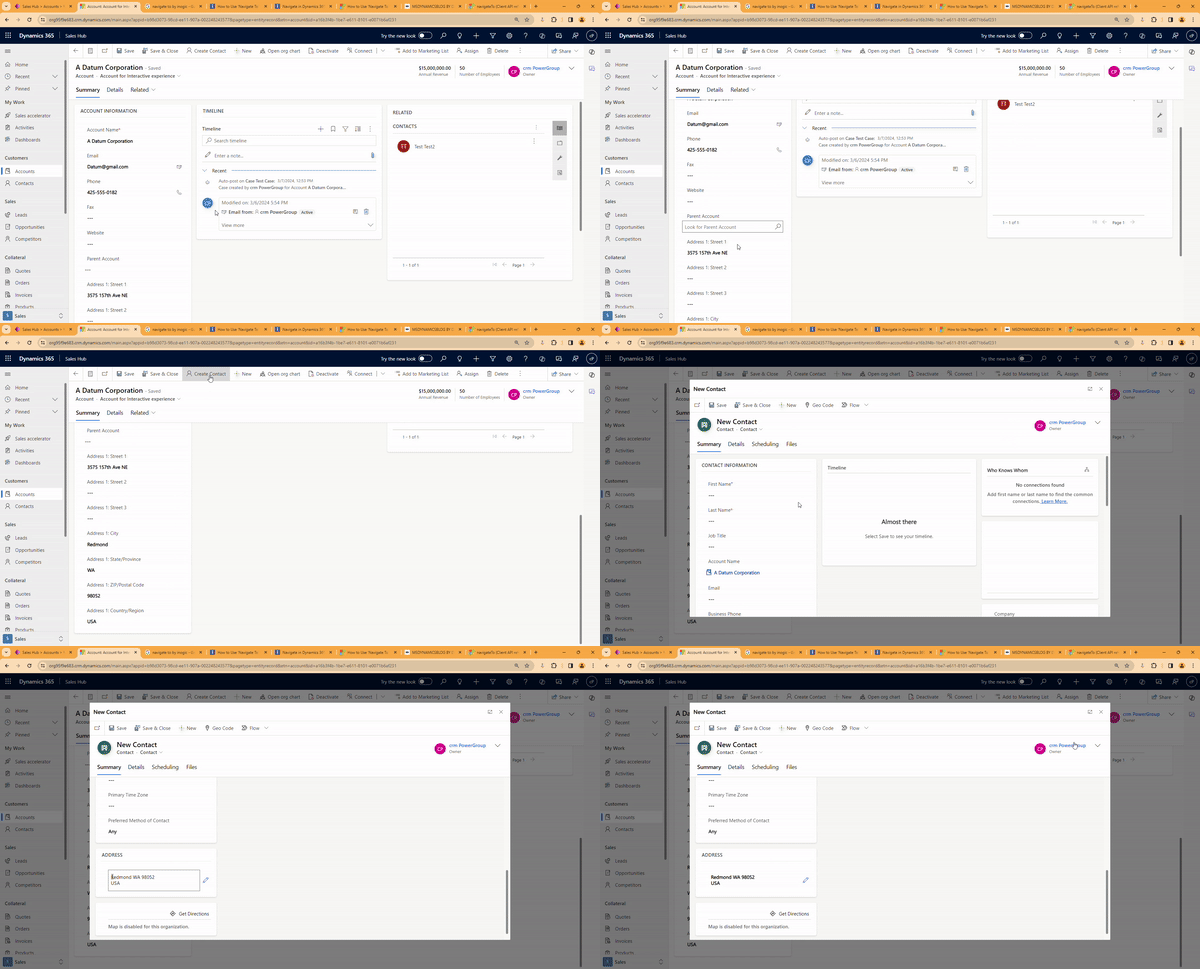
Navigate the contact form to create new contacts by the command bar “Create Contact” and pre-populate the address information.
Implementation:
To achieve this, we are using the navigateTo() method for navigation in Java script.
Here I’m using an “Account” entity and adding a command bar “Create Contact”.
Note: This method is supported only on Unified Interface.
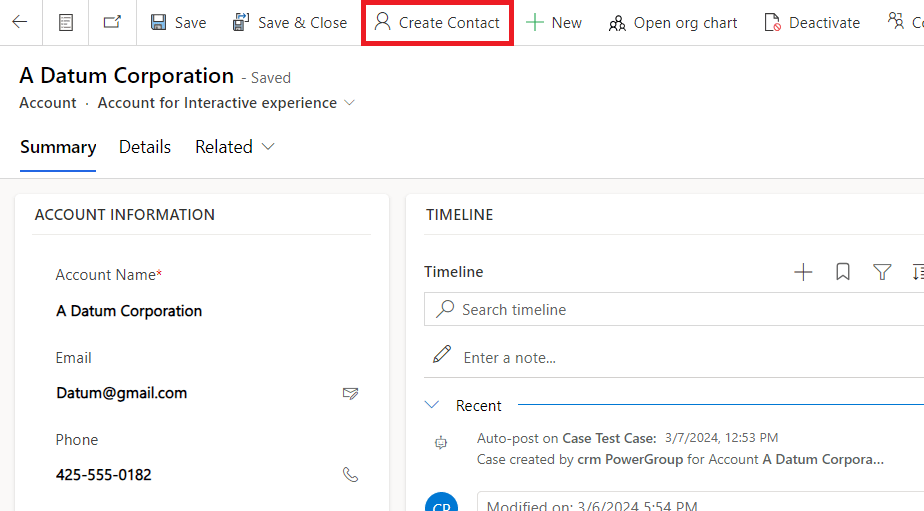
Whenever the user creates a new contact record from the command bar, it will navigate the contact form and pre-populate the data(address information).
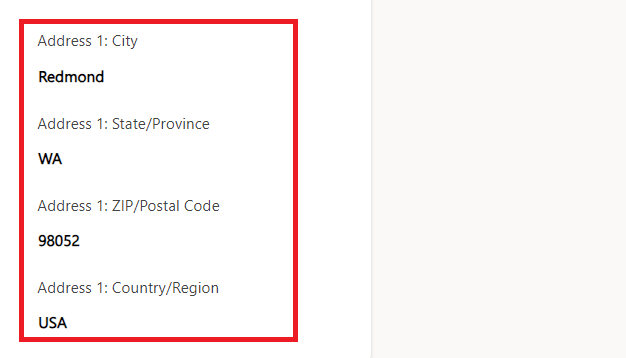
Here I’m implementing this requirement via the “navigateTo()” method via java script.
Java Script Code :
function NavigateContactForm(PrimaryControl)
{
//get the formContext from the PrimaryControl.
var formContext = PrimaryControl;
//Get the Guid of the current record.
var id = formContext.data.entity.getId();
var entityname = formContext.data.entity.getEntityName();
var accountname = formContext.getAttribute(“name”).getValue();
//get the Address information of the current record.
var city = formContext.getAttribute(“address1_city”).getValue();
var state = formContext.getAttribute(“address1_stateorprovince”).getValue();
var postalCode = formContext.getAttribute(“address1_postalcode”).getValue();
var country = formContext.getAttribute(“address1_country”).getValue();
//pre-populated data
var prePopulateData = {
“address1_city”: city,
“address1_stateorprovince”: state,
“address1_postalcode”: postalCode,
“address1_country”: country,
“parentcustomerid”: {
“entityType”: entityname,
“id”: id,
“name”: accountname
},
};
//define the type of page to navigate
var pageInput = {
pageType: “entityrecord”,
entityName: “contact”,
data: prePopulateData
};
var navigationOptions = {
target: 2,
height: {
value: 80,
unit: “%”
},
width: {
value: 70,
unit: “%”
},
position: 1
};
//navigates the form.
Xrm.Navigation.navigateTo(pageInput, navigationOptions).then(
function success(result) {
//custom logic
},
function error() {
// Handle errors
});
}
Output :
Hope it helps!
Thanks for reading!
Stay tuned with Power Spark for continuous learning.
Thank you 🙂

 Power Spark
Leave a comment