
Namaste Everyone,
The Use Case:
I have a word file stored in my SharePoint and I need to update some dynamic values within that file. How can I accomplish this?
Change content control properties of word file:
To update the content of the word file, you’ll have to incorporate content control properties within the document. To do this, first select the text you want to replace. Then, go to the Developer tab and select “Aa” (Plain Text Content Control).
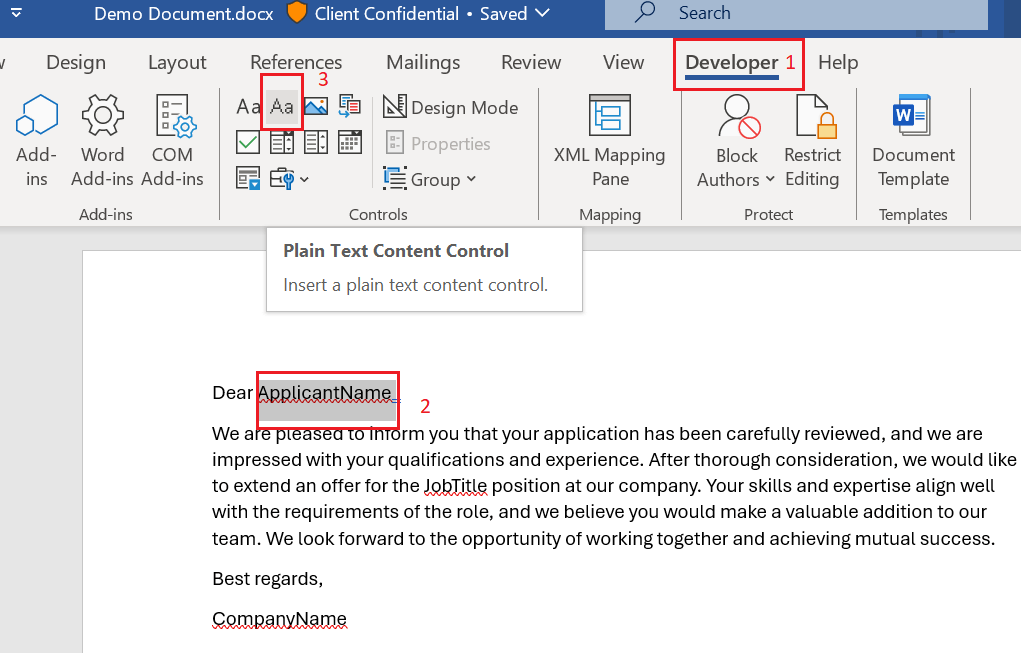
Afterward, select “Properties” and fill out the Title and Tag fields.
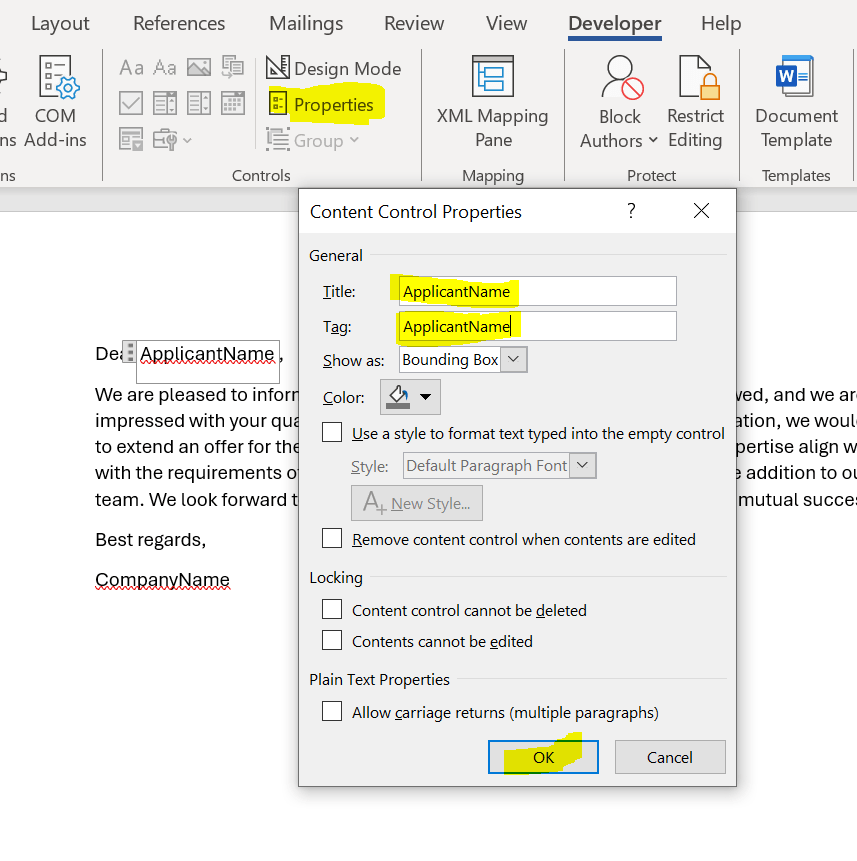
In my document, I replaced “ApplicantName” and assigned the same text to both the Title and Tag fields. I did the same for “JobTitle” and “CompanyName.”

After completing this process, I uploaded the Word file to SharePoint.
Steps for the Power Automate cloud flow:
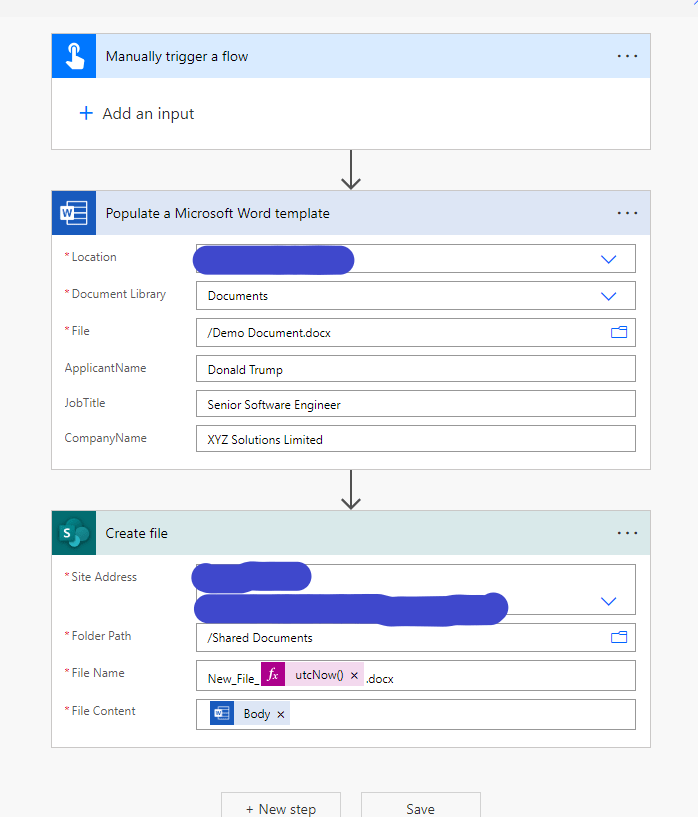
I’ve initiated an instant cloud flow and opted to manually trigger it.

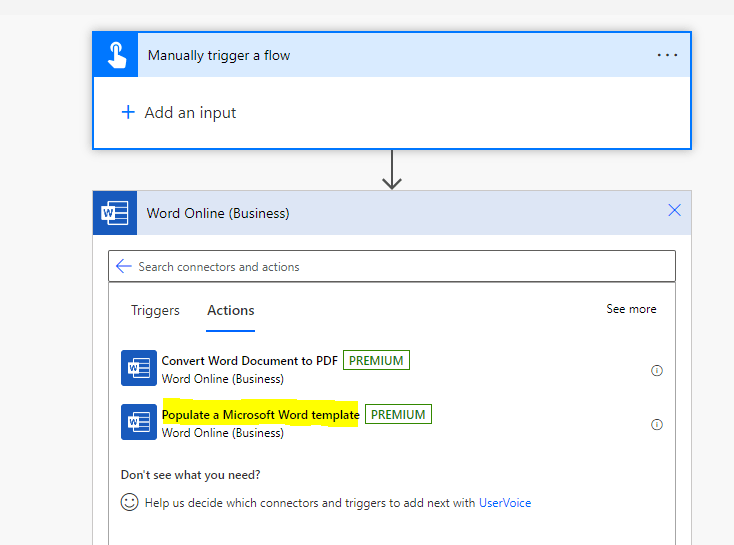
I proceeded by incorporating the premium connector ‘Populate a Microsoft Word template’ into the setup.
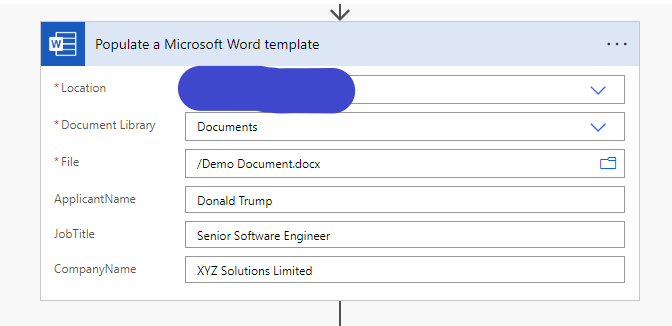
Now, in the location field, choose your SharePoint site, select the Document library, provide the file path in the file field. Once selected, you’ll see the names of the content controls you created in your Word file. For instance, ApplicantName, JobTitle, and CompanyName are three controls I created, and they’re being populated after that I added dynamic values to those fields in the flow. You can also get dynamic values from Dataverse or SharePoint and can add those value to these fields as well.
Now, it’s time to generate a file with the updated values. To accomplish this, opt for the SharePoint action ‘Create file’, and provide the site address, folder path, along with a new file name (I’ve included the current date and time for uniqueness). Subsequently, in the file content section, select the body of the previous action.
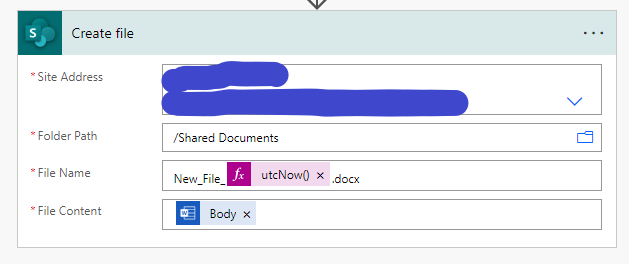
Here’s the final snapshot of both our newly created document and the flow.

Hope it helps!
Thanks for reading!
Let’s_Learn_Together
Stay tuned with Power Spark for continuous learning.
Thank you 🙂

 Power Spark
Leave a comment