
Hey everyone,
In our Part-1, we’ve covered creating dynamic content in word files. Now, we’re moving forward by creating a Power Automate flow to automatically replace placeholder tags with dynamic values.
Steps for the Power Automate cloud flow:
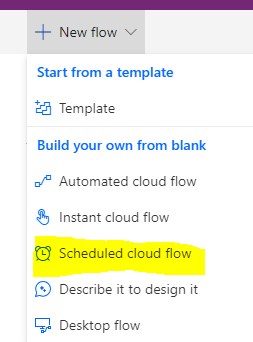
Here, I am creating Scheduled cloud flow as we need to fetch the contacts and create a separated file daily.
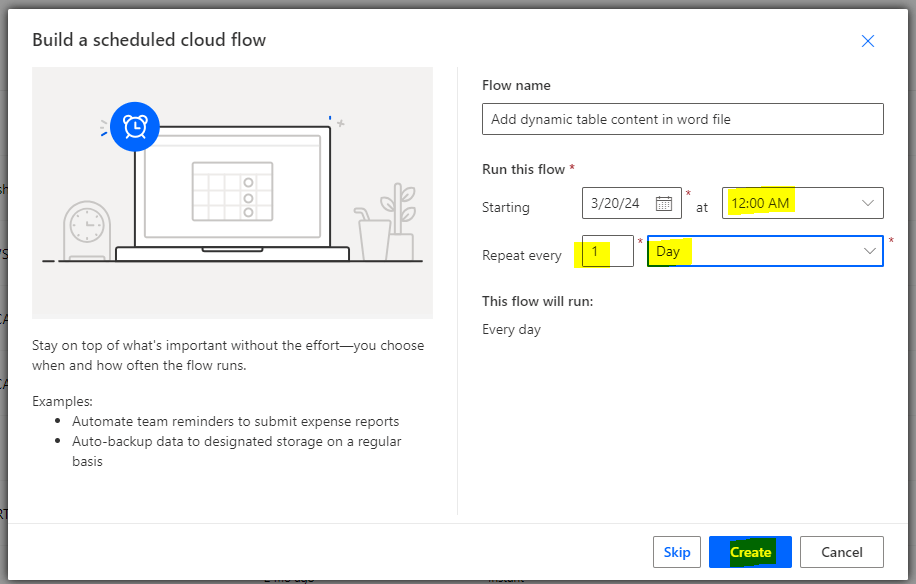
Starting from midnight on March 20, 2024, the process will begin and repeat every day thereafter. Do this changes are per below snapshot and create the flow.
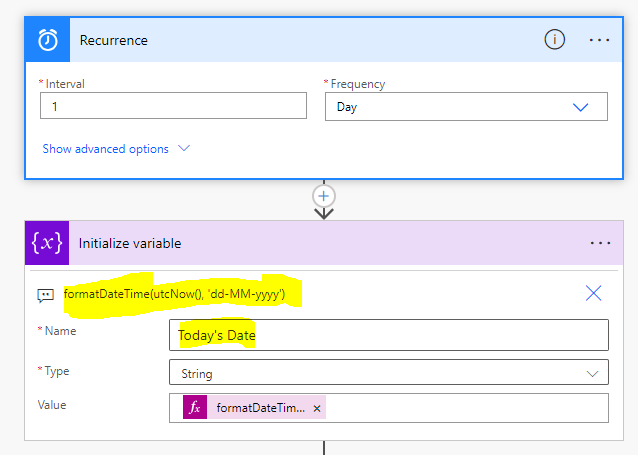
Now I initialize a variable name “Today’s Date” and assign today’s date to it using below expression:
formatDateTime(utcNow(), ‘dd-MM-yyyy’)
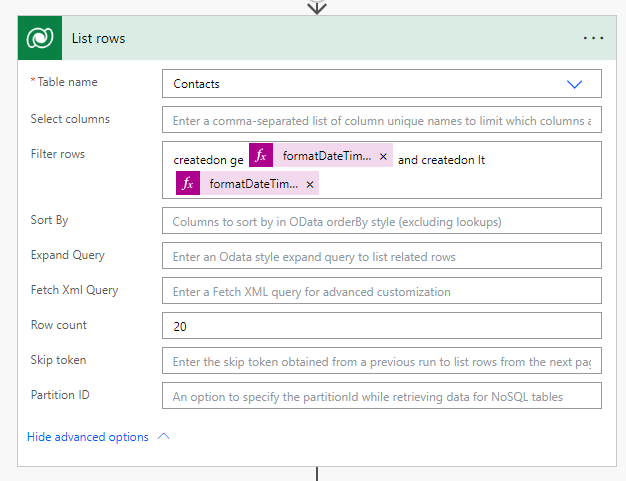
Now I am listing out contact details from Dataverse. I’ve chosen the “Contacts” table and applied below expression to filter out only those rows that are created today.
createdon ge @{formatDateTime(utcNow(), ‘yyyy-MM-ddT00:00:00Z’)} and createdon lt @{formatDateTime(addDays(utcNow(),1), ‘yyyy-MM-ddT00:00:00Z’)}
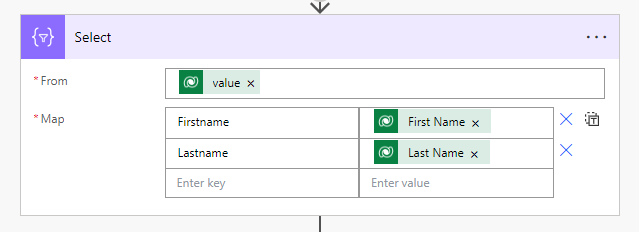
Now add another Action “Select” and Map the fields with the required details.
In the map, I’ve matched the title name(“Firstname”) provided in the document with the first name obtained from the previous step and did the same for Last name as well.
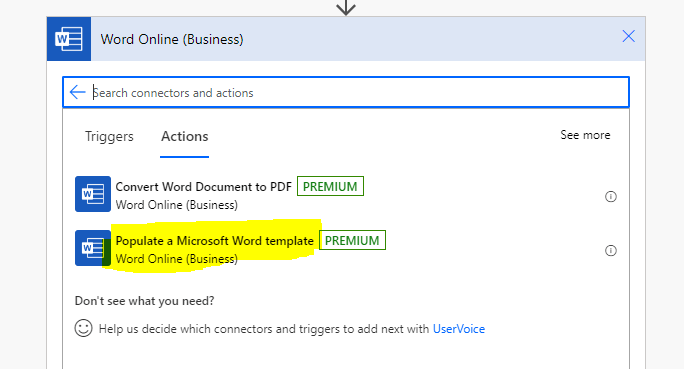
Now add another action, “Populate a Microsoft Word template”
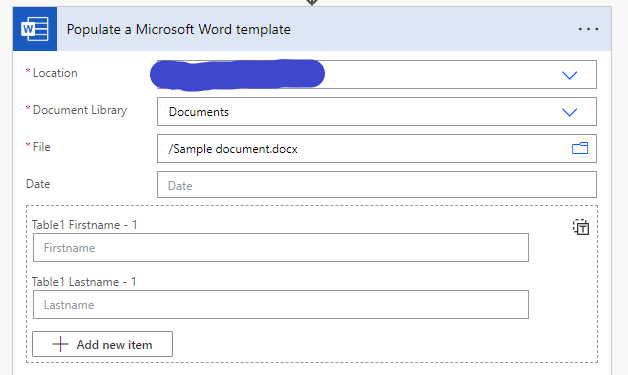
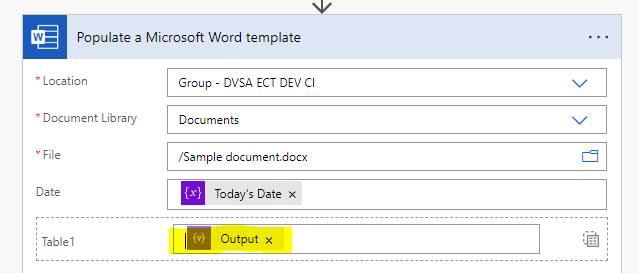
Now select the file from the SharePoint, In Location select your site name, select Document Library and file path, one you select all three options your content controls will populate like below:
Add today’s date variable in Date field and click on highlighted icon:
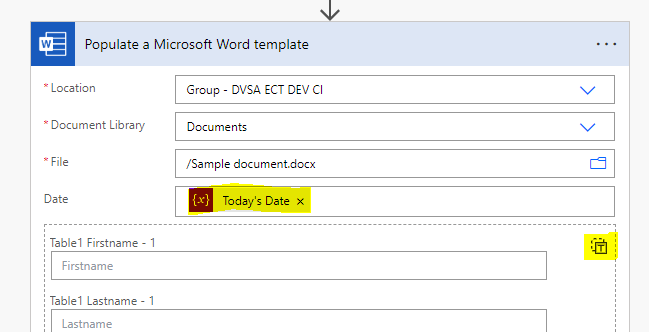
Now add the output of above Select action to the Table1 field.
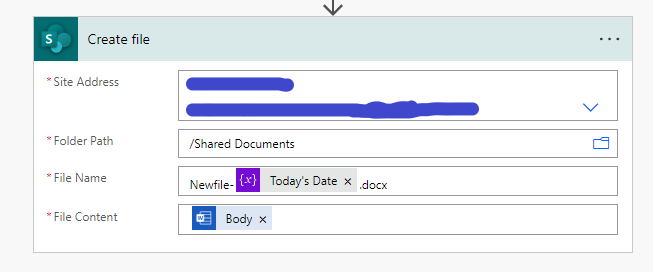
Now select another action “Create File”, provide site address and folder path where you want to store the newly created file, in the file name I have added today’s date as well for unique identification. And pass body of previous action to the file content.
Now run your flow manually to see the magic.
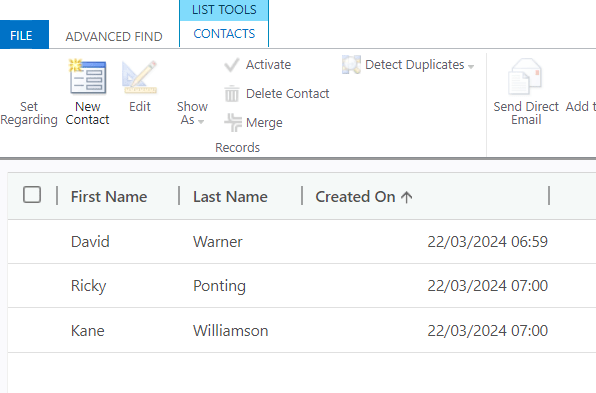
As per advance find, I am having only three contacts created today, only these 3 contacts should be there in the document.
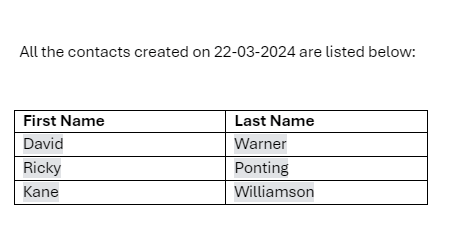
Content of the newly created document:
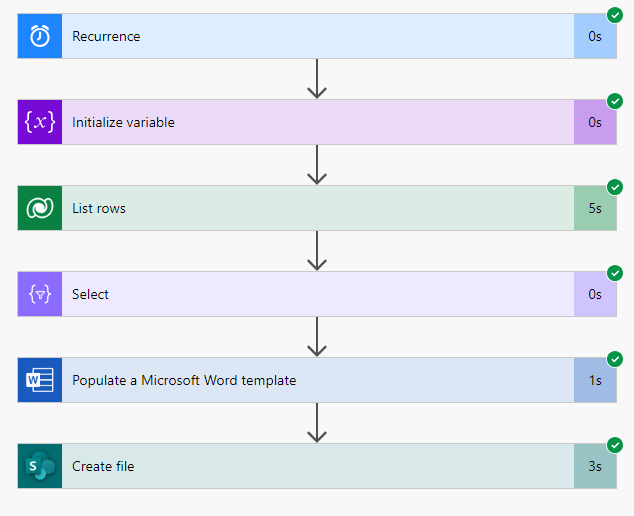
Final snapshot of the flow:
Thank you for reading! Your time and attention are greatly appreciated. If you found this blog helpful or enjoyable, please consider sharing it with others. Until next time, happy reading!
Hope it helps!
Let’s_Learn_Together
Stay tuned with Power Spark for continuous learning.
Thank you 🙂

 Power Spark
Leave a comment