
Hello everyone,
Hope you all are doing great!
In this blog, we will explore how to use cloud flow to transfer records between environments in D365. We’ll share some well-known methods for data transfer and focus on utilizing cloud flow for this purpose.
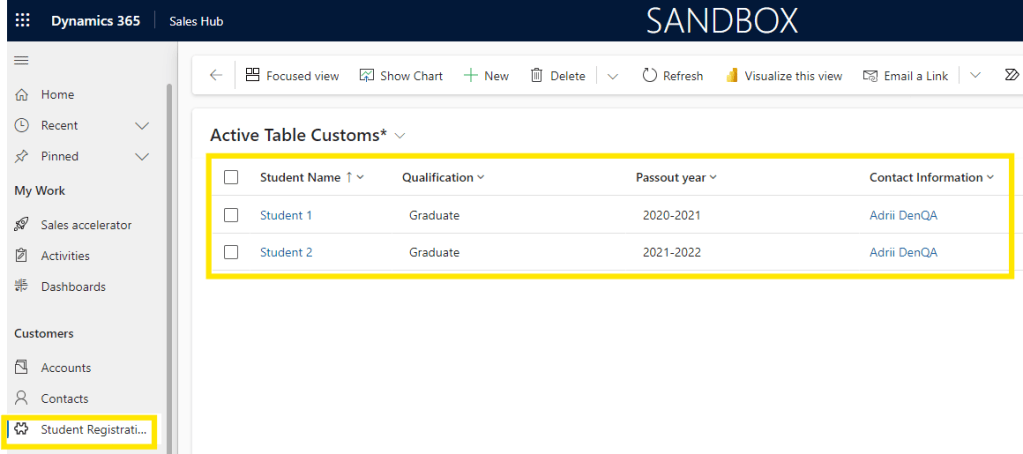
So, here I have one table named “Student Registration” in “developer” environment with two records which I want to transfer to another environment.
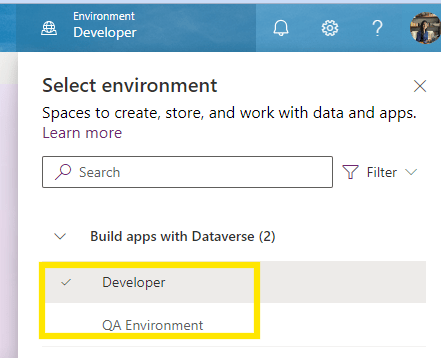
I have two environments one is “developer” environment and other one is “QA” environment. Here, we will transfer the above two records from “developer” environment to “QA” environment using cloud flow.
Let’s explore this step by step:
- Go to Power Apps.
- Select “Developer” environment.
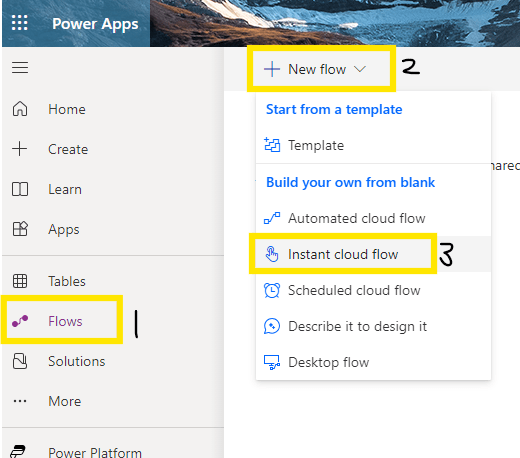
- Select “Flows” from left navigation then select “+New Flow” >> Instant Cloud Flow
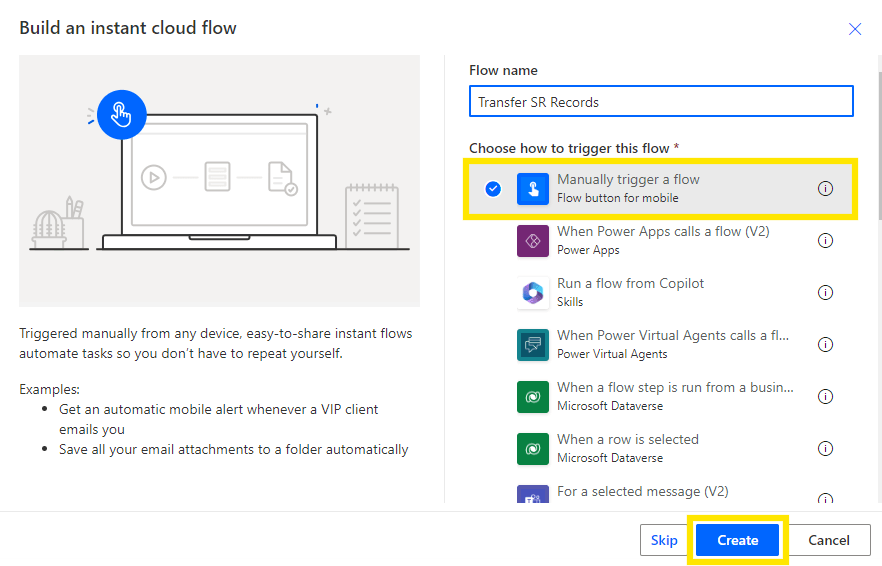
- Give name to your flow, select manually trigger a flow and then click on “Create” button.
- Now, add a new action “List rows from selected environment”.
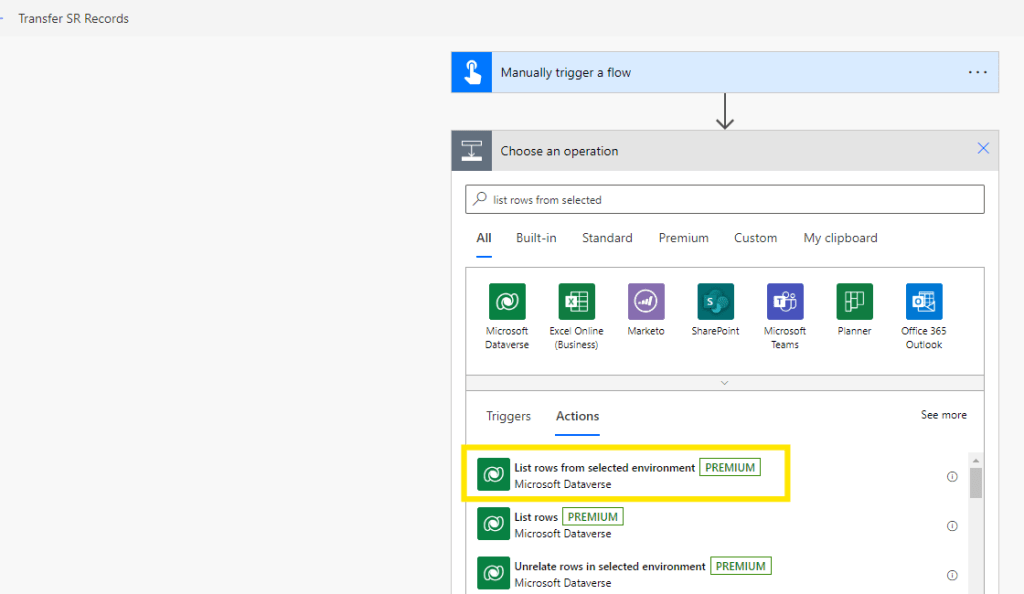
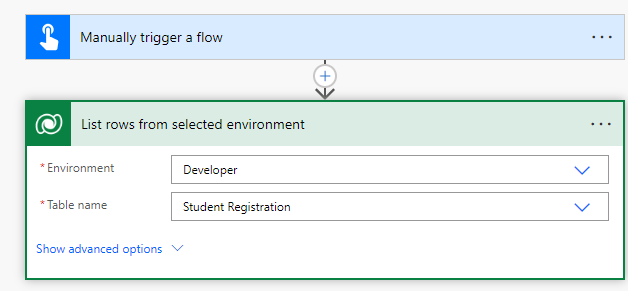
- Select “Developer” as environment and “Student Registration” as Table name as shown below.
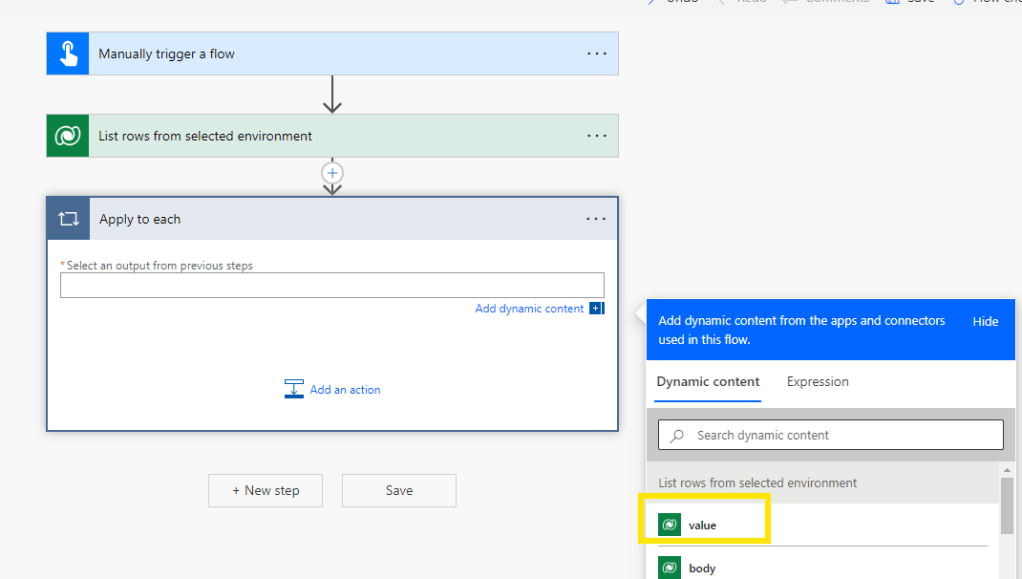
- Add an “Apply to each” control and select the “Value” property from the “List rows from selected records” action as illustrated below.
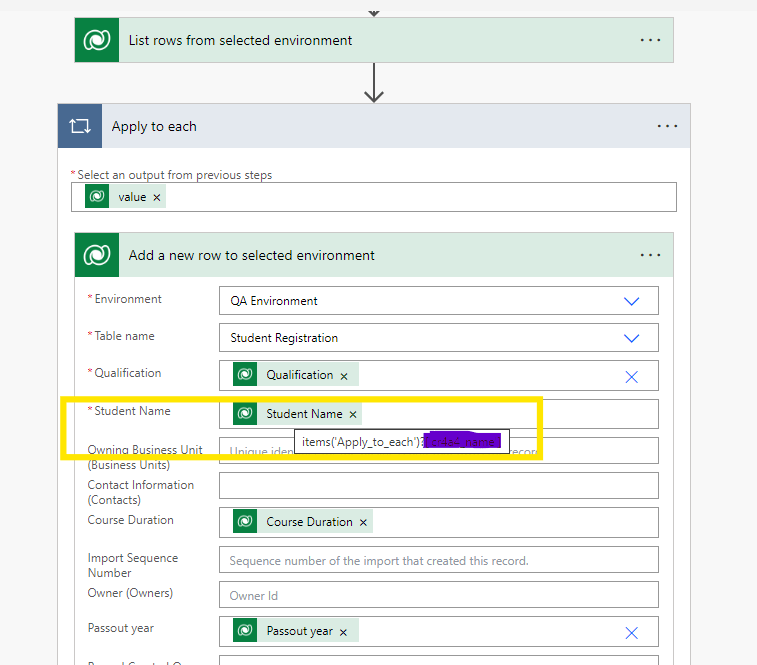
- Next, within the “Apply to each” action, add the “Add a new row to selected environment” action and specify the environment name (e.g. QA environment) and table name (e.g. Student Registration) and set the dynamic content from Apply to each in all the required columns from above step. (e.g. Student Name as Student Name)
- Save and test the flow. 😊
Output:
QA Environment before flow run:
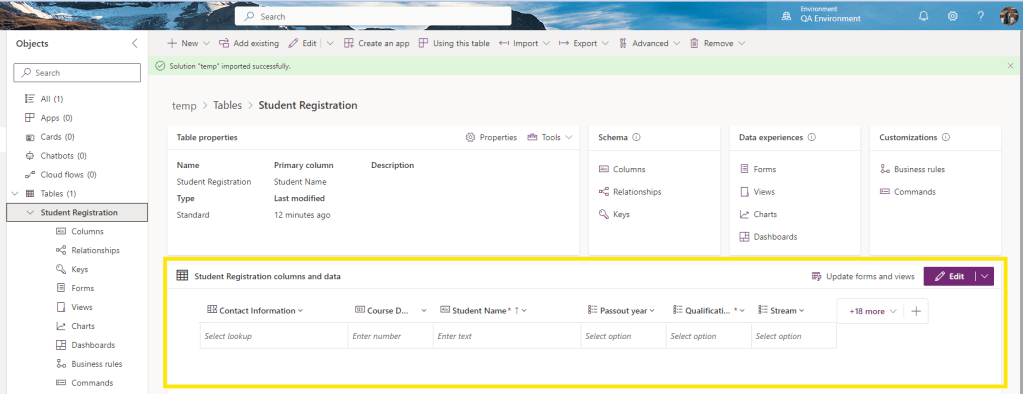
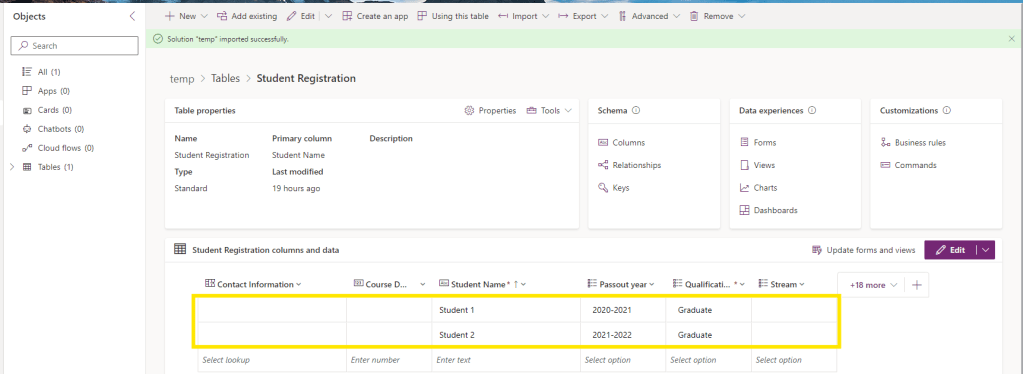
QA Environment after flow run: Here, above two records are moved from dev to QA environment.
Hope you found it useful!
#Let’s_Learn_Together
Thank you! 😊

 Power Spark
Leave a comment