

Hello everyone,
Hope you all are doing good!
In our previous blogpost, we learnt how to add a form your page. If you haven’t checked it yet. Click here to check it out!
In this blogpost we will explore-
- Add code components
- Enabling code components on form fields
Add Code components:
Below are the steps to add code components to your form.
- Goto Power Pages and select the site.
- Now, select the form we have created in our previous blog.
- Select any text field on the form then in the Properties pane, click on +Components >> Rich Text Editor Control
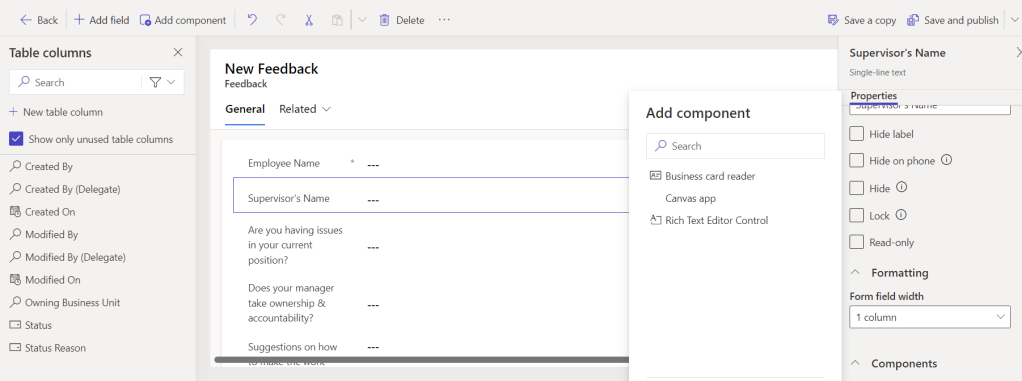
- Click on “Done” the “Save and Publish” your changes.
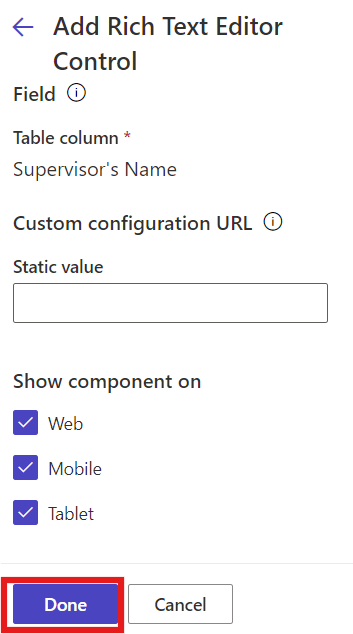
Enabling code components on form fields:
If a Dataverse form field is set up with a code component via the Data workspace or a model-driven app, you can activate this code component for use when the form is displayed on a webpage.
Below are the steps to enable a code component for your webpage.
- Click on the field and select “Enable code component” button.
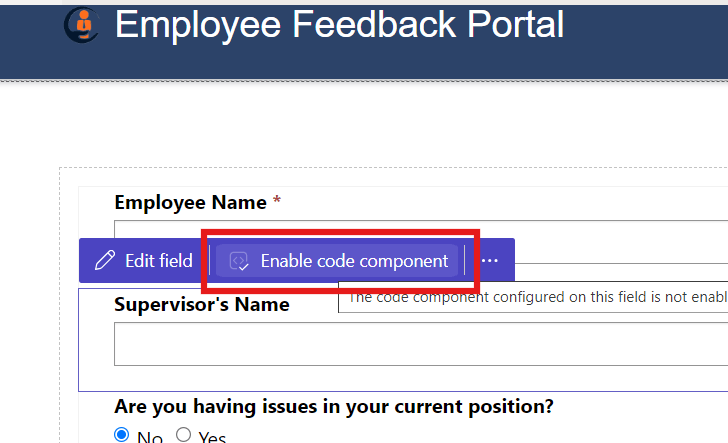
- Turn on toggle button to enable code component as shown below:
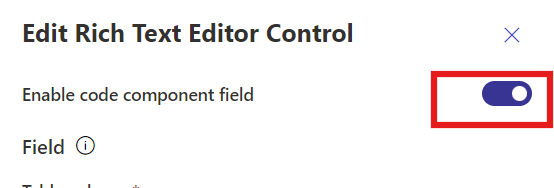
- Click on Done.
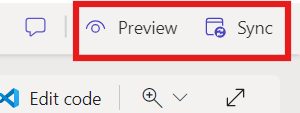
- Now, sync your changes and click on Preview to navigate to the page.
- You should see the “Rich Text Editor Control” enabled for the field.
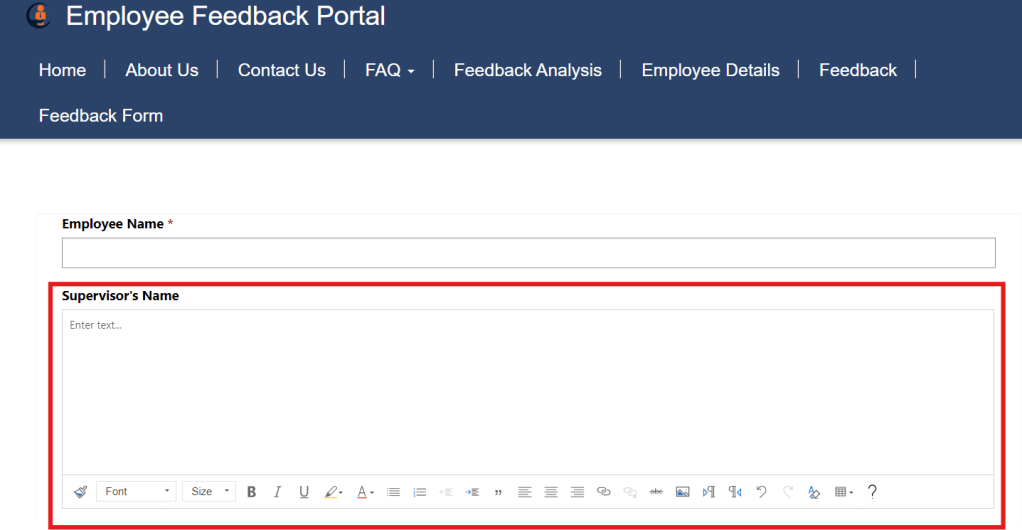
Hope by following the above step-by-step process, you get an idea to add code components on form.
In case of any queries, please leave a comment in the comments section and if you find this blog useful then do share it in your connections.
Thanks for reading!
Stay tuned with Power Spark for continuous learning.
#Let’s_Learn_Together #Microsoft #D365 #PowerPlatform #PowerApps #PowerPages #Learn

 Power Spark
Leave a comment