

Hello everyone,
Hope you all are doing well!
In a sequence of Power Pages learning, today we will learn how to work with multi-step form in Power Pages.
A multistep form in Power Pages allows users to input data across multiple sequential steps or pages rather than in one long form. This design improves the user experience by dividing complex data entry into manageable sections, making it easier to handle.
Firstly, we need to create Dataverse tables, columns and forms to use it in our multistep forms. Please follow the process of creating dataverse tables, columns and forms by following earlier blogposts. Below are the links:
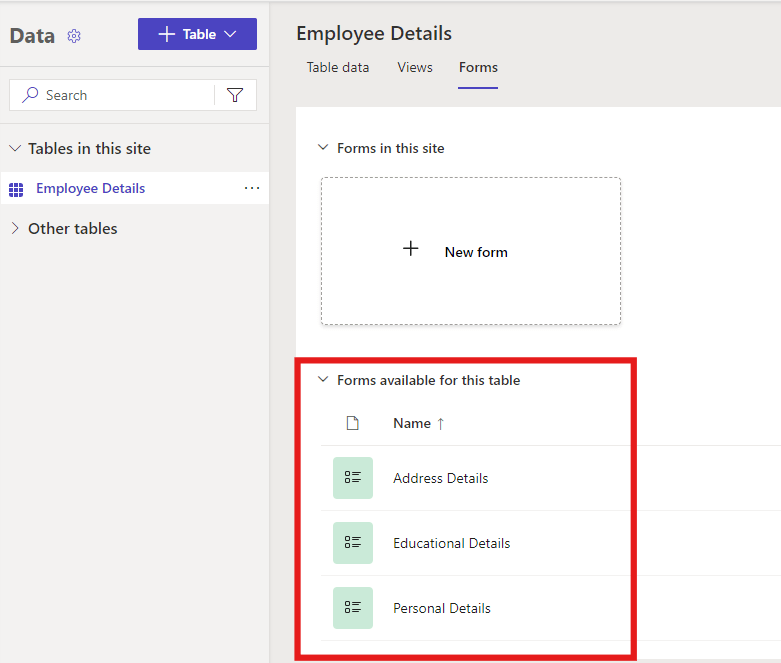
Here, I’ve created 3 forms – Personal Details, Educational Details and Address Details:
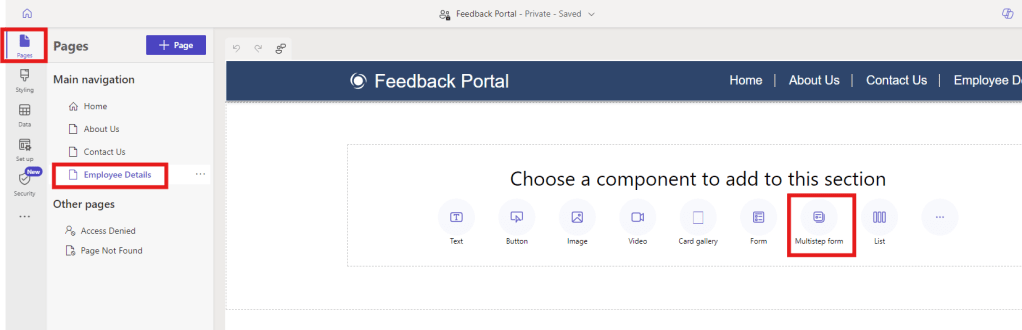
Once you’re done setting up tables, columns and forms, navigate to the Pages tab and select the page where you want to add multi-step form and select “Multistep form” option as shown below:
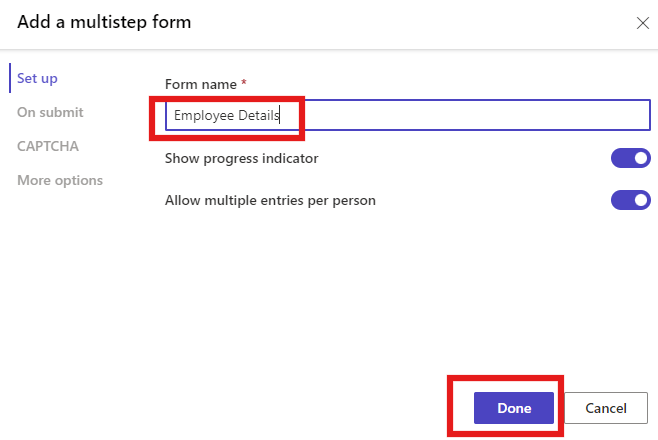
Give relevant name to your multistep form and click on Done.
Now, click on “Add the first step” option.

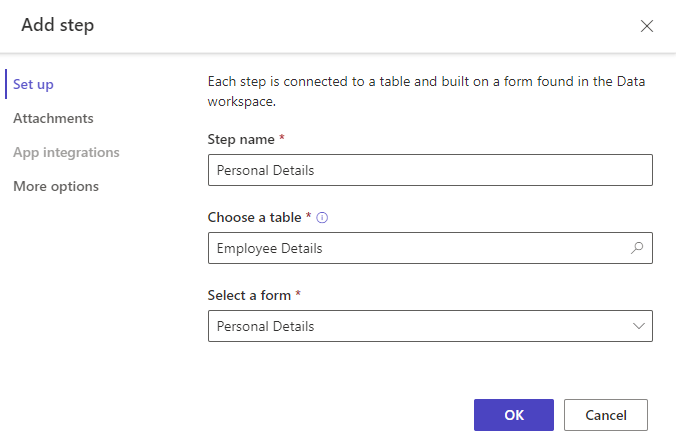
Enter the following information and click OK:
- Step Name: Personal Details (Give relevant name to this step)
- Choose a table: Employee Details (Select the table which you have configured earlier)
- Select a form: Personal Details (Select the form which you want to show at the first step)
Now, select the “+Add step” option again
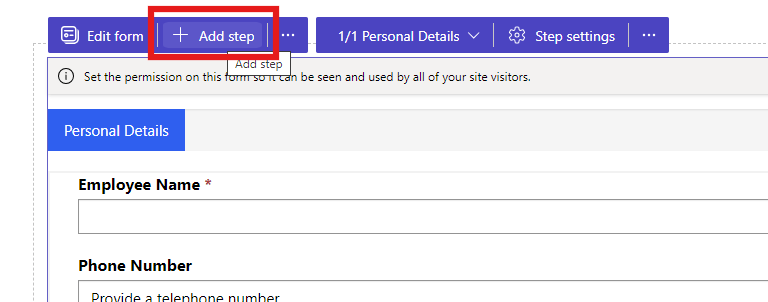
Repeat the same process. Enter Step name, select a table and select a form and click OK as shown below:
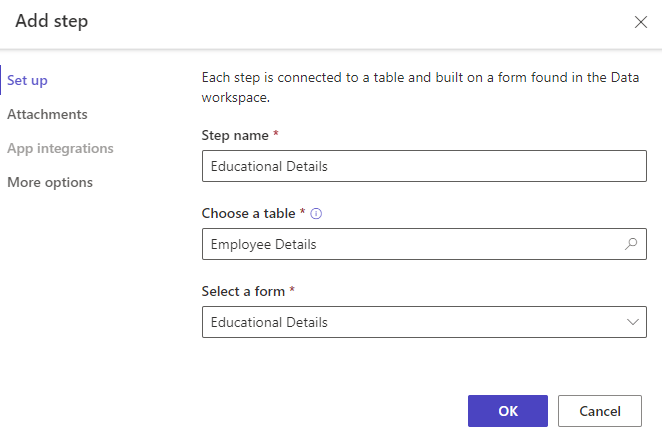
Again, click on “+Add step” and repeat the process:
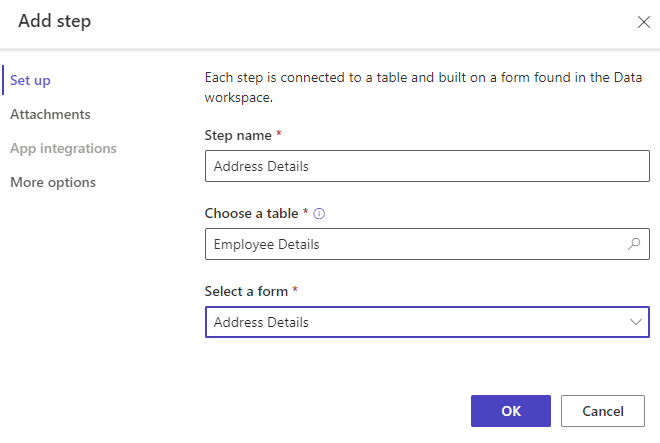
By following above steps, you can add multiple steps to your form, and it should look like this:
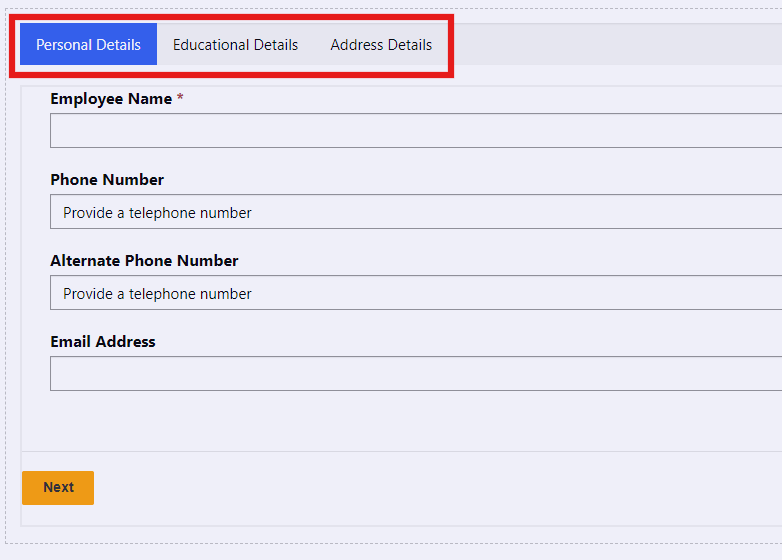
You’re all set up! Now, sync the changes and click on Preview to see the results. Here is how a process should look like.
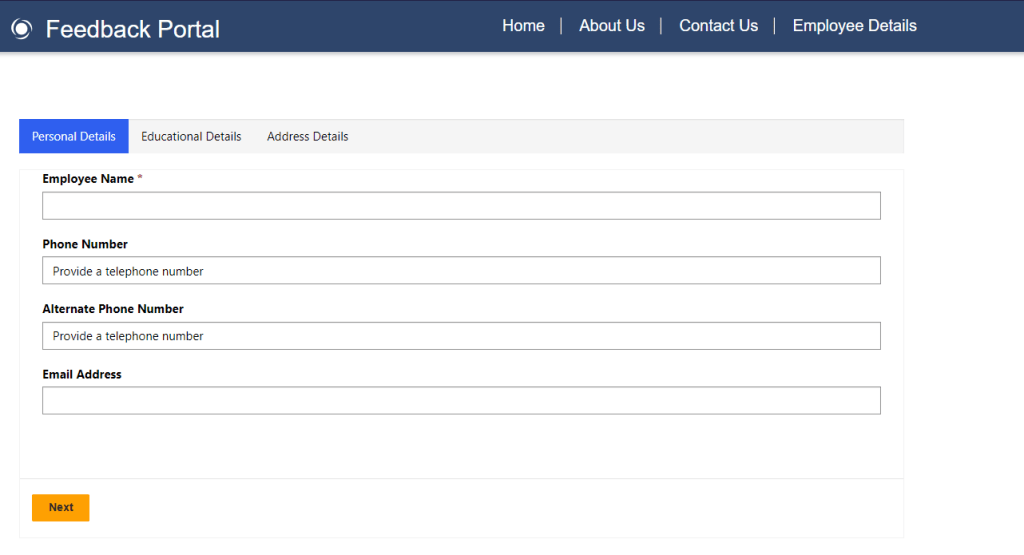
Hope by following the above step-by-step process, you get an idea how to create and add multistep forms.
In case of any queries, please leave a comment in the comments section and if you find this blog useful then do share it in your connections.
Thanks for reading!
Stay tuned with Power Spark for continuous learning.
#Let’s_Learn_Together #Microsoft #D365 #PowerPlatform #PowerApps #PowerPages #Learn

 Power Spark
Leave a comment