

Hello everyone,
Hope you all are doing good!
Power Fx is a versatile low-code language that empowers you to create dynamic content and logic within your Power Pages. Whether you’re just starting out or you’re a seasoned developer, Power Fx can help you craft interactive and personalized web experiences.
Power Fx is a general-purpose, strongly typed, declarative, and functional programming language. Its syntax is designed to be user-friendly, resembling Excel formulas.
In this blog post, we’ll dive into how to get started with Power Fx in Power Pages.
Follow below steps to add Power Fx formula in textbox in Power Pages:
- Goto Power Pages.
- Select the site and click on “Edit” from Active sites section.

- Select the textbox where you want to add Power Fx formula and click on “Fx”.

- A formula bar will appear at the top. Select the “Text” in dropdown

- Type =Concatenate(“Welcome “, User.FullName, “, Have a good day!”) in formula bar.
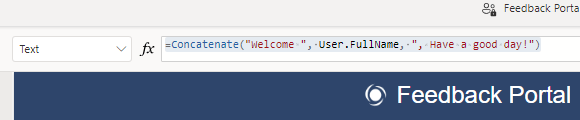
- Click on “Save”.

Now, Sync and Preview your changes. As soon as you will login to the Portal, you should see a message like this with your name.

Power Fx in Power Pages unlocks endless opportunities for crafting dynamic and interactive web experiences. With this low-code language, you can effortlessly create personalized and data-driven content. Begin experimenting with Power Fx today and discover how it can enhance the functionality of your Power Pages!
I hope by following the above step-by-step process, you get an idea how to add Power Fx in your Power Pages.
If you find this blog useful, please like, share and subscribe to my channel for continuous learning.
Thanks for reading. 🙂
#Let’s_Learn_Together #D365 #Msftadvocate #PowerPagesLearning #Microsoft #PowerApps #Learning


 Power Spark
Leave a comment