

Hello Everyone,
Hope you all are doing good!
In Power Pages, validations are essential for ensuring that data entered by users is correct, complete, and meets specific criteria. Using a combination of client-side and server-side validations, you can create a robust system in Power Pages that ensures data integrity, improves user experience, and adheres to business rules.
In this blogpost, we will learn how to add email validation in Power Pages using Regex (Regular expressions).
Valid email address format:
A valid email address comprises an email prefix, @symbol, the dot and an email domain, both of which must adhere to acceptable formats.
- The prefix is located to the left of the @ symbol, while the domain is found to the right.
- @ symbol separates the username and domain name
- The dot (.) separates the components of the address from the domain name.
For instance, in the email address test@gmail.com, “test” serves as the prefix and “gmail.com” is the domain.
Below are the steps to add email validations in Power Pages:
- Go to Power Pages Design Studio.
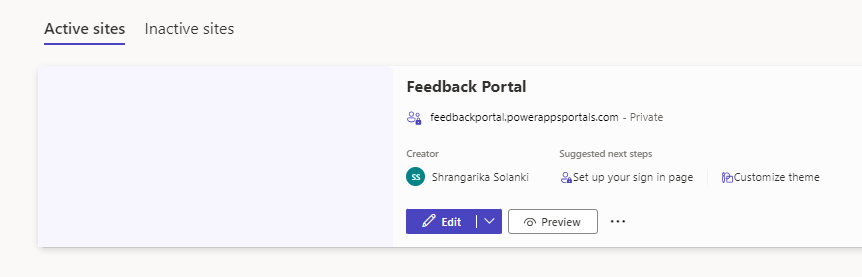
- Select the site you want to edit from Active Sites and click on Edit.
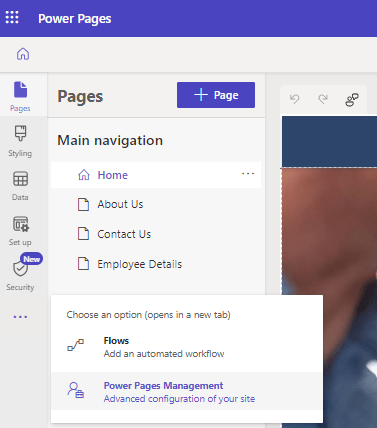
- Click on the three dots (…) in the left navigation and select Power Pages Management.
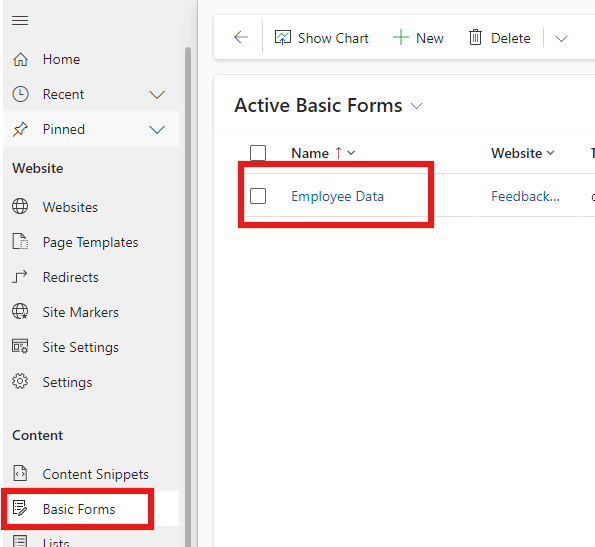
- Select the Basic Form from the site map and click on the record.
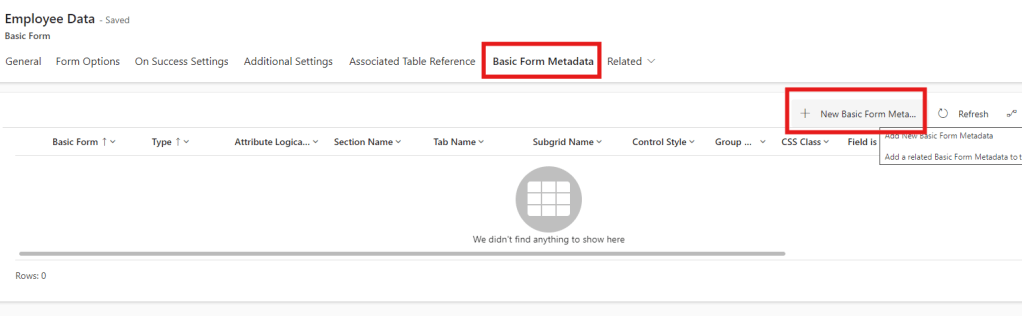
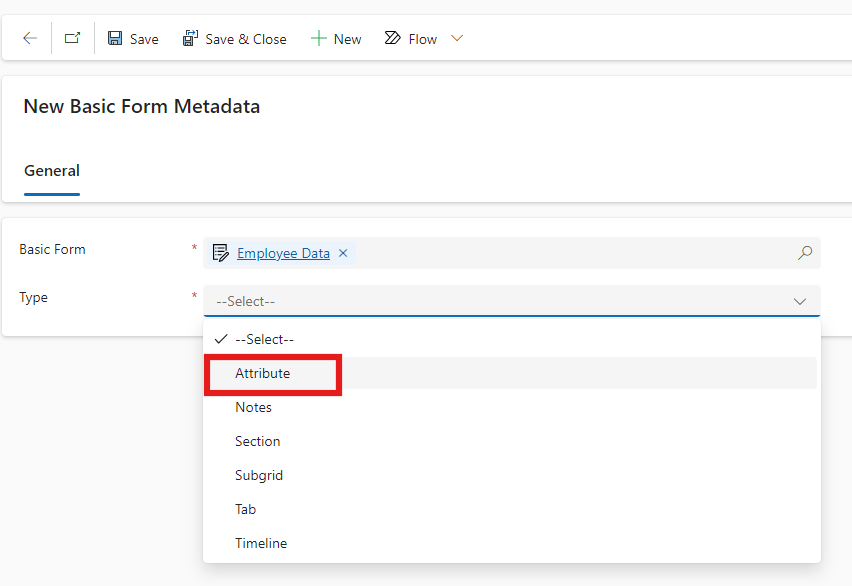
- Then navigate to Basic Form Metadata then click on New Basic Form Metadata.
- Select Attribute in type field.
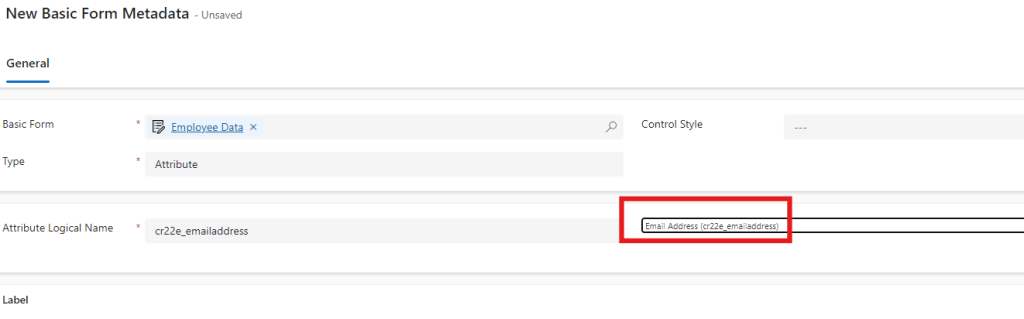
- Select email address field in the Attribute Logical Name dropdown.
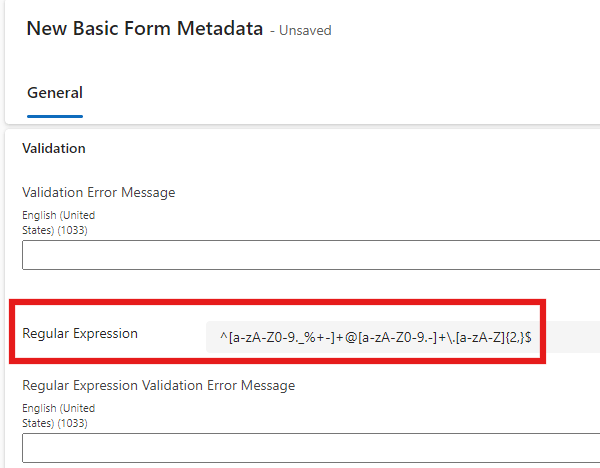
- Scroll down to the Validation section and paste your Regex formula in Regular Expression field. Here is the Regex of Email validation: ^[a-zA-Z0-9._%+-]+@[a-zA-Z0-9.-]+\.[a-zA-Z]{2,}$
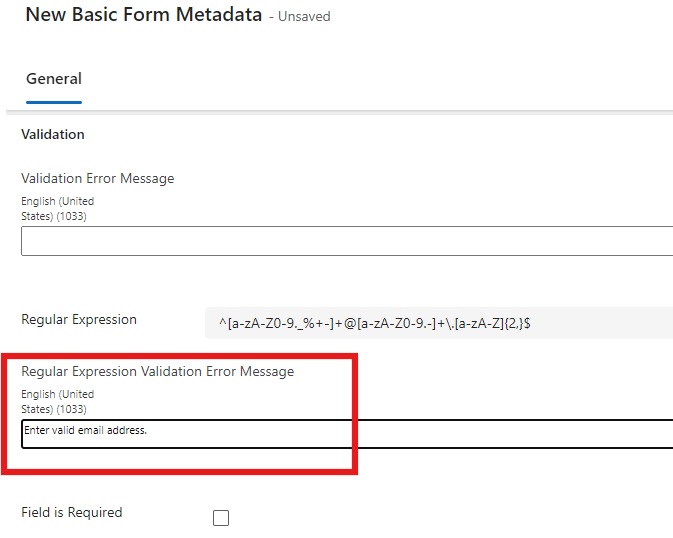
- In the Regular Expression Validation Error Message, you may enter the error message which will appear if user enters invalid email address under email address field.
- Now, Save & Close.
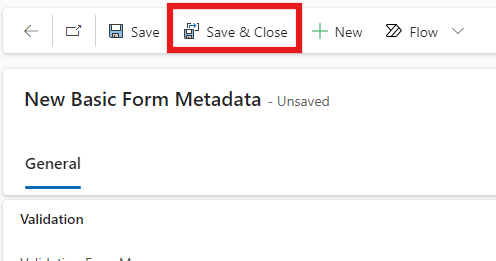
- Now, go back to the Power Pages Design Studio and Sync your changes.
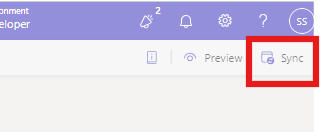
- Test your changes by entering an invalid email address.
I hope by following the above step-by-step process, you get an idea how to add validations in Power Pages.
If you find this blog useful, please like, share and subscribe to my channel for continuous learning.
Thanks for reading. 🙂
#Let’s_Learn_Together #D365 #Msftadvocate #PowerPagesLearning #Microsoft #PowerApps #Learning

 Power Spark
Leave a comment