
Hello Everyone,
Hope you all are doing well!
Power Pages provide forms for gathering information from users, such as account sign-ups, feedback submissions, and request handling. Organizations continually seek innovative methods to enhance the user experience.
Microsoft has launched an AI-powered upgrade for Power Pages forms. With just a quick toggle, organizations can now enable AI assistance for users, making it easier and faster to fill out forms.
In this blogpost, we will explore:
- Enable Form Filling Assistance
- Implementation
- Result
Let’s try it out, please follow below step-by-step process:
Enable Form Filling Assistance:
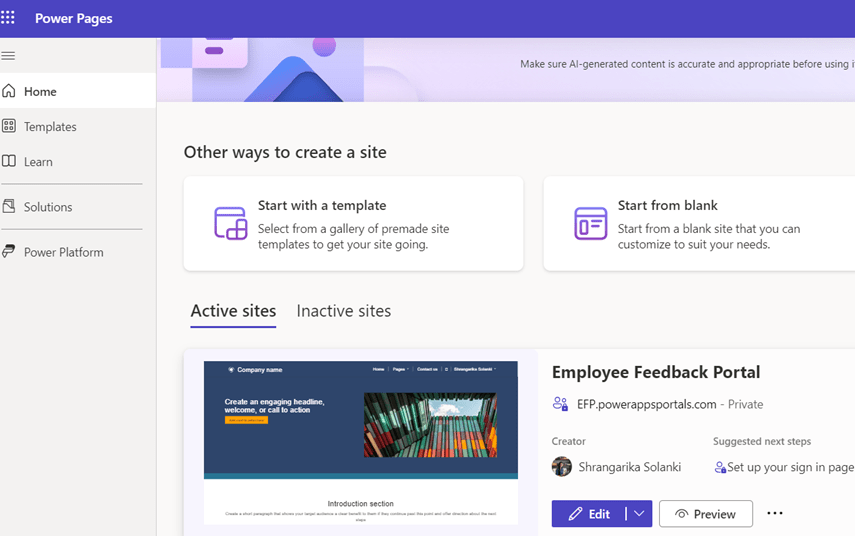
- Navigate to Power Pages Design Studio and select your site from “Active Sites” and click on Edit.
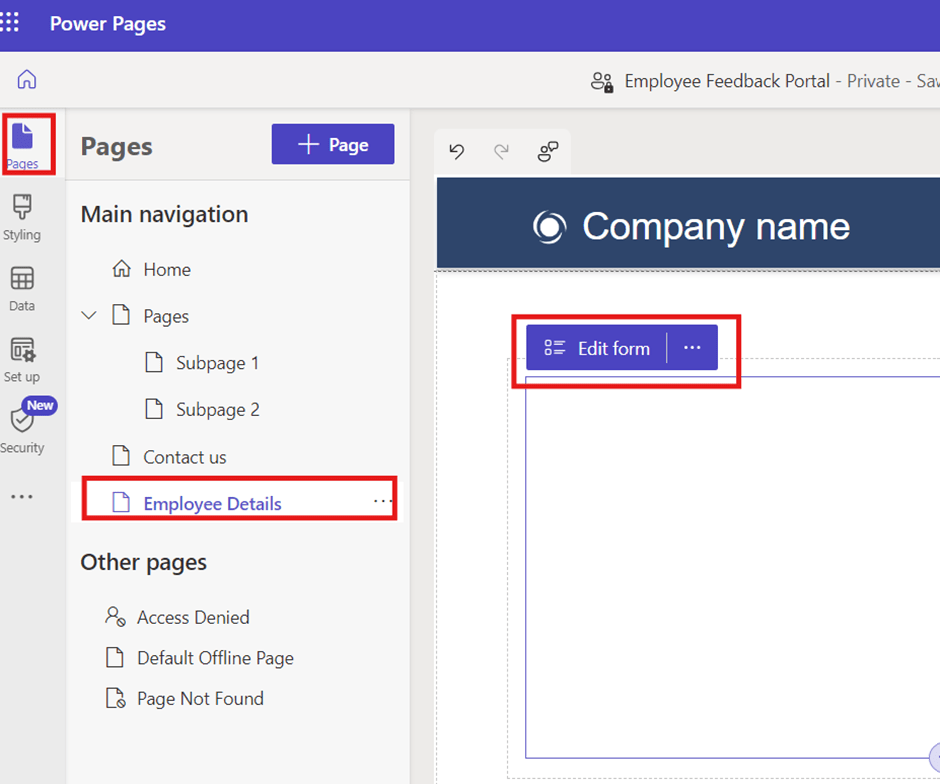
- Now, Click on Pages from the left navigation >> Select the page where you have added a Form component >> Click on “Edit Form”
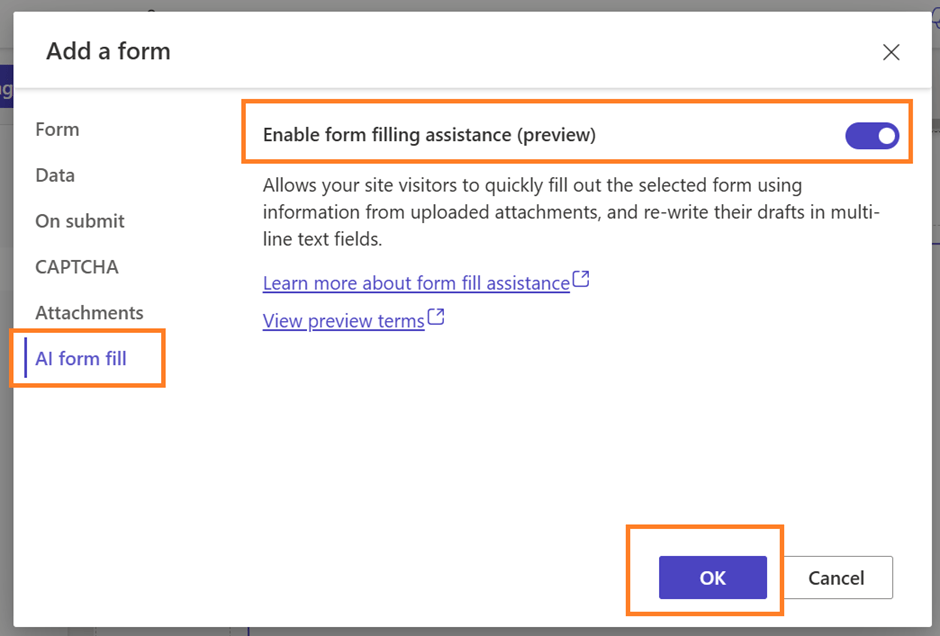
- Now, go to the last option “AI form fill”, enable the toggle button there and click on “OK” to see the magic of AI.
Implementation:
- In my demo, I have a PDF file having below information.

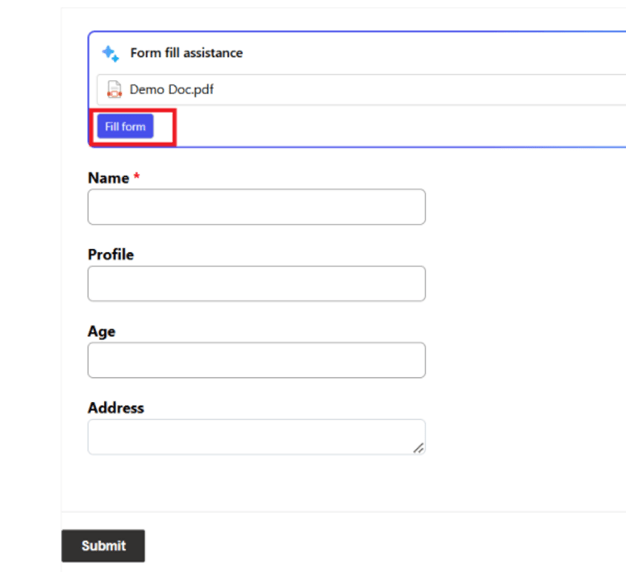
- Now, when you view the form on the website, you’ll see something like this:
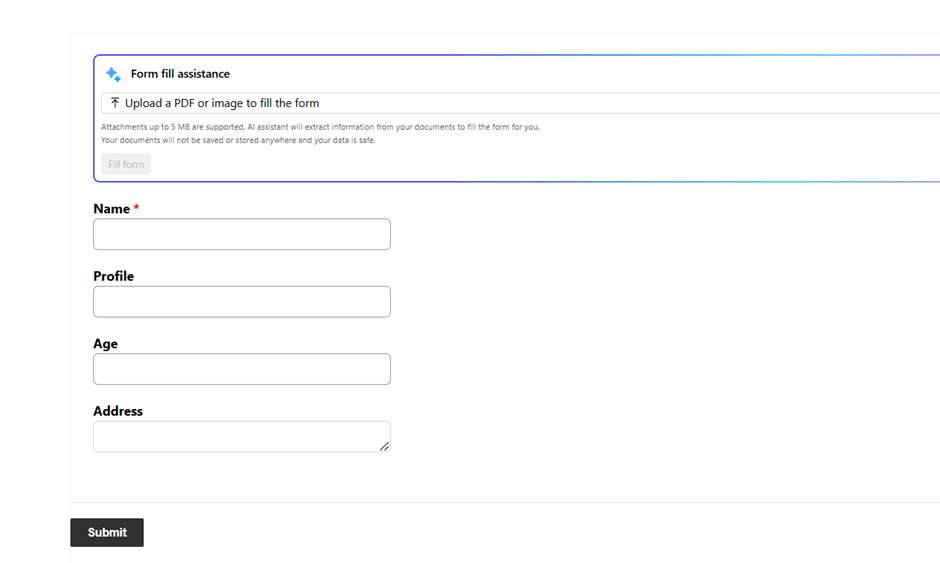
- Click on Upload a PDF or image to fill the form.
- After uploading the PDF or image, click the “Fill Form” button.
Results:
Once you will click on it, the fields will be automatically populated with the available data.
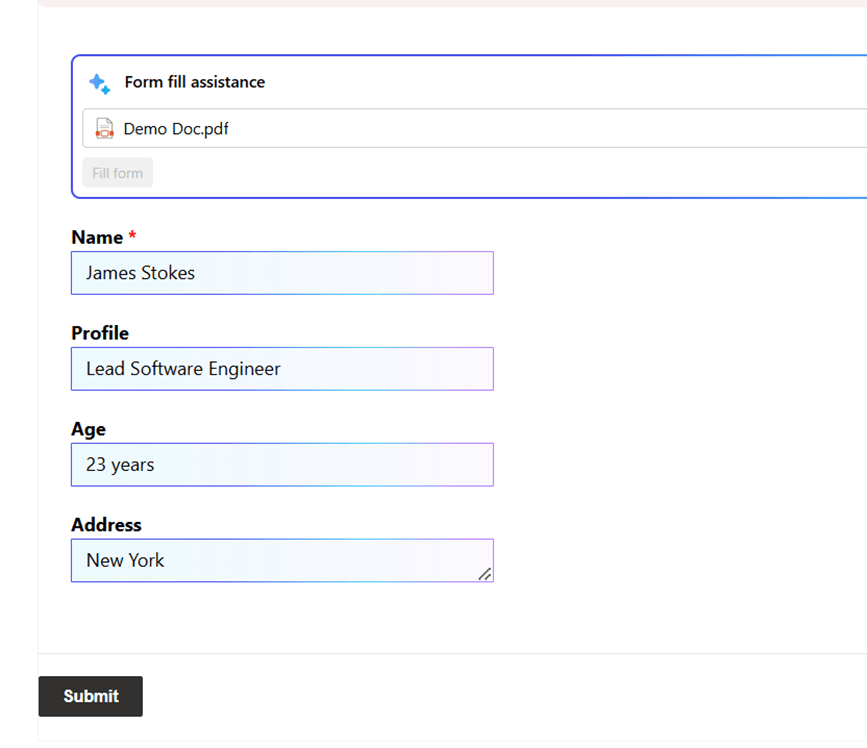
PS: I tried to upload the image of my ID card as well and it worked properly.
I hope by following the above step-by-step process, you get an idea of how to enable AI Form Filling Assistance. Though this feature is currently in preview, but you can go and explore!
If you find this blog useful, please like, share and subscribe to my channel for continuous learning.
Thanks for reading. 🙂
#Let’s_Learn_Together #D365 #Msftadvocate #PowerPagesLearning #Microsoft #PowerApps #Learning

 Power Spark
Leave a comment