

Hello Everyone,
Hope you all are doing well!
Sometimes we require old values after updating data in any column. So, in this blog post, we’ll learn how to retrieve both old and updated information by leveraging audit logs in combination with Power Automate. Here we will take an example to check the previous and updated contact numbers of an account.
Before retrieving any pre-image information, we need to enable auditing of the specific table. Below are the steps to enable auditing of Account table:
- Go to Power Apps and navigate to Settings.
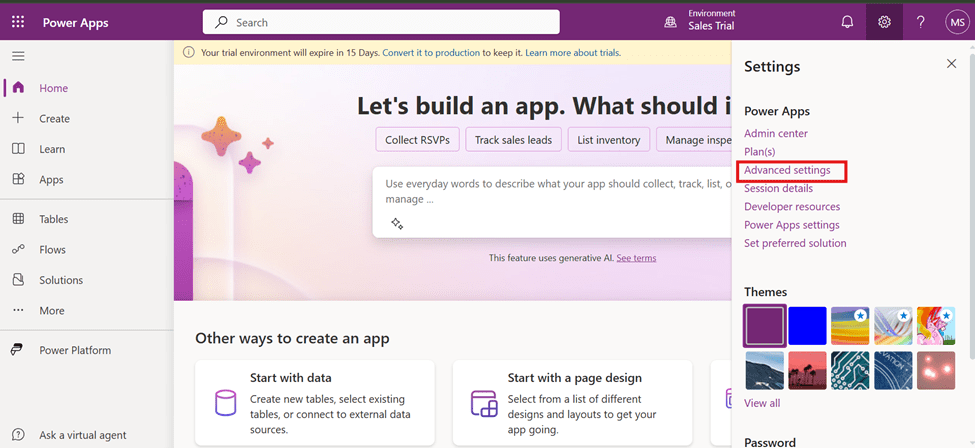
- Select Administration > System Settings.
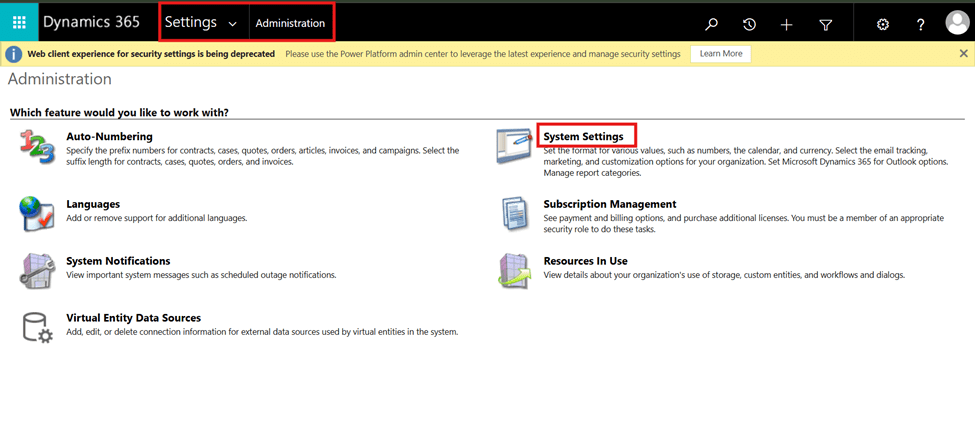
- In the Auditing tab, ensure that auditing is enabled.
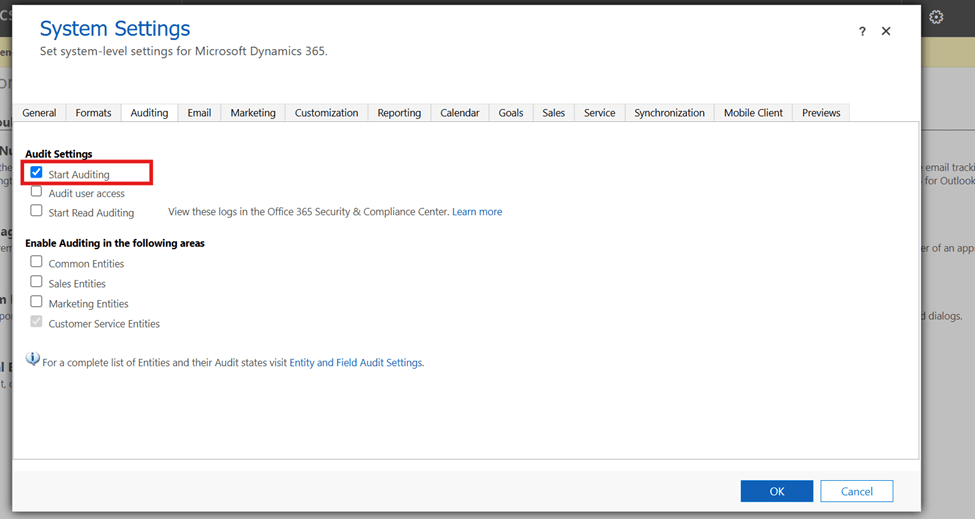
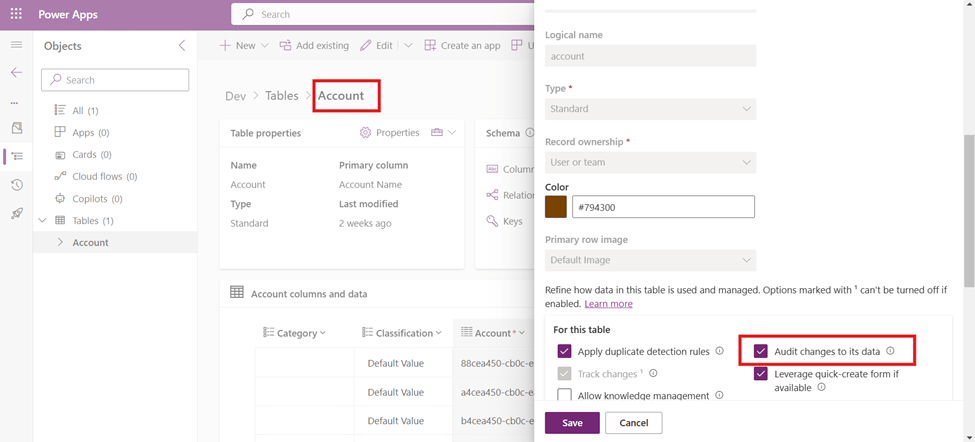
- Next, go to the properties of the Account table and enable auditing for the entity by enabling checkbox for “Audit changes to its data”.
- Next, enable auditing for the columns you want to track. For that, select the column and enable the checkbox for “Enable Auditing”
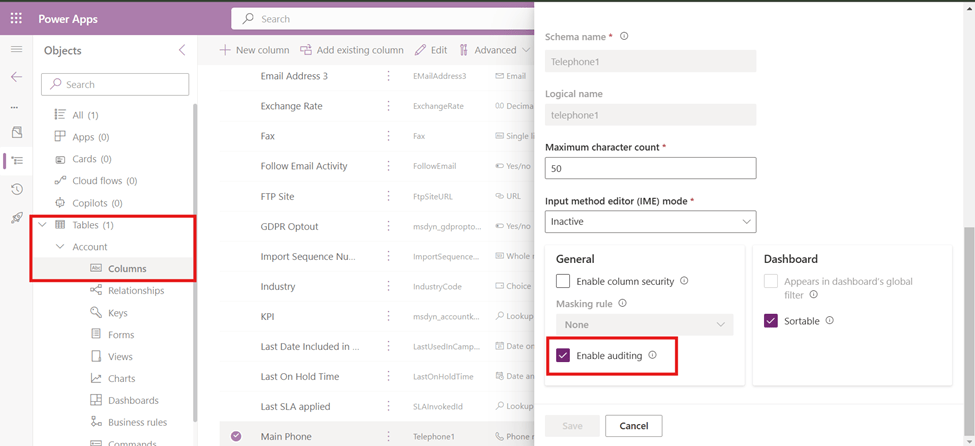
Once this is done, changes made to the Telephone1 column of the Account table will be automatically captured and stored in the audit logs.
- Now, create a new Power Automate flow to check the previous and updated values of the Telephone1 column.
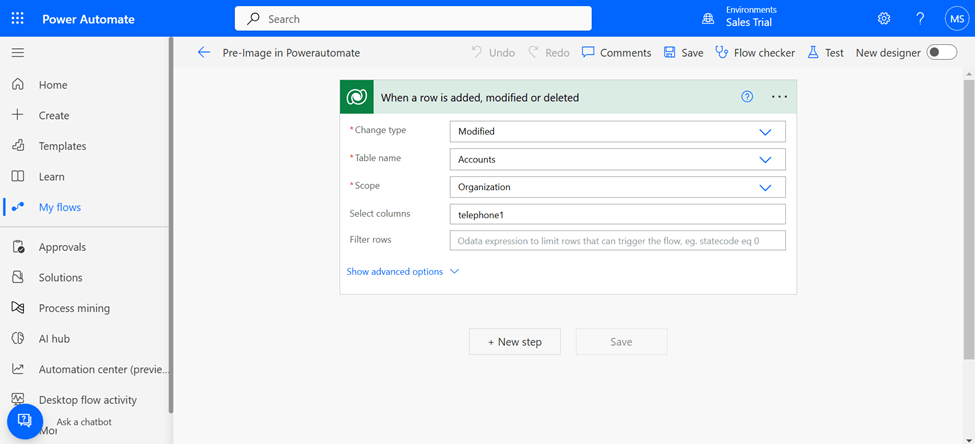
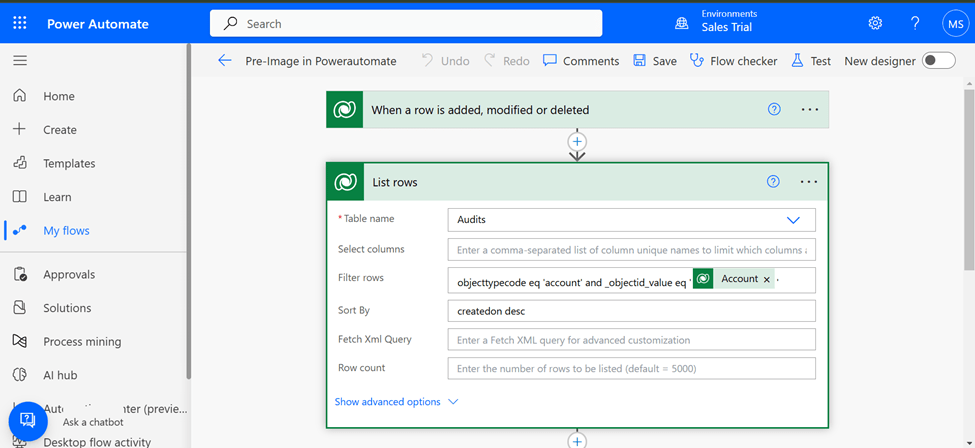
- Add a new action called List records of the Dataverse connector and select the Account table, in the Filter Query, input a filter to fetch the relevant audit logs for the updated record. For instance, you can filter by the target table’s ID and event type (for updates)
objecttypecode eq 'account' and _objectid_value eq 'triggerOutputs()?['body/accountid']'In Sort By, input createdon desc to retrieve the last modified audit log.
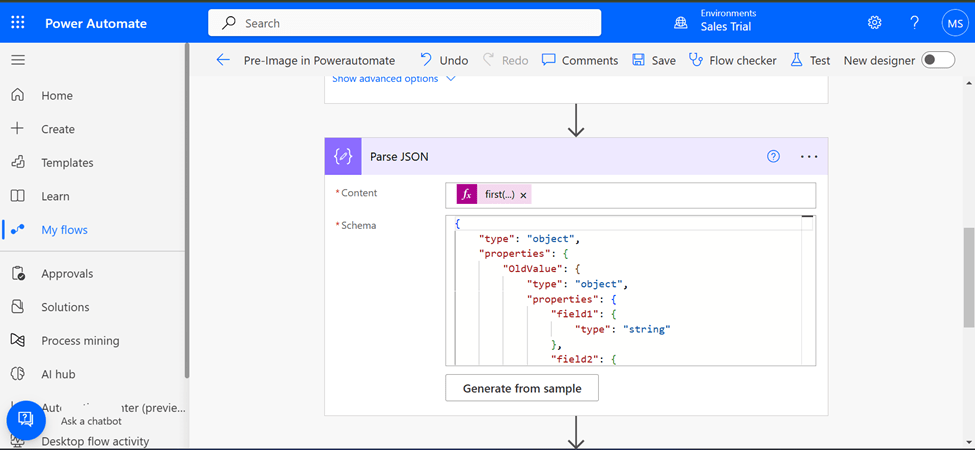
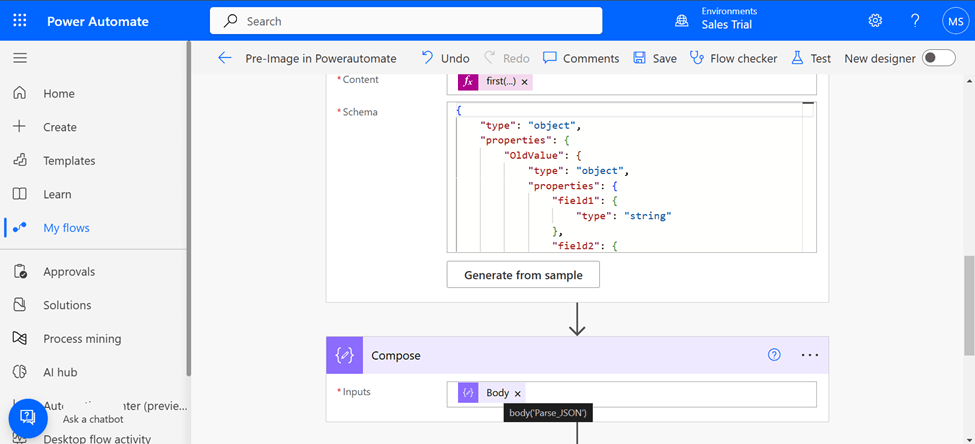
- Add Parse JSON action and in content add expression first(outputs(‘List_rows’)?[‘body’]?[‘value’])?[‘changedata’]
- Click Generate from sample and enter the below JSON structure
{

   "OldValue": {

      "field1": "Old Value 1",

      "field2": "Old Value 2"

   },

   "NewValue": {

      "field1": "New Value 1",

      "field2": "New Value 2"

   }

}
- Add new compose action to store the parsed json body
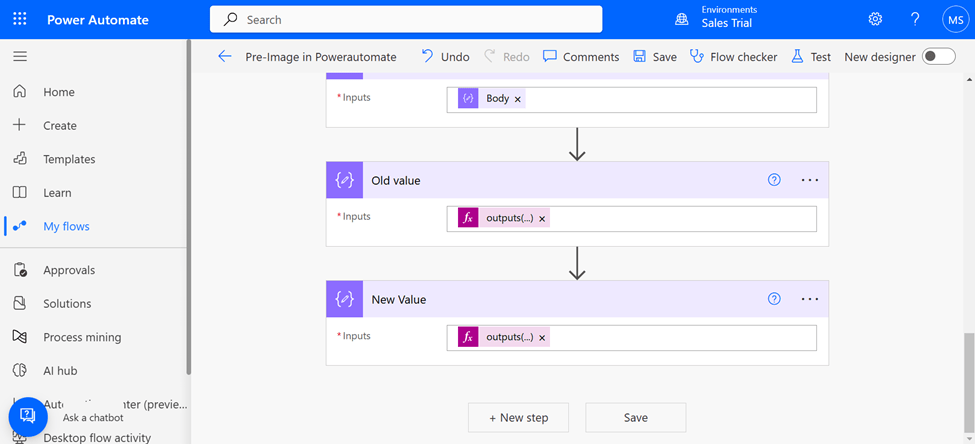
- Now by using this expression we can get the old/previous value @{outputs(‘Compose’)?[‘changedAttributes’][0][‘OldValue’]}
And by using outputs(‘Compose’)?[‘changedAttributes’][0][‘NewValue’] we can get the updated/new value
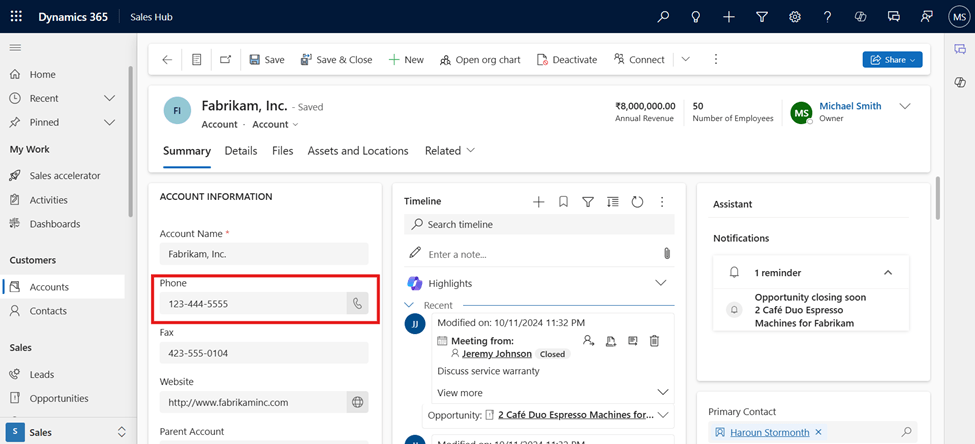
- Now to test this navigate to Account table form and update the Telephone1 field value to 123-444-5555.
- The result will be as shown below
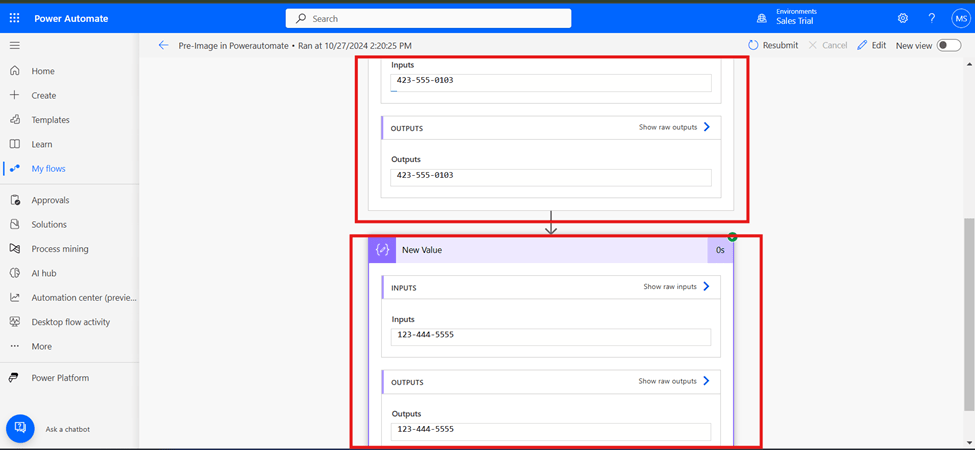
I hope by following the above step-by-step process, you get an idea of how to get old and updated values.
If you find this blog useful, please like, share and subscribe to my channel for continuous learning.
Thanks for reading. 🙂
#Let’s_Learn_Together #D365 #Msftadvocate #PowerAutomateLearning #Microsoft #PowerApps #Learning

 Power Spark
Leave a comment