

Hello everyone,
Hope you’re doing great!
Power Fx, the low-code formula language in Microsoft Power Apps, provides a flexible way to implement reusable functions. By using reusable functions, you can improve maintainability, optimize performance, and streamline business logic across multiple applications.
What is a Reusable Power Fx Function?
A Reusable Power Fx Function is a function that can be called multiple times within an app without redefining it. Unlike global functions that rely on variables, reusable functions encapsulate logic that can be applied consistently throughout the application.
As per the official Microsoft documentation, this feature is currently in preview.
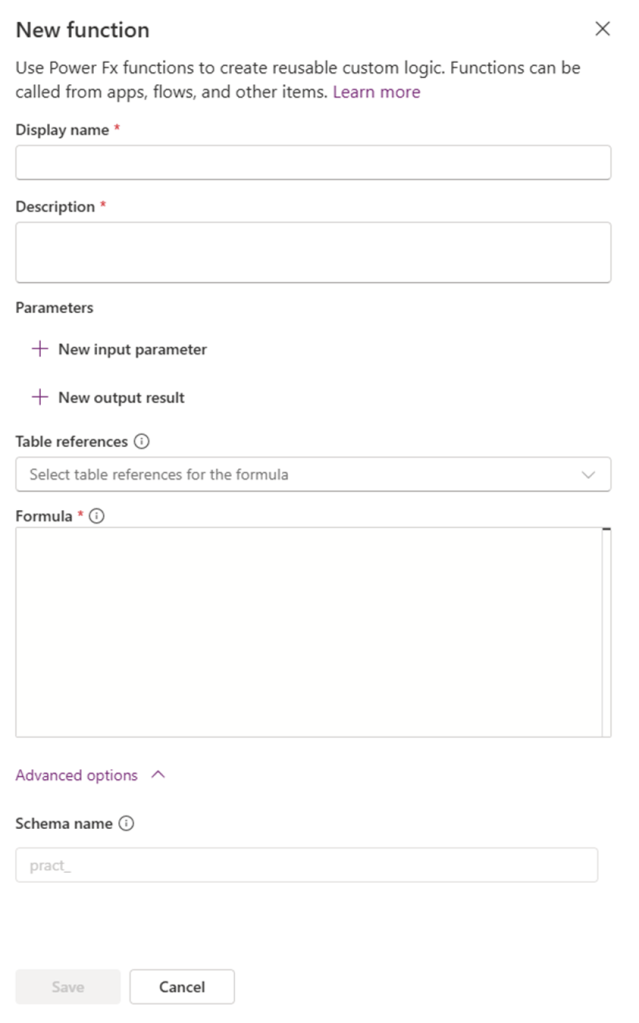
Key Benefits of Reusable Power Fx Functions:
- Code Reusability: Write the function once and use it multiple times.
- Centralized Logic: Keep business logic centralized for easier maintenance.
- Improved Readability: Enhance code structure and reduce redundancy.
- Performance Optimization: Minimize repeated calculations and improve execution efficiency.
How to Create a Reusable Power Fx Function
Below are the detailed steps of creating reusable function to calculate based on “Date of Birth”:
- Login to Power Apps Studio
- Select your desired Environment and Solution
- Click on +New > Automation > Fx Function
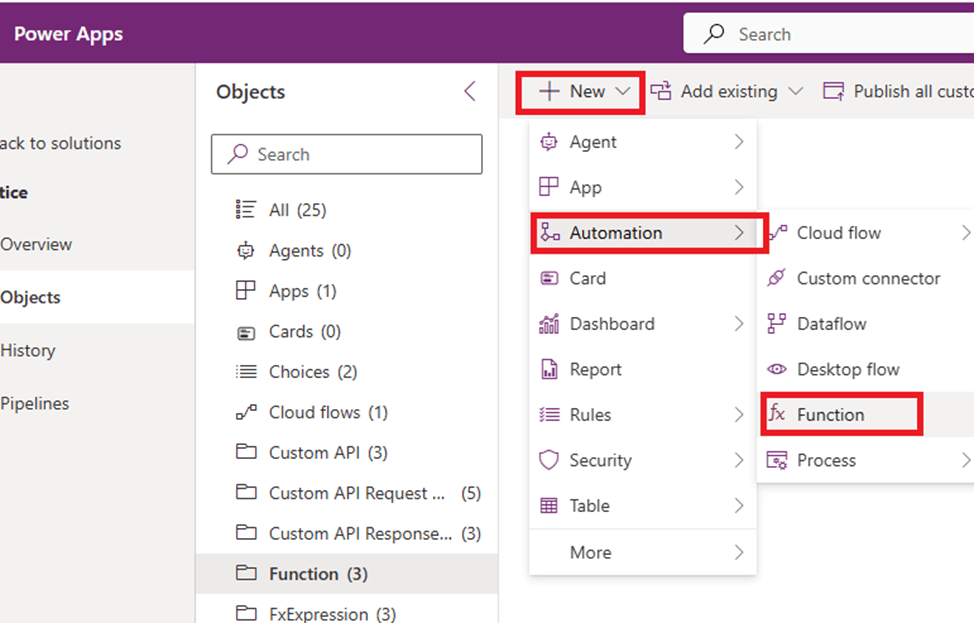
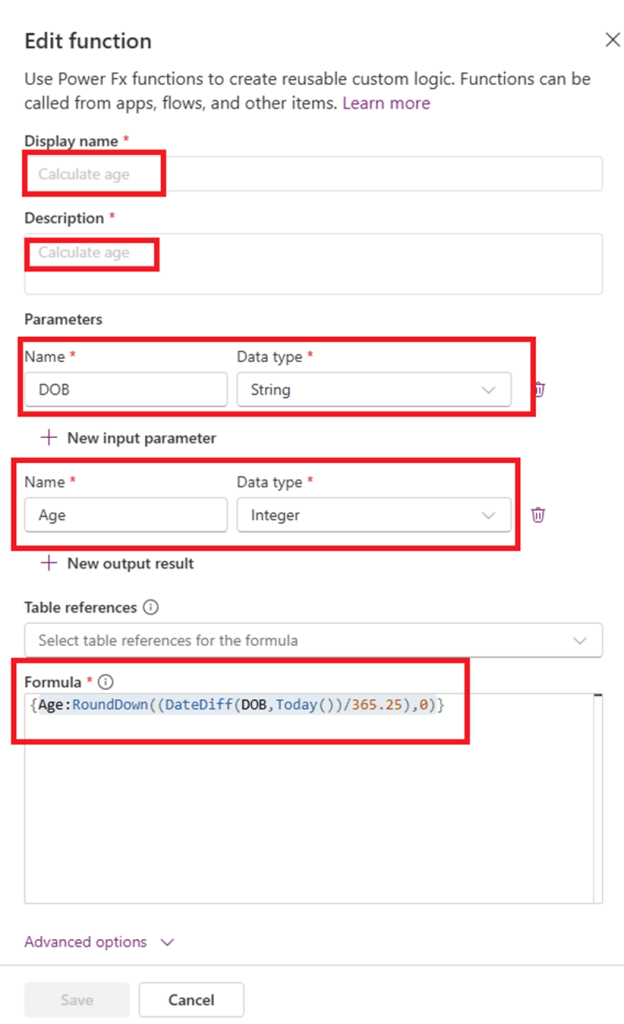
- Give relevant display name to your function. Example: “Calculate Age”
- Add a meaningful description
- Click on “+New Input Parameter” and add following details:
- Name: DOB
- Data type: String
- Click on “+New Output Parameter”
- Name: Age
- Data type: Integer
- Add this expression in Formula: {Age:RoundDown((DateDiff(DOB,Today())/365.25),0)}
- Click on Save.
Now, Let’s follow the step by step process of creating power automate and using reusable Power fx function which we have earlier created to calculate age. So, I have one custom table named “Student” and in which I have 2 columns; one is Date of Birth to store student’s date and other is Age to store age of the student.
- Now, Go to Power Apps Studio
- Select your desired environment and solution
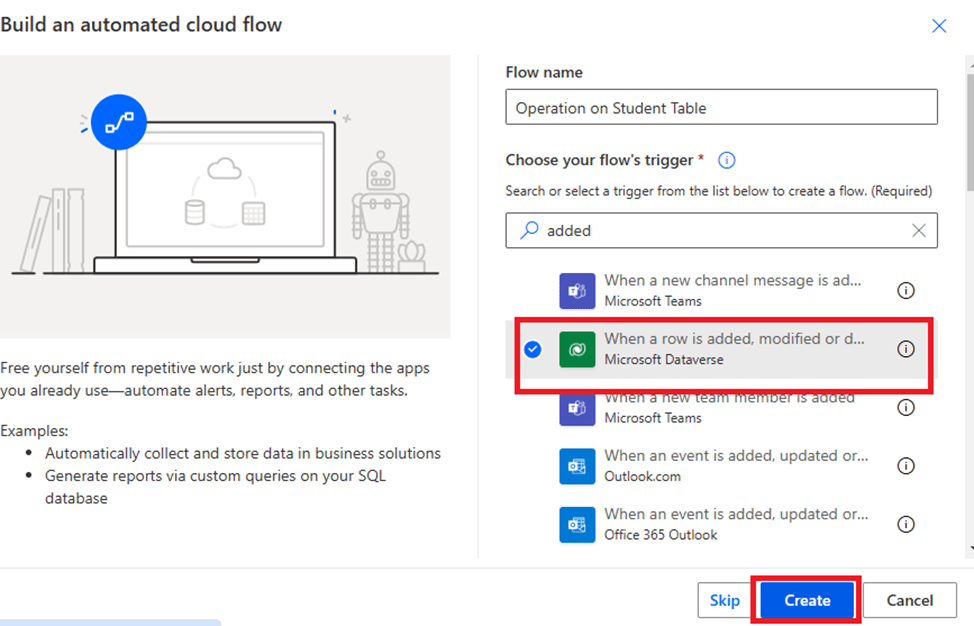
- Click on +New > Automation > Cloud Flow > Automated CF
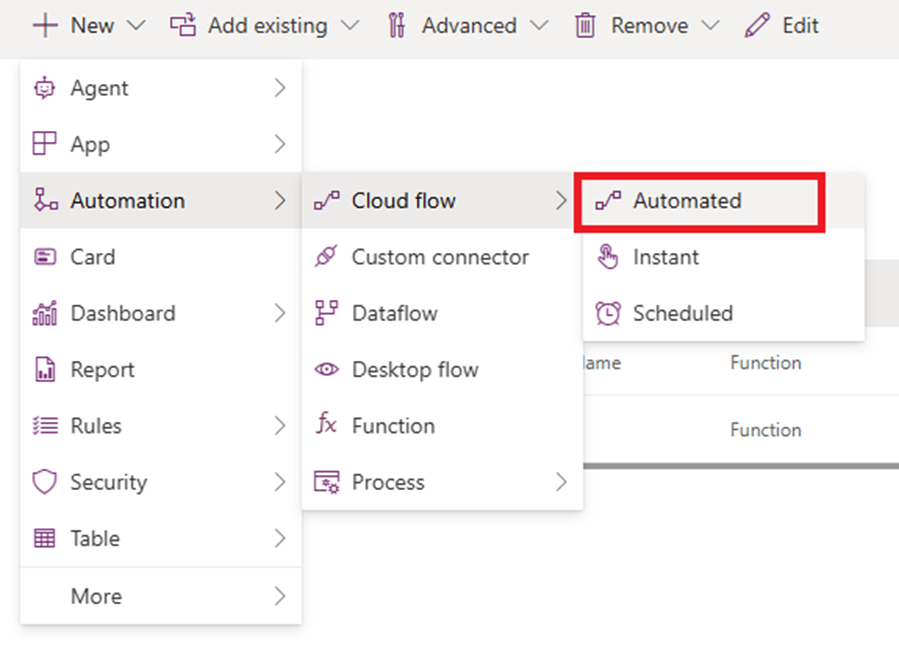
- Give relevant name to your flow and select trigger as “When a row has been added, modified or deleted” and click “Create”
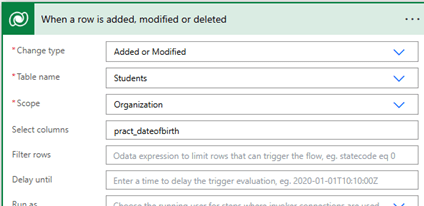
- Add following details in trigger of the flow
- Select “Change Type” as “Added or Modified”
- Select “Table Name”. Example: Student
- Select Scope as Organization
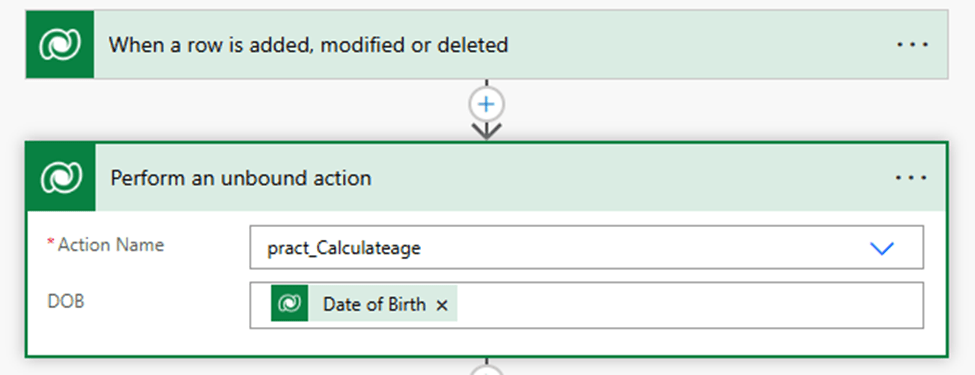
- Click on “+ New Step” and add “Perform an Unbound Action”
- Select function name which we have created earlier under Action Name
- Add dynamic content from trigger to give input as DOB
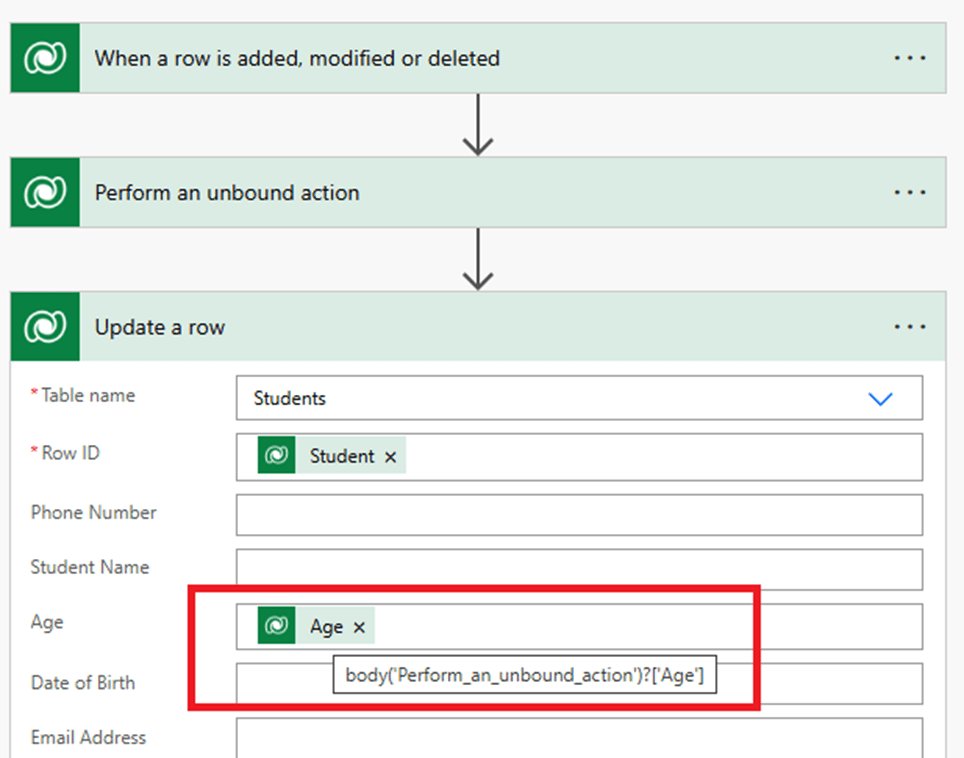
- Now, select one more step to update Age under student table
- Select “Student” under Table Name,
- Select Student’s table Unique Identifier from trigger action under Row ID
- Under Age column, enter following expression: body(‘Perform_an_unbound_action’)?[‘Age’]
- Create Student record and see the results
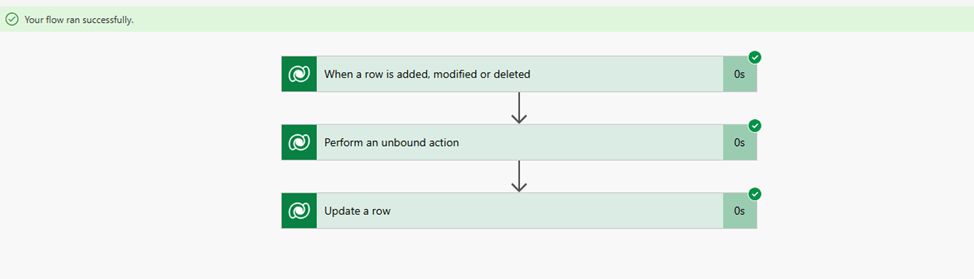
Output:
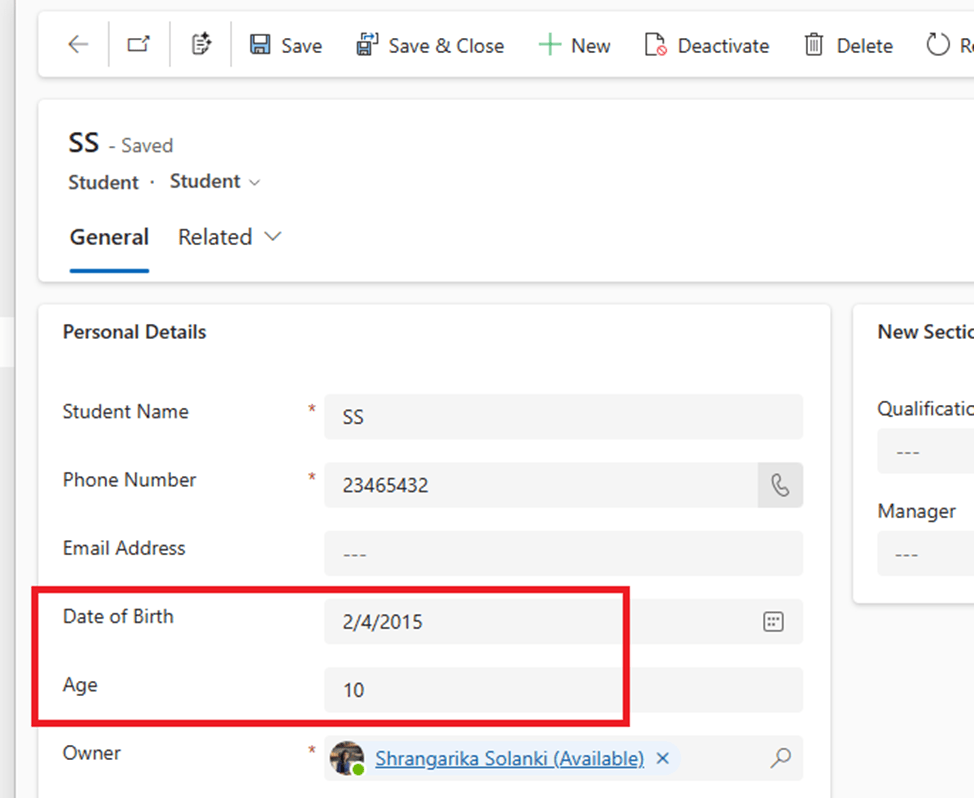
This way you may create reusable Power Fx function.
Conclusion
Reusable Power Fx Functions in Power Apps allow developers to create efficient, modular, and maintainable applications.
I hope by following the above step-by-step process, you get an idea of how to create resuable Power Fx function.
If you find this blog useful, please like, share and subscribe to my channel for continuous learning.
Thanks for reading. 🙂
#Let’s_Learn_Together #D365 #Msftadvocate #PowerFx #PowerAutomate #Microsoft #PowerApps #Learning #Microsoft

 Power Spark
Leave a comment