
Hi Everyone,
Hope you’re doing great!
In Microsoft Dynamics 365, solutions act as containers for components such as tables, forms, views, workflows, and apps. Sometimes, you may need to add components from one solution to another without manually recreating them. The ‘Add to Solution’ option provides an efficient way to do this, ensuring seamless reuse and better solution management.
Please follow below step by step process to add component from one solution to another without even accessing target solution.
Scenario: Suppose, we have “Solution A” and “Solution B” and want to add components from Solution A to Solution B.
Steps:
- Go to Power Apps Studio.
- Click on Solution and select “Solution A”
- Here, I have a student table which I also want to add in “Solution B”
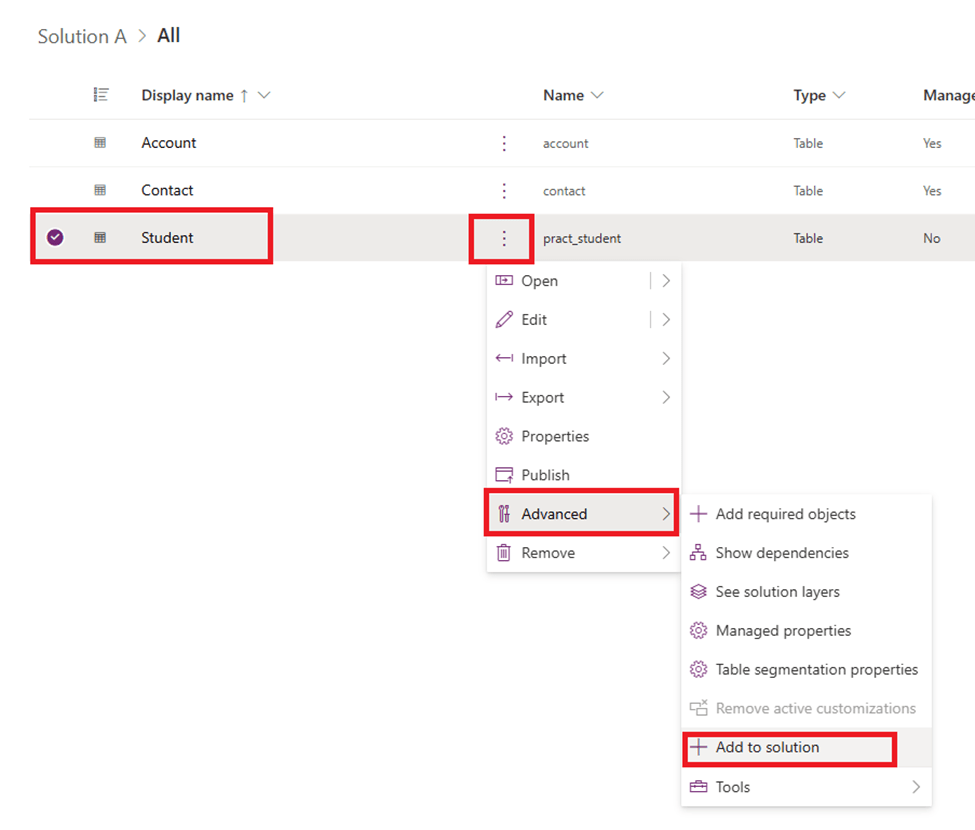
- Select “Student” table, click on three dots then Advanced and then + Add to Solution
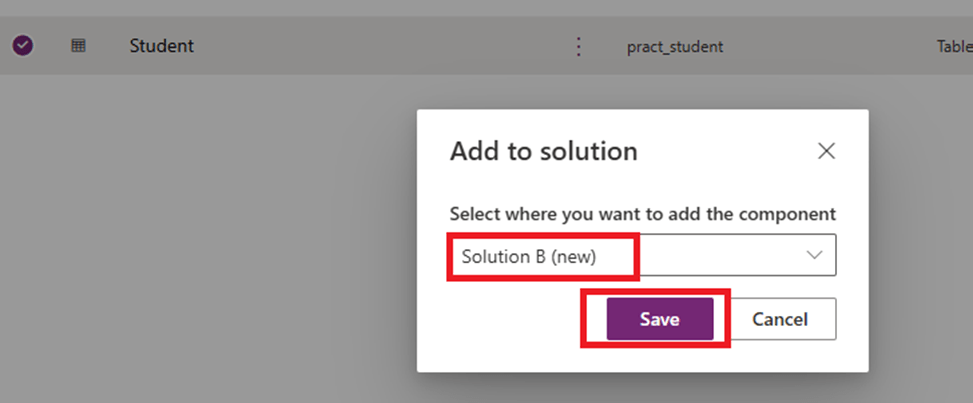
- A pop-up will appear to select target solution, select “Solution B” from the list and Save.
- You will get this notification message in the header
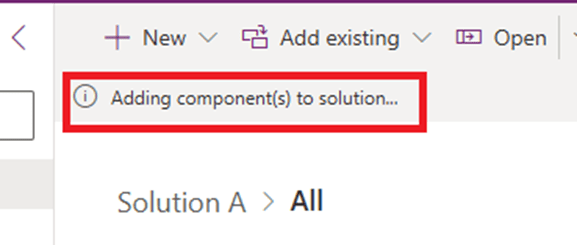
- And once, respective component will be successfully added to the solution, notification message will be updated to “Components added successfully.”
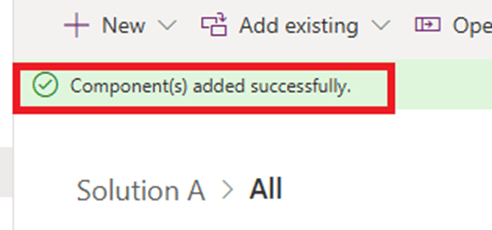
- Now, go back and check whether “Student” table is successfully added to your target solution i.e., Solution B. As you can see below, Student table has been successfully added to Solution B including all the associated components:
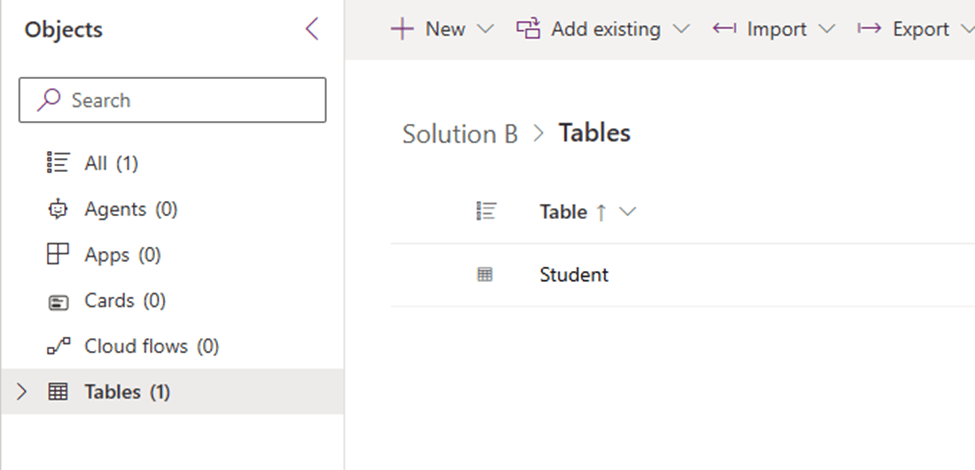
Note: Initially, I added the Student table to Solution A, including all associated objects. However, out of curiosity, I later removed the Student table from both solutions. Then, I re-added the Student table to Solution A without including any objects and repeated the process: selected the table → clicked on the three dots → Advanced → Add to Solution → selected Solution B → Save. Upon checking Solution B, I found that all objects related to the Student table had been added automatically.
Hope it helps!
I hope by following above step by step, you get an idea of how to add components from one solution to another.
If you found this blog useful then please like, share and subscribe my channel “powersparkbyshrangarika.com” for continuous learning.
Thanks for reading.
#Let’s_Learn_Together #Microsoft_Dynamics365 #PowerApps #QuickTip

 Power Spark
Leave a comment