

Hi Everyone,
Hope you all are doing great!
Power Automate is a powerful tool for automating workflows, integrating systems, and improving productivity. One of the most commonly used actions in Power Automate is ‘Apply to Each’, which loops through a collection of items and processes them sequentially. However, in some scenarios, enabling concurrency control can significantly improve the performance of your flow by processing multiple items simultaneously.
In this blog, we’ll explore:
- What Concurrency Control is?
- How to enable and configure concurrency in ‘Apply to Each’?
- Best practices for using concurrency control effectively.
Understanding Concurrency Control
By default, the ‘Apply to Each’ loop in Power Automate runs sequentially—processing one item at a time. However, in cases where performance is a concern, Concurrency Control allows multiple iterations of the loop to run in parallel, significantly improving execution speed.
Key Benefits:
- Faster Execution: Processes multiple items simultaneously instead of one by one.
- Optimized Performance: Reduces overall execution time, especially for large datasets.
- Efficient Resource Utilization: Leverages available computing resources effectively.
Note: Concurrency Control must be used carefully, as running operations in parallel can lead to data inconsistencies in scenarios involving shared resources.
How to Enable Concurrency Control in ‘Apply to Each’
Step 1: Create or Open a Power Automate Flow
- Navigate to Power Automate.
- Open an existing flow or create a new one that includes an ‘Apply to Each’ action.
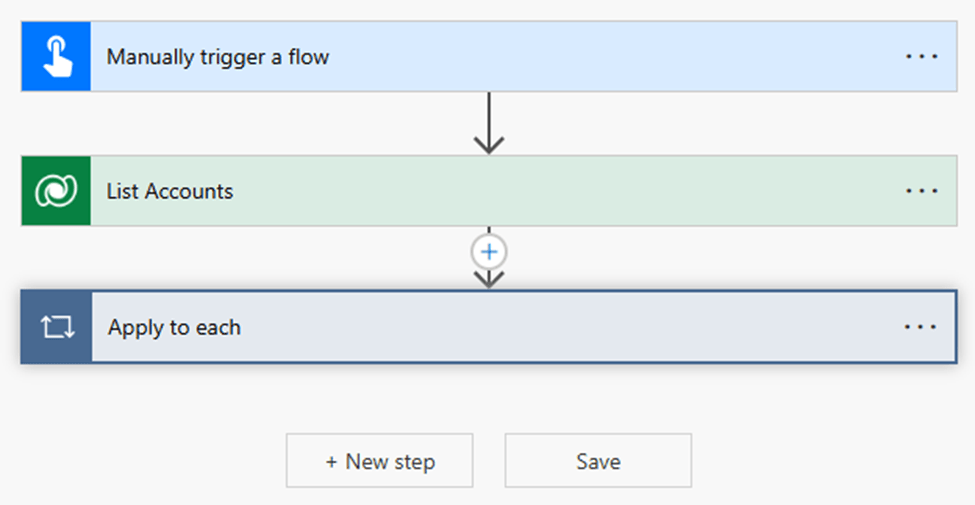
Step 2: Identify the ‘Apply to Each’ Action
- Inside your flow, locate the ‘Apply to Each’ loop.
- This action typically appears when processing a list from a trigger or retrieving multiple records from a data source.
Step 3: Enable Concurrency Control
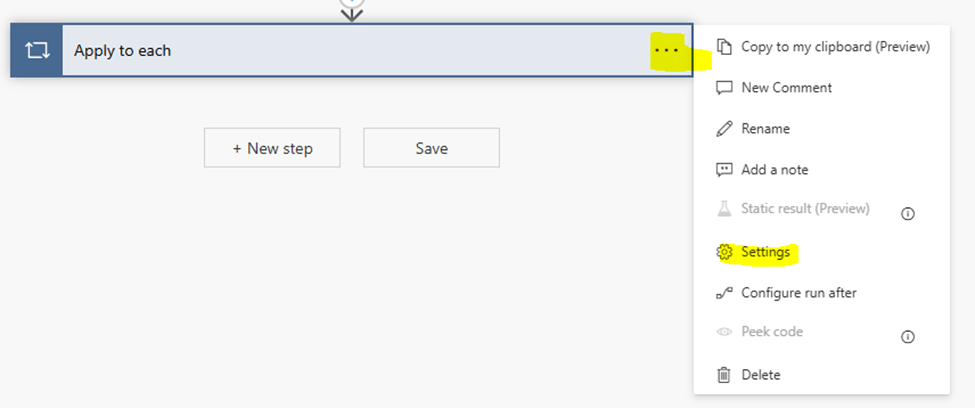
- Click on the ‘Apply to Each’ action.
- Click on the three dots (•••) in the top-right corner of the action.
- Select ‘Settings’ from the dropdown menu.
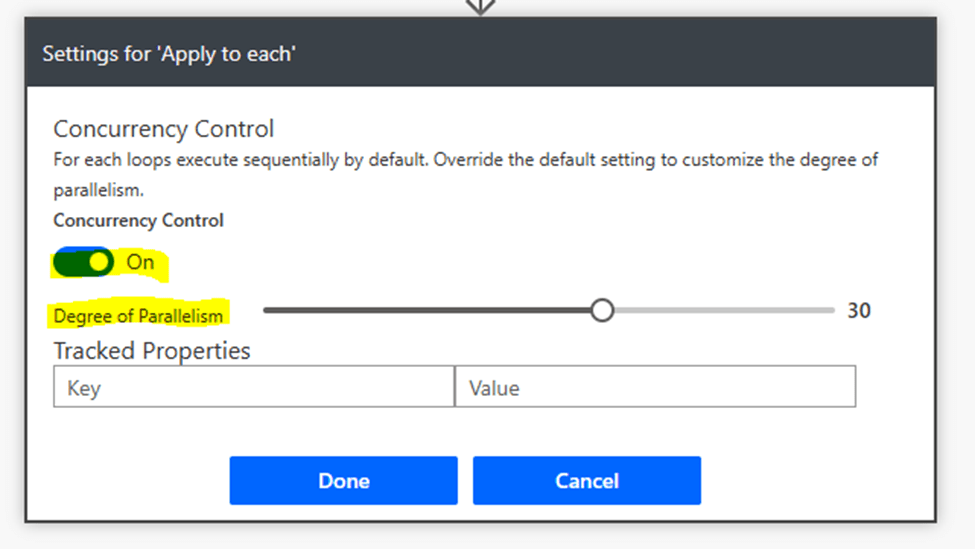
- Toggle the ‘Concurrency Control’ option to On.
- Set the Degree of Parallelism (Default: 20, Range: 1-50) based on the number of simultaneous runs you want.
- Click Done to save the changes.
Step 4: Save and Test the Flow
- After enabling concurrency, save and run your flow to observe the performance improvements.
- Check the Run History to see how multiple items are processed in parallel.
Best Practices for Using Concurrency Control
While enabling concurrency can improve performance, there are important considerations to ensure data integrity and reliability.
1. Use Concurrency for Independent Actions
- Concurrency is ideal when processing items independently without dependencies.
- Example: Sending emails, updating separate records, or writing logs.
2. Avoid Concurrency in Dependent Operations
- If actions inside the loop depend on each other (e.g., updating a shared resource like a counter or a database record), running them in parallel can cause race conditions.
- Example: If two parallel instances attempt to update the same record, one update might overwrite the other.
3. Optimize Degree of Parallelism
- The Degree of Parallelism determines how many items are processed at the same time.
- A higher value speeds up execution but can increase API limits and resource usage.
- Recommended values:
- Small datasets (<100 items): 5-10
- Medium datasets (100-1000 items): 10-20
- Large datasets (>1000 items): 20-50 (Monitor carefully to avoid performance issues)
4. Monitor API Limits & Performance Impact
- Some connectors (e.g., SharePoint, Dataverse) have API limits that may throttle requests if too many are sent simultaneously.
- Monitor Power Automate’s Run History and the Connector Analytics dashboard to avoid hitting API limitations.
5. Implement Retry and Error Handling
- When enabling concurrency, network failures or timeout errors can occur.
- Use the Retry Policy and Scope Actions in Power Automate to handle failures gracefully.
Conclusion
Concurrency Control in Power Automate’s ‘Apply to Each’ action can greatly enhance performance and efficiency when dealing with large datasets. However, it must be used strategically to avoid conflicts, race conditions, and API throttling.
- Enable concurrency when processing independent tasks.
- Be cautious when updating shared resources.
- Optimize parallelism based on dataset size and monitor API usage.
By following best practices, you can leverage concurrency control to improve automation workflows and streamline business processes efficiently.
I hope using above detailed instructions, you get an idea of how to use concurrency control in your Power Automate.
If you found this blog useful, please subscribe my channel for continuous learning.
Thanks for reading.
#Let’s_Learn_Together

 Power Spark
Leave a comment