
Hello Everyone,
Hope you’re doing well!
In this blog, we will explore how to add a custom ribbon button to the Global Command Bar in Dynamics 365 CRM.
The Application ribbon in Dynamics 365 CRM is a customizable toolbar that appears throughout the entire application, offering users quick access to various commands and functions. Unlike entity-specific ribbons, the application ribbon is not tied to a particular entity and is available globally within the application. It is defined using XML, and tools like the Ribbon Workbench allow you to visually modify it without directly editing the XML code.
Scenario: Our goal is to add a ribbon button for “Create Case” to both the Global Command Bar.
Steps:
- Go to Power Apps Studio and create a new Solution.
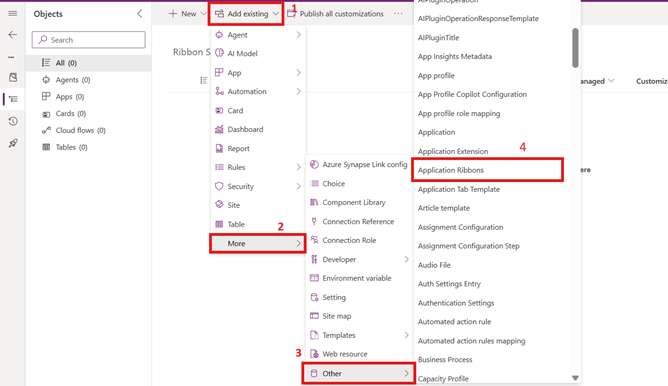
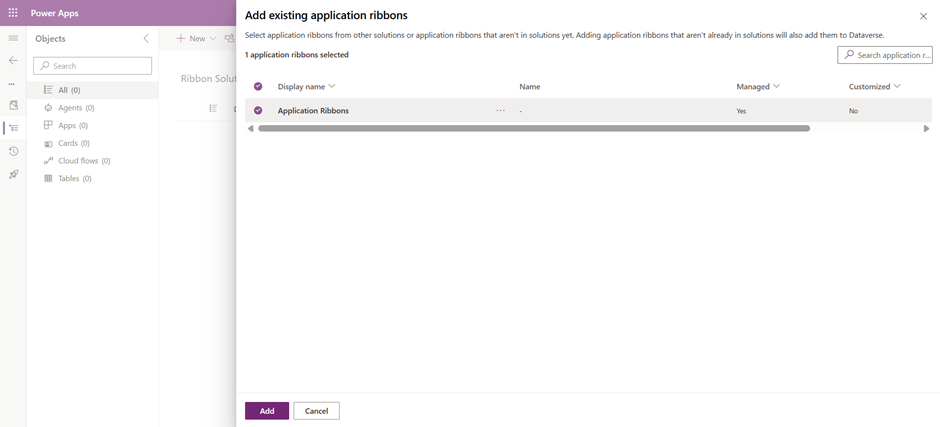
- Add Application Ribbon into solution by following steps in below image – Add Existing >> More >> Other >> Application Ribbon >> Publish All Customisations
- Navigate to Ribbon Workbench and Select the previously created solution.
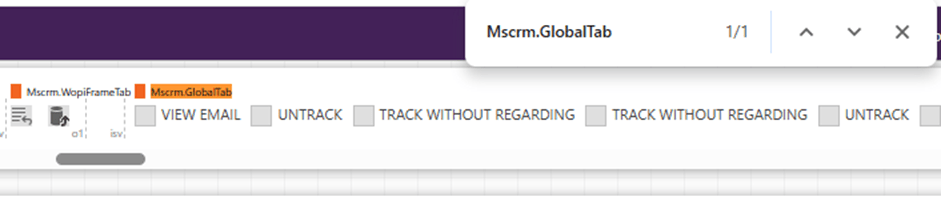
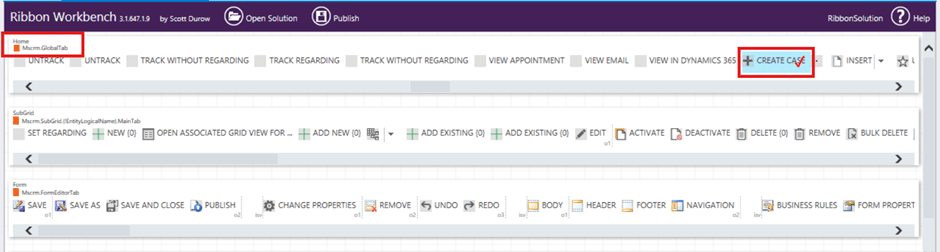
- Search for Home >> Mscrm.GlobalTab
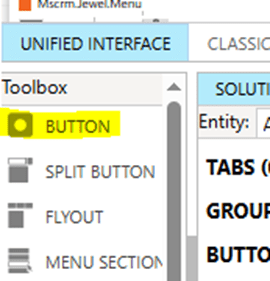
- Add new ribbon Button on Global Command bar as shown below. To create a button, navigate to Toolbox from bottom left corner of your screen and drag a button to your Global Tab
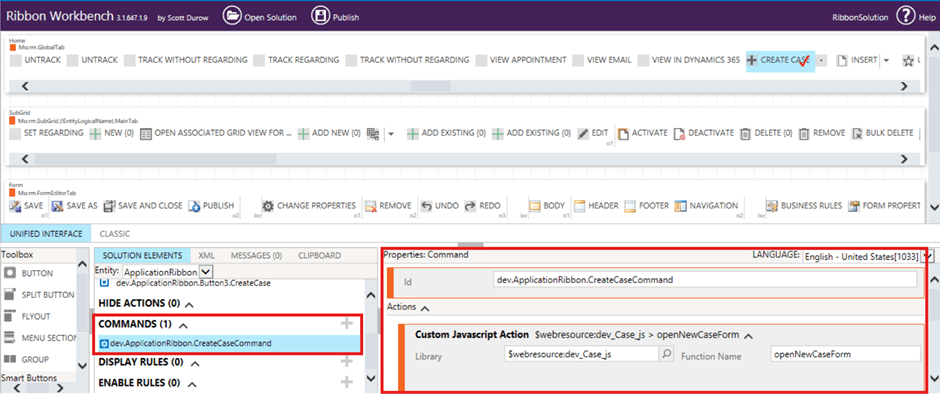
- Now, select the button and navigate to Solution Elements, Create new Command by clicking on “+” icon >> Add a JavaScript action to the command then Register javascript as shown below.
Note:
- To register a JavaScript, make sure you have web resource created with your JS code to select here.
- To create a web resource, go to the Solution >> Web Resource >> +New >> Select the type as JS >> Add your code >> Save >> Publish
Javascript:
function openNewCaseForm() {
debugger;
var orgurl = Xrm.Utility.getGlobalContext().getClientUrl()
var url = orgurl+”/main.aspx?etn=incident&pagetype=entityrecord”;
window.open(url, “_blank”);
}
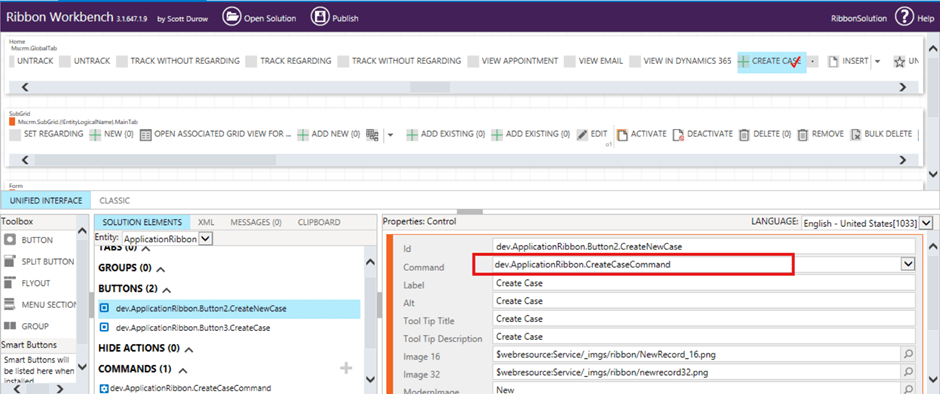
- Make sure to add a command to button.
- Click Publish.
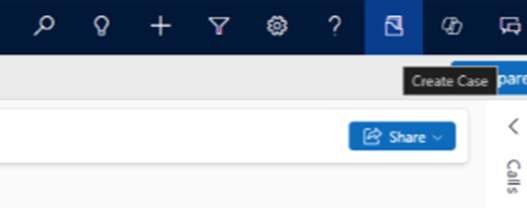
Now, After navigating to model driven app we can see the Custom Ribbon Button on Global Command Bar as shown below
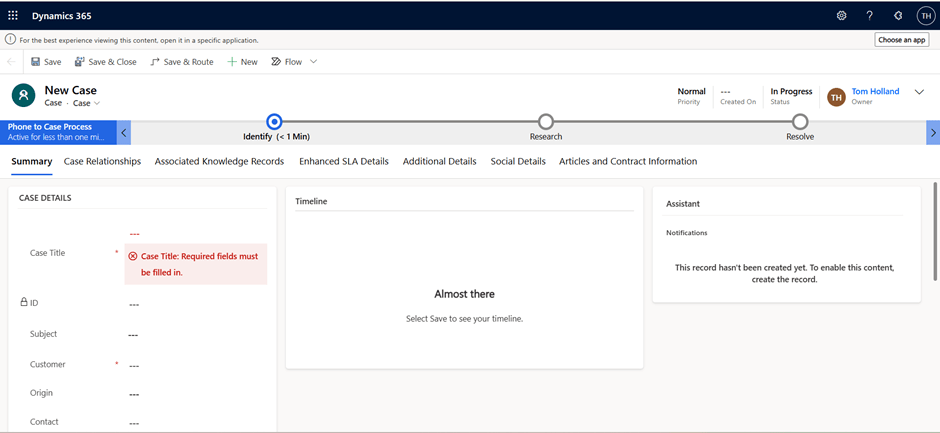
OnClick of Create Case it will open case form in new tab
Hope it helps!
If you found this blog useful, please like, share and subscribe my channel for more learning.
#Let’s_Learn_Together #Application_Ribbon #Ribbon_Workbench
Thanks for reading!

 Power Spark
Leave a comment