

Hello Everyone,
Hope you are doing well!
As Microsoft Dynamics 365 CRM continues to grow and improve, new features are regularly added to make our lives easier – especially for admins and consultants who work on customizing the system.
One such useful feature is the ability to control whether or not you can delete Out-of-the-Box (OOB) attribute mappings. These are default field mappings set up by Microsoft between related entities like Account to Contact or Lead to Opportunity.
In this blog, we will learn how to enable/disable settings of blocking/unblocking out-of-the-box attribute mappings.
What Are Attribute Mappings?
When you create a related record in Dynamics 365 (like creating a Contact from an Account), some fields like address or phone number automatically copy over to save your time. This is done through something called attribute (field) mappings.
Dynamics 365 comes with many of these mappings built-in by default. These are known as Out-of-the-Box (OOB) mappings.
What Happens When You Try to Delete OOB Mappings?
Microsoft blocks the deletion of these default mappings by default. If you try to delete one, you’ll get an error message like:
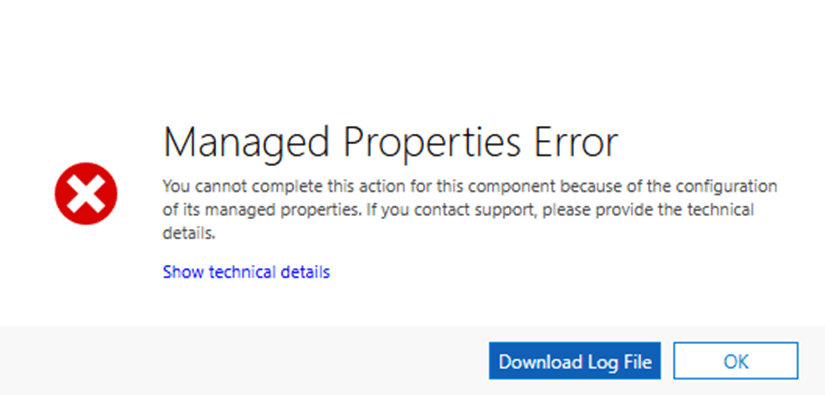
“You cannot delete an out-of-the-box attribute map.”
This is to prevent accidental changes that could affect how records work in your CRM environment.
How to Turn Off the Block (If You Really Need To)
If you’re sure you want to delete a system-created mapping (for example, you’re customizing the system heavily or replacing OOB behavior), you can disable this protection.
Steps to Allow Deleting OOB Mappings:
- Go to the Power Platform Admin Center: https://admin.powerplatform.microsoft.com
- Navigate to Environments >> select your environment
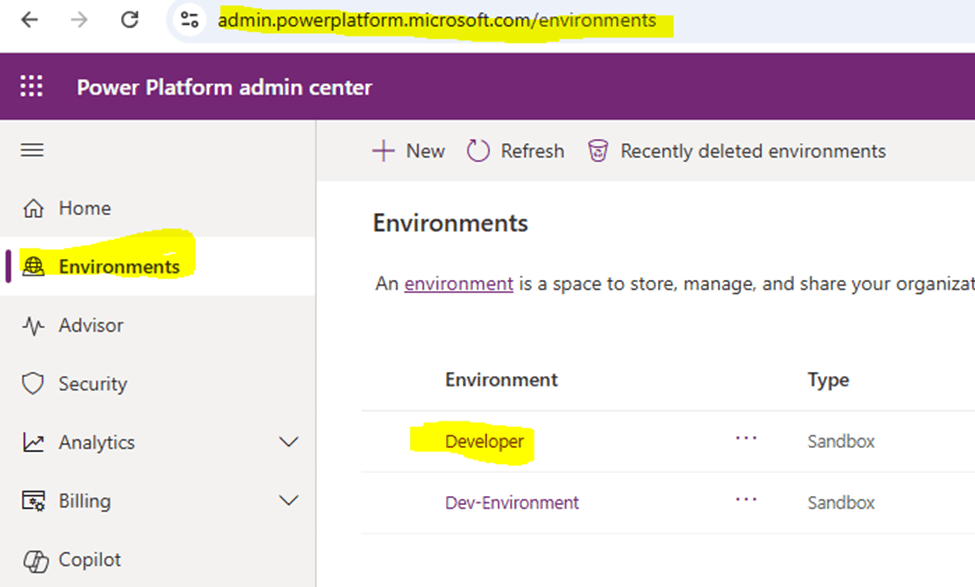
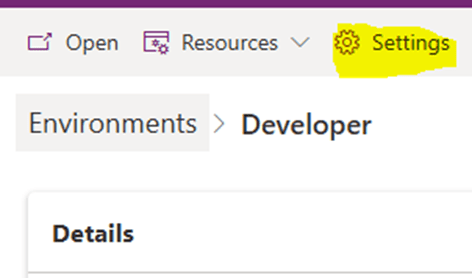
- Navigate to Settings
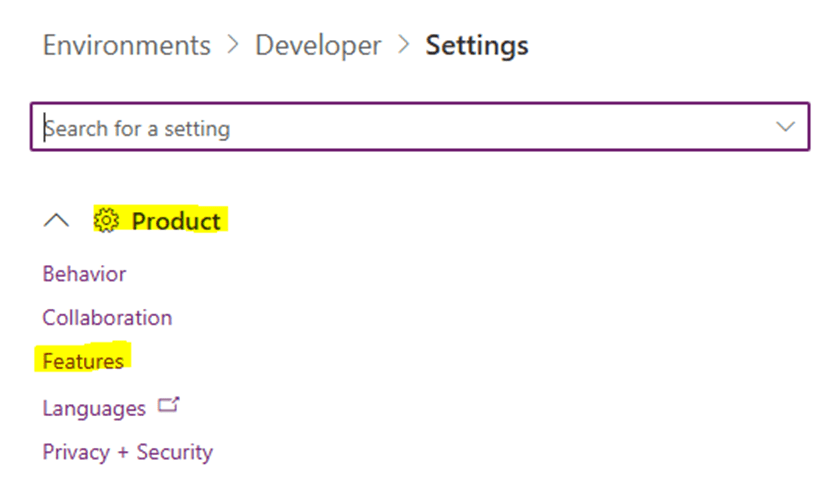
- Select Product > Features
- Scroll to find the setting: “Block Deletion of Out-of-the-box Attribute Maps”

- Toggle it OFF (It’s ON by default to prevent deletions) and save your changes.
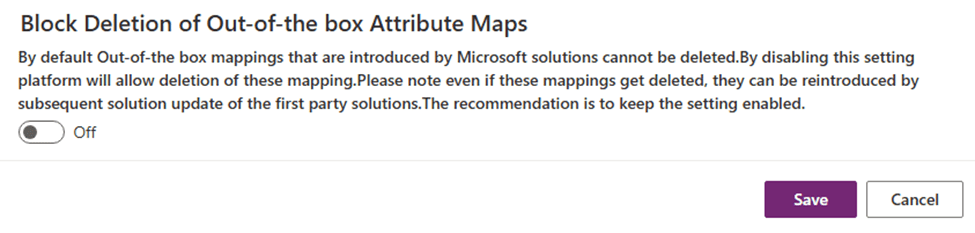
Now, go back to your solution, and you’ll be able to delete the OOB attribute maps that were previously blocked.
Benefits of This Feature
When Enabled (Default – Recommended for Most Users)
- Prevents accidental or unplanned deletions
- Keeps your system stable, especially during updates
- Ensures out-of-the-box functionality continues to work as expected
When Disabled (For Advanced Customization)
- Gives advanced users the flexibility to remove default mappings
- Helps clean up unnecessary mappings in custom solutions
- Useful when building highly customized apps or replacing default behavior
Things to Keep in Mind
- Always double-check before deleting any mapping as removing the wrong one can break form pre-population and disrupt user experience.
- It’s best to export a backup of your solution before making these changes.
- Consider turning the setting back ON after you’ve made the necessary deletions.
Conclusion:
The “Block Deletion of Out-of-the-Box Attribute Maps” feature is another great example of Microsoft helping admins manage Dynamics 365 CRM more safely and effectively.
Whether you’re a beginner or an experienced consultant, understanding this setting gives you more control and flexibility when customizing your solutions—while also protecting your system from mistakes.
So the next time you’re scratching your head wondering why you can’t delete that one pesky field mapping—now you know exactly what’s going on, and how to fix it if needed.
If you found this blog useful, do share with others and subscribe my channel for more learning.
Hope it helps!
Thanks for reading!!
Let’s_Learn_Together

 Power Spark
Leave a comment