

When building flows in Power Automate, sometimes your actions fail due to temporary issues like network latency, API throttling, or service unavailability. Instead of failing immediately, Power Automate allows you to retry the action automatically using a Retry Policy.
In this blog, we’ll explore what retry policy is, why it’s important, and how to configure it step by step.
What is a Retry Policy in Power Automate?
A Retry Policy tells Power Automate how to handle temporary failures for actions like HTTP requests, Dataverse operations, or API calls.
For example:
- Your HTTP action to an external API times out
- Dataverse action fails due to throttling (Too many requests)
- Service is temporarily unavailable
Additional Information
Retry Policy works with HTTP action with following HTTP status codes:
| Error Code | Description |
| 408 | Request Timeout |
| 429 | Too Many Requests |
| 5xx | xx refers to any number like 500 – Internal Server Error, 503 – Service unavailable, 522 – Connection Timeout etc. |
Instead of failing instantly, Power Automate can wait and retry the action based on your configuration.
Types of Retry Policies
Power Automate provides four retry policies:
| Retry Policy | Description |
| None | No retry. Action fails immediately. |
| Fixed Interval | Retries after a fixed interval you specify. |
| Exponential Interval | Wait time increases exponentially after each failure. |
| Default | Power Automate’s built-in policy (4 retries with exponential delay). |
Where to Configure Retry Policy
You can configure the Retry Policy on any action in your flow that supports it (like HTTP, Dataverse, or SharePoint actions).
Step-by-Step:
- Open your Power Automate Flow.
- Locate the action you want to apply Retry Policy to.
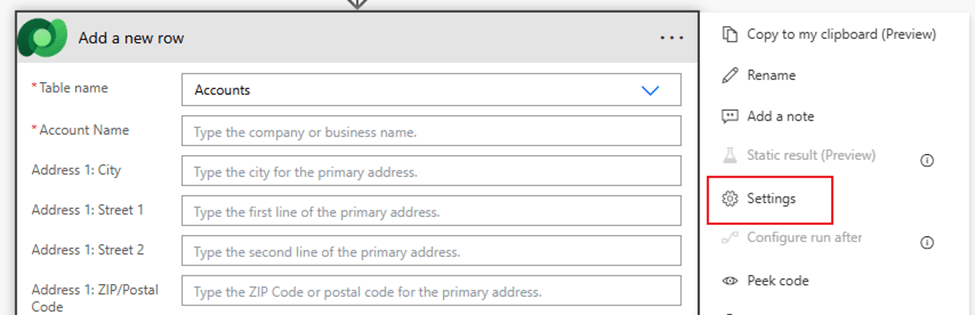
Example: Dataverse – Add a new row - Click on the ellipsis (⋮) → Select Settings
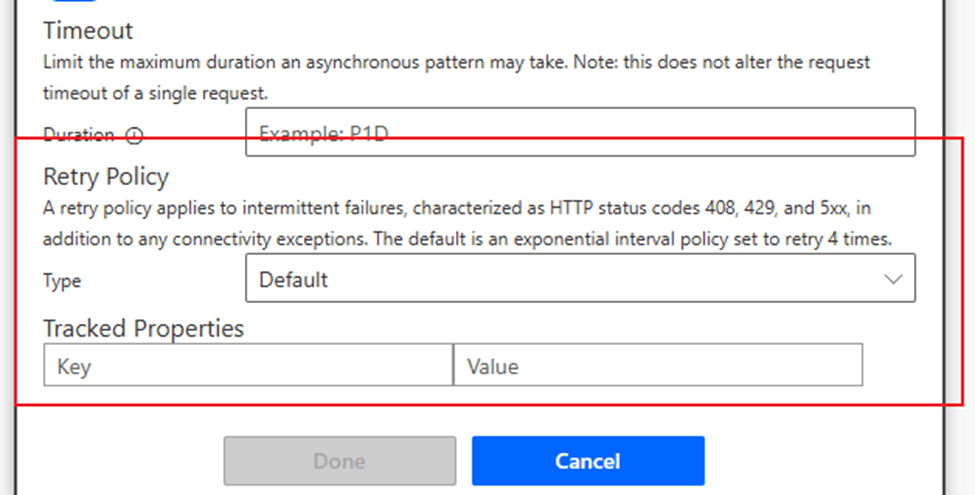
- Scroll to Retry Policy section.
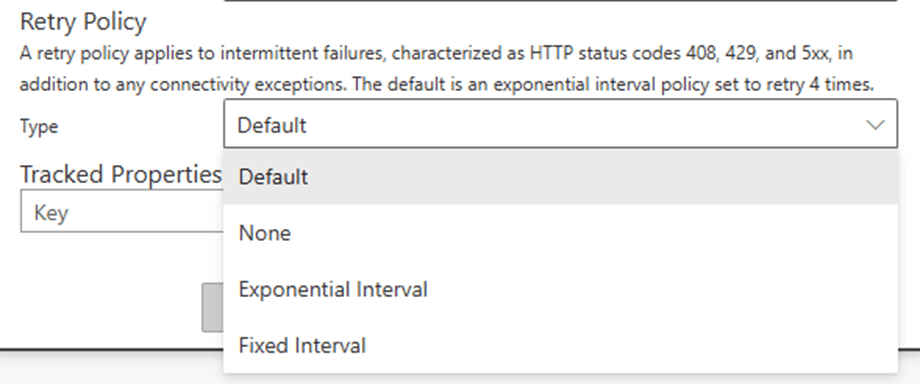
You will see options:
- None → Immediate fail
- Default → 4 retries, exponential
- Fixed Interval → Retries at fixed times
- Exponential Interval → Retries with increasing wait time
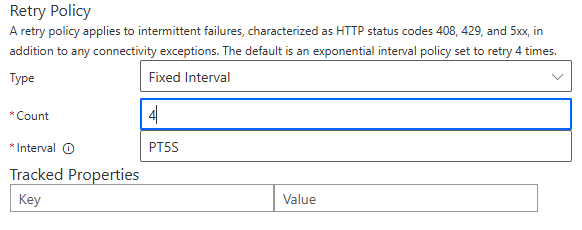
Configuring Fixed Interval Retry Policy
If you want to retry a failed action every 1 minute for 3 attempts, follow this:
- Select Fixed Interval.
- Set:
- Count: 3 (number of retries)
- Interval: PT1M (ISO 8601 format: PT = Period Time, 1M = 1 Minute)
- Save the flow.
NOTE: ISO 8601 Duration Format Examples:
- PT30S → 30 Seconds
- PT1M → 1 Minute
- PT5M → 5 Minutes
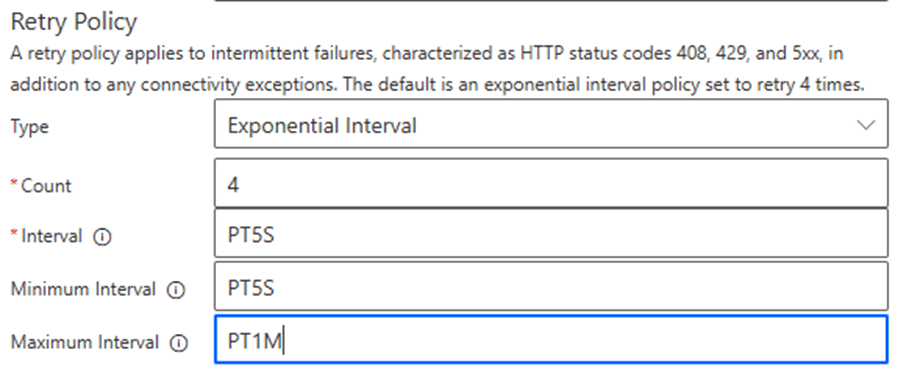
Configuring Exponential Interval Retry Policy
Exponential retries are smarter because they increase the wait time after each failure.
Example:
- 1st retry after 5 seconds
- 2nd retry after 10 seconds
- 3rd retry after 20 seconds
Steps:
- Choose Exponential Interval.
- Set:
- Count: 4
- Minimum Interval: PT5S (start with 5 seconds)
- Maximum Interval: PT1M (up to 1 minute delay)
Best Practices for Retry Policy
- Use Exponential Interval for APIs to reduce throttling.
- Avoid very short intervals to prevent hitting API limits.
- Combine retry policy with Configure Run After to handle failures gracefully.
- Log retries using Compose or Scope to debug issues.
Real-World Scenario
Imagine a Dynamics 365 plugin triggers a Power Automate flow to create a record in an external system via HTTP call.
If the API is temporarily down:
- With No Retry, the flow fails immediately.
- With Retry Policy, Power Automate retries automatically, reducing manual intervention.
By configuring this smartly, you can make your flows more reliable and avoid unnecessary failures.
I hope this information is helpful.
Please subscribe my channel for continuous learning.
Thanks for reading.
#Let’s_Learn_Together

 Power Spark
Leave a comment