
In this blog, we will learn how to add an embedded canvas app on a model-driven form in Power Apps.
This is a cool feature that lets you customize your forms with rich controls and logic that are not available in the standard model-driven form designer.
Steps:
To embed a Canvas App in a Model Driven App, you need to follow these steps given below:
- First you need to create a Canvas App, or you can also use the old one.
- Open the App designer of your Model Driven App, in which you want to embed your Canvas App.
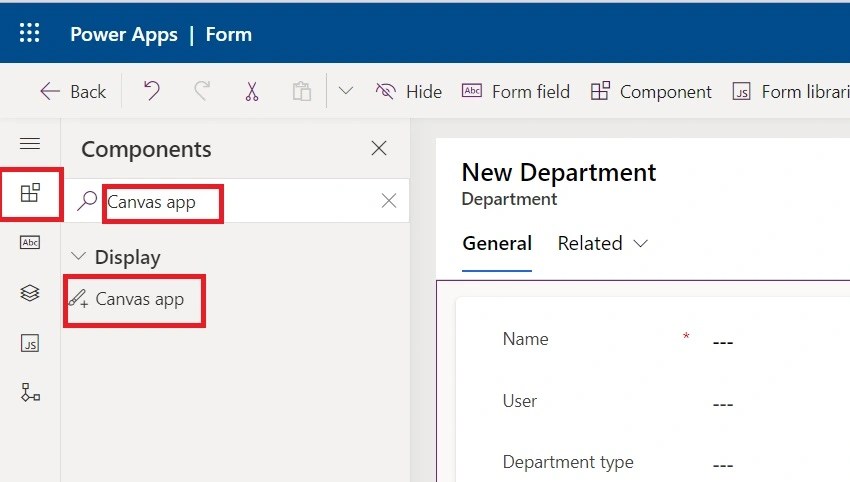
- Select the entity form, here we have selected a custom entity(Department).
- Now select the “Component” from the left menu.
- And search for “Canvas App.”
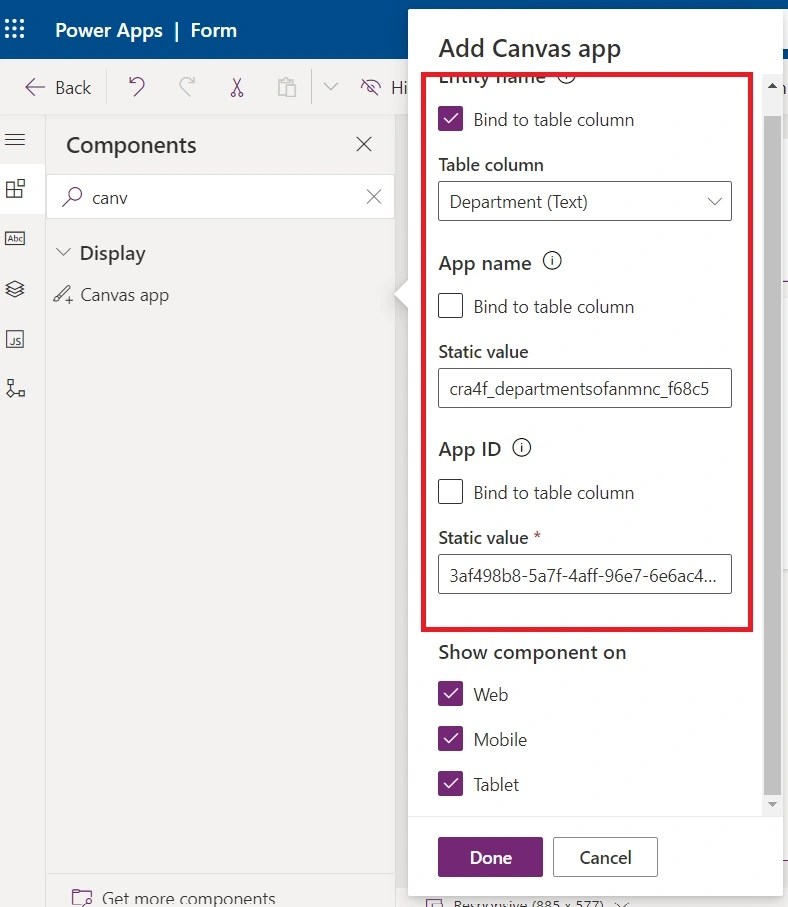
- Select “Table column.”
- Add a logical name of your Canvas app under the static value of App name.
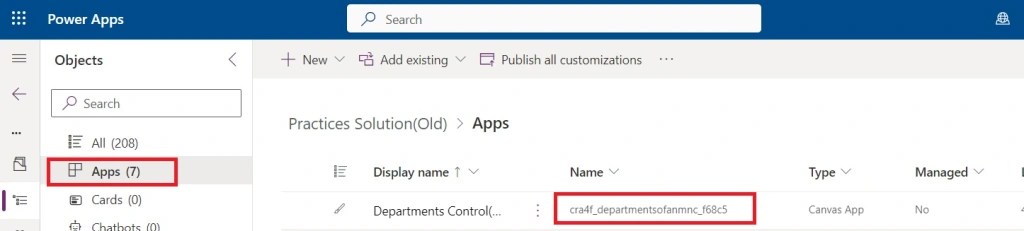
- And an “App ID” of your Canvas app.
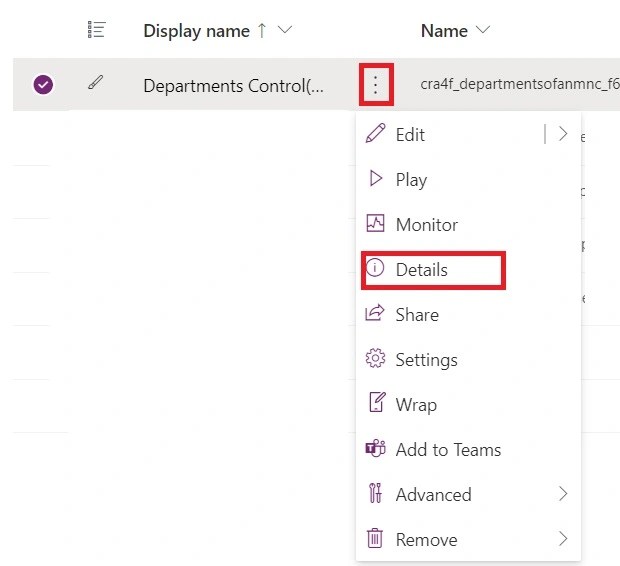
- You can find your app ID in “Details.”
- Copy the app ID from the app details page.
- Add it into “App ID.”
- Save and publish your Model Driven App.
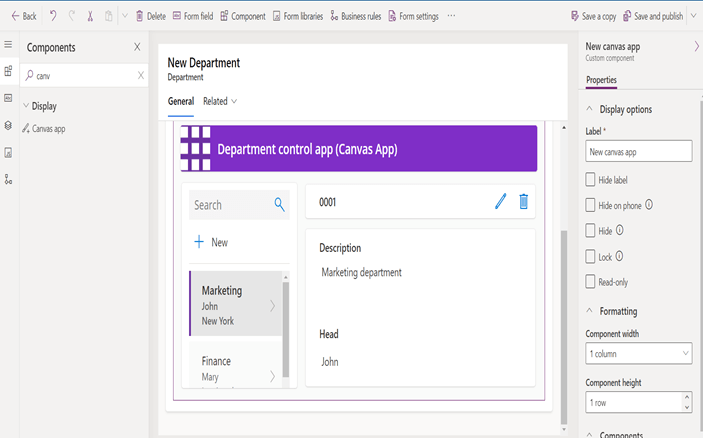
Output:
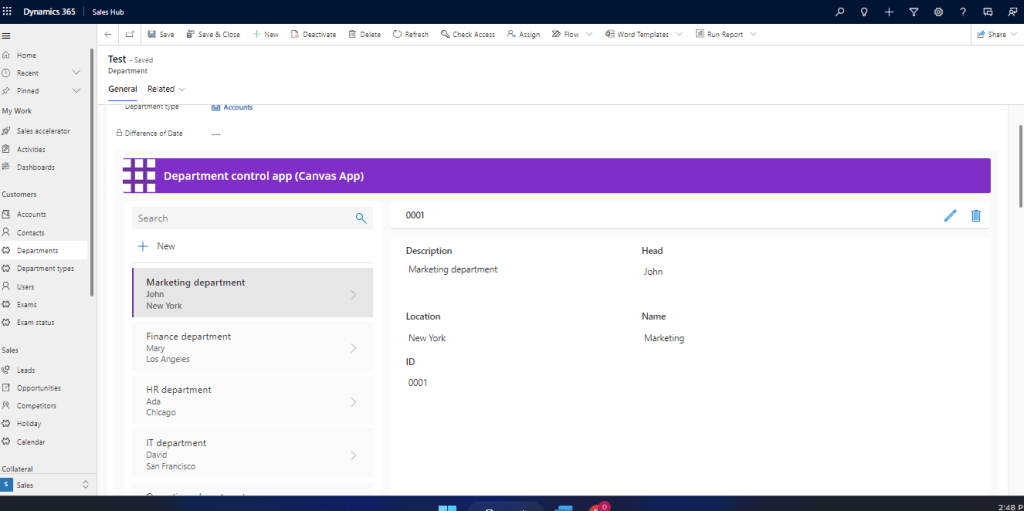
You can now see your Canvas app embedded in your Model Driven App. You can interact with your Canvas app as you would normally do, and you can also pass data between your Canvas app and your Model Driven App using parameters.
Hope it helps!
#Let’s_learn_together
Thanks for reading!!


 Power Spark
Leave a reply to Me Cancel reply