
Namaste everyone,
So, we are back with Part 2 to explore more features of new Power Automate Designer. In our previous blog, we have covered some of the features and in continuation with it today we will learn:
- How to Copy/Paste/Delete the actions
- How to update Run After Settings
- How to edit with Copilot
- How to add a note
- How to see Toggle Minimap
- How to search for Actions
Let’s understand the features one by one in detail:
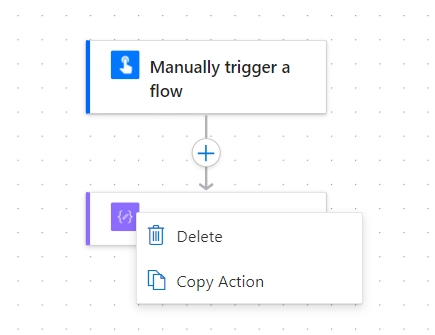
- How to Copy/Paste/Delete the actions: To Copy/Delete the Action/Trigger, you may need to right click on the Action/Trigger then you can see the 2 options: Copy and Delete. You can simply click on the option to select it
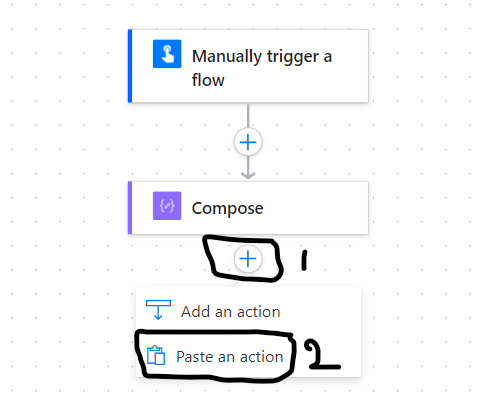
Then click on “+” icon where you want to paste that action, you may then see the option of “Paste the action”, click on it to paste your copied action.
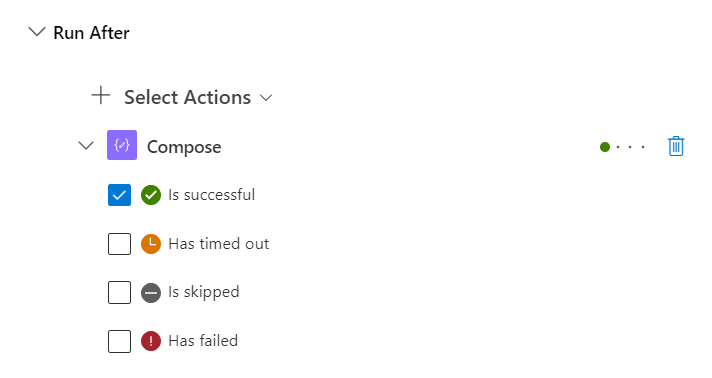
- How to update “Run After Settings”: “Run After Settings” is basically used to set when you want to run the step. For example:
- Is successful: This means that selected action should only run if previous action is successful.
- Has timed out: This means that selected action should be run if previous action’s time is out
- Is skipped: This means that selected action should only run if previous action is skipped.
- Has failed: This means that selected action should only run if previous action is failed.
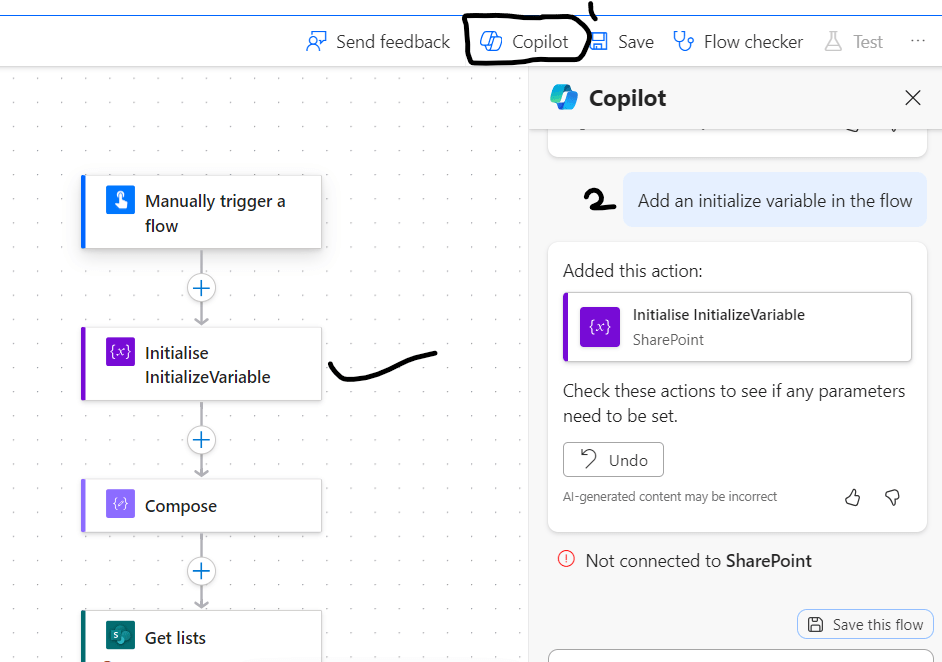
- How to edit with Copilot: While working if you want to perform any operation then you also can use “Copilot” feature to simply update your flow by describing the requirement. For that you need to click on “Copilot” option at the top right corner of the screen and then need to describe your requirement:
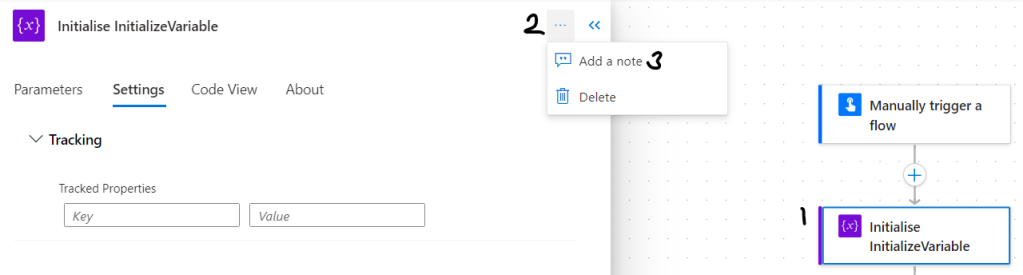
- How to add a note: You can also add a note in your “Actions/Trigger”. Click on your action >> More commands (…) >> Add a Note
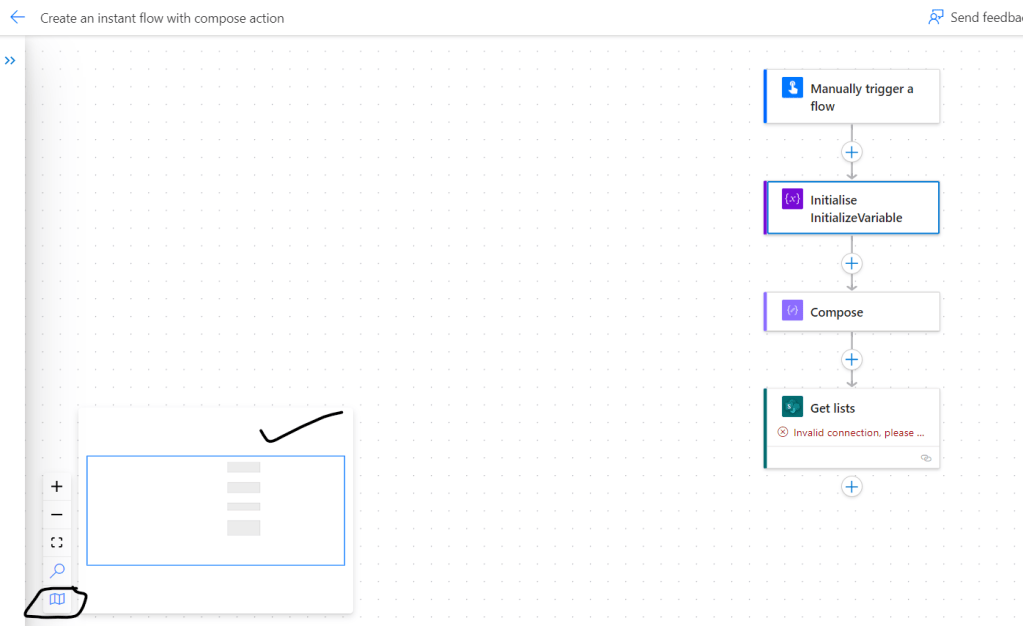
- How to see Toggle Minimap: To see the minimap of your cloud flow, you need to select “Toggle Minimap” option from the bottom left corner of your screen
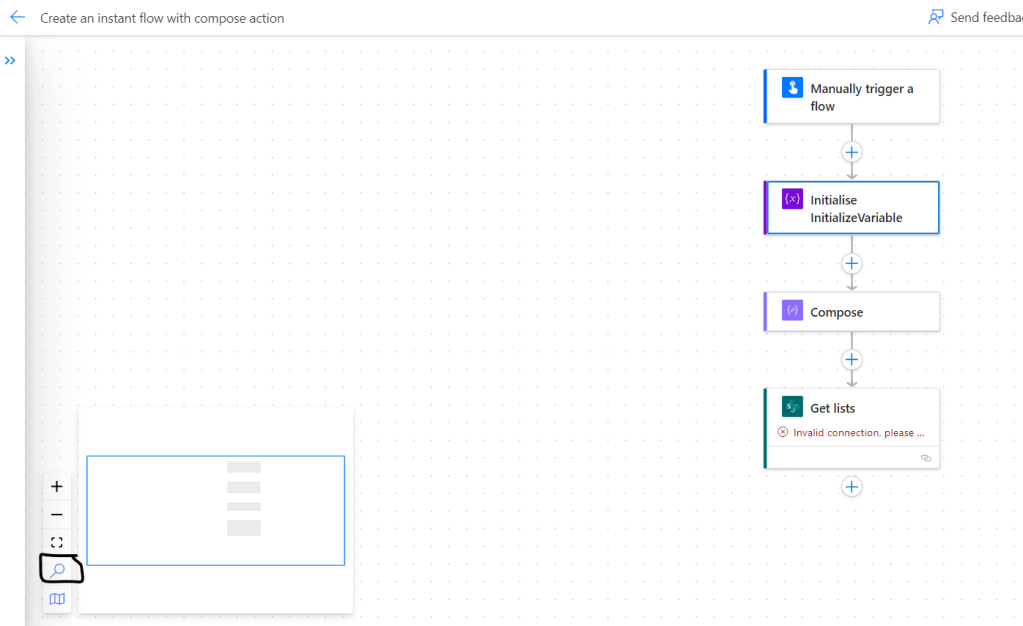
- How to search for Actions: This is an interesting feature of this new PA designer wherein now, you can search the actions by name. If you wrote a lengthy flow and want to search for an action, then you may simply search an action using Search feature. At the bottom left of the screen, click on search icon to use this feature.
Hope it helps!
Stay tuned with Power Spark for more learnings!
#Let’s_Learn_Together
Thanks for reading 😊

 Power Spark
Leave a comment