
Power Apps portals and Dynamics 365 portals are now referred to as Power Pages. Power pages are web pages that can be customized with HTML elements to implement functionality by using jQuery in D365.
In this blog, we will learn how to change logo of your webpage dynamically using jQuery. For example: If you are using custom Page template and want to use your web page for different languages then it won’t work as expected for any other language and in that case you need to add/update logo of your organization dynamically using jQuery.
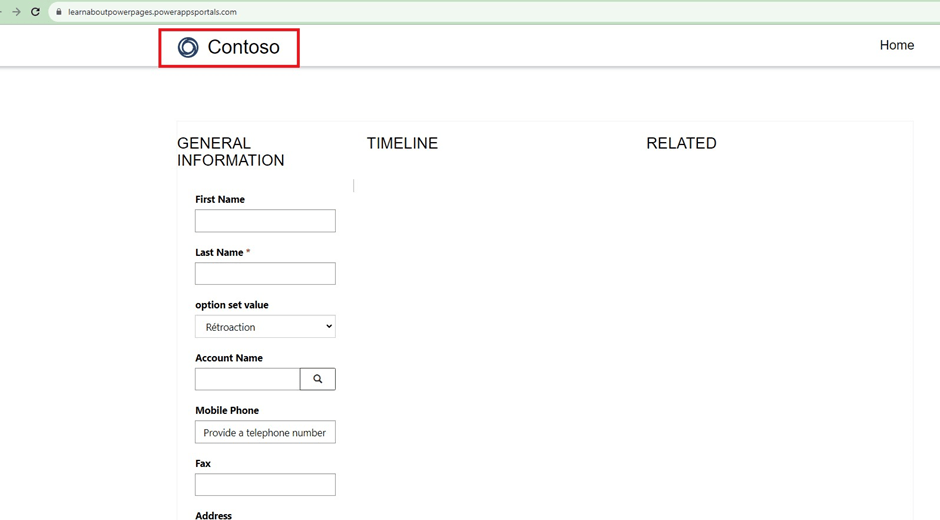
Let’s understand how to implement this step by step:
- Navigate to the Power Pages Management App
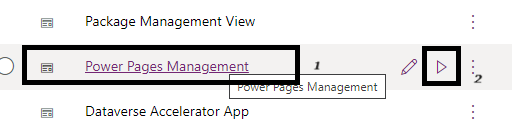
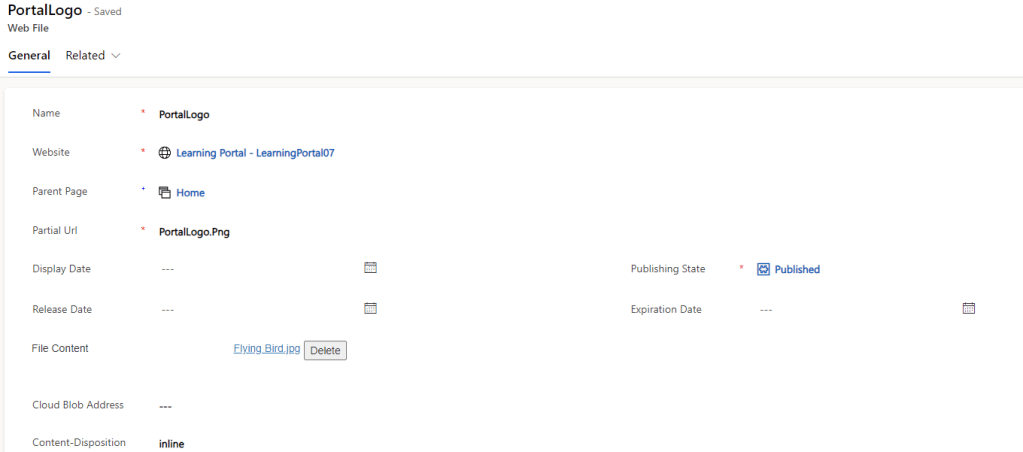
- Web File: To store the actual contents of a given file, Power Pages uses the attachment feature of the notes associated with a web file record. Firstly, we need to create “Web File” record and store the PNG image in there:
- Name: Name should be very specific and relevant to identify easily.
- Website: Select the site for which you want to change the logo
- Parent Page: Select the parent page.
- Partial URL: Generate an URL which you want to use for this image.
- Publishing State: Select Published
- Click on Save to save the record.
- File Content: Browse an image from your PC which you want to use.
- Click again on Save to save the record.
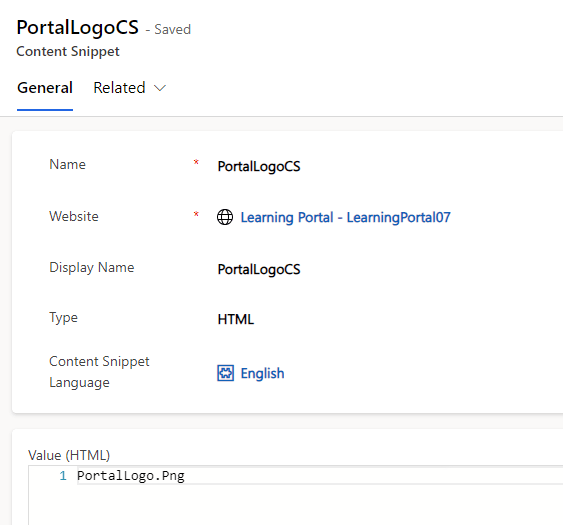
- Content Snippets: You can use snippets to show text or HTML. The content snippets can also use liquid objects, and reference other content such as entities. Now, create a Content Snippet record:
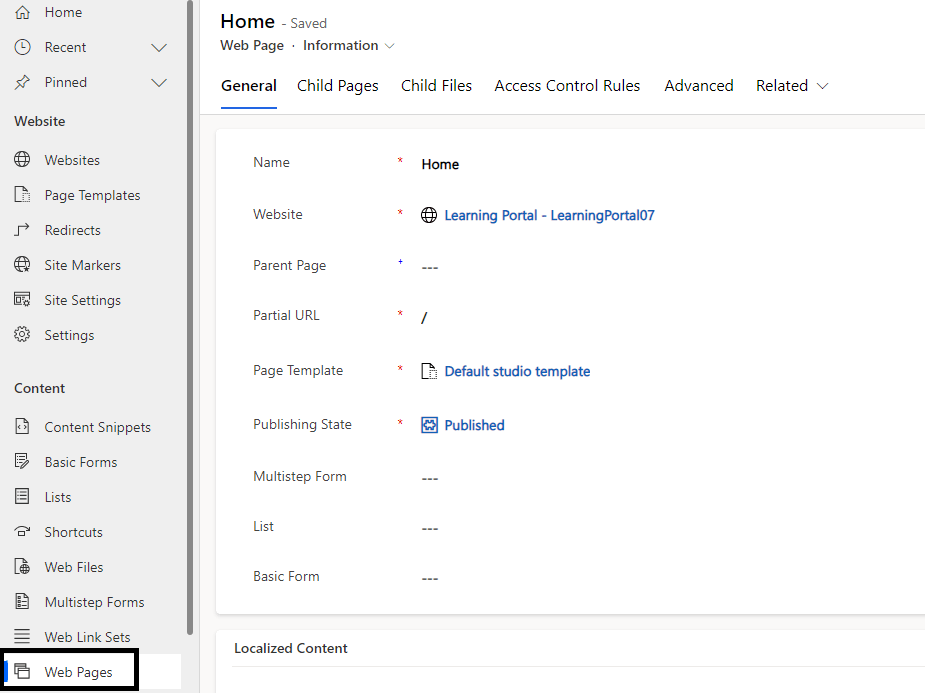
- Select your Web Page, here we are using default Web Page, i.e., “Home”.
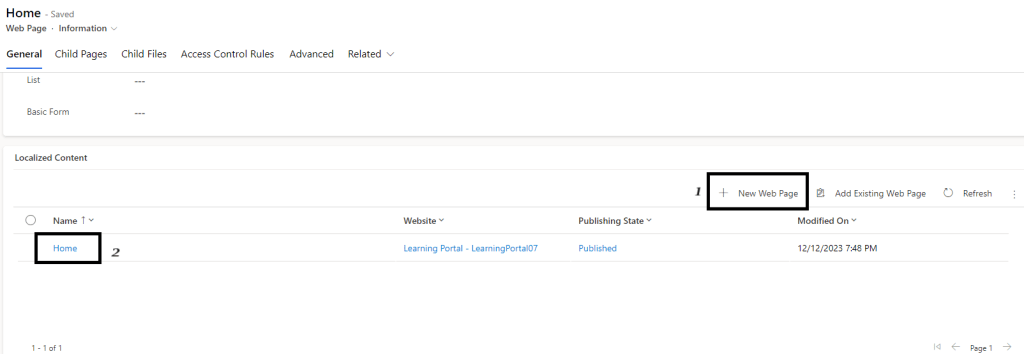
- Select the Web Page “Home” from Localized Content section.
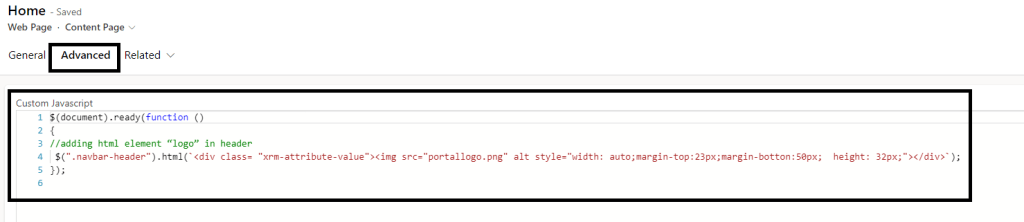
- Go to “Advanced” tab and paste the following jQuery under “Custom JavaScript” to change logo.
$(document).ready(function ()
{
//adding html element “logo” in header
$(“.navbar-header”).html(`<div class= “xrm-attribute-value”><img src=”portallogo.png” alt style=”width: auto;margin-top:23px;margin-botton:50px; height: 32px;”></div>`);
});
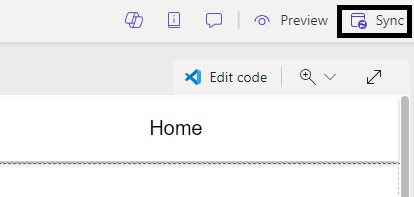
- Now, Save and Sync Power Pages from design studio.
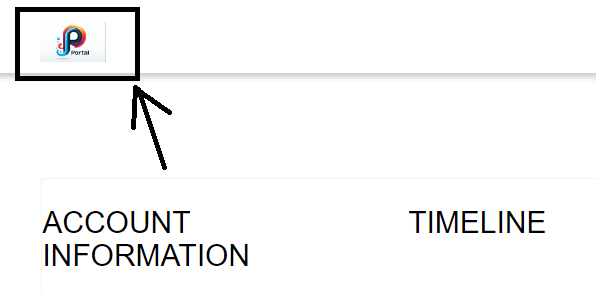
- You now may Preview to see the updated logo on your site
Hope it helps!
#Let’s_Learn_Together
For more learning stay tuned with Power Spark.
Thank you for reading. 🙂


Leave a Reply