
Hello everyone,
Hope you are doing well!
If you’ve ever worked with large datasets in Power Automate, you’ve probably run into the frustrating 5000 record limit while using “List rows” or “Get items”.
I recently faced this issue while working with Dataverse data, and here’s how I solved it using Pagination + Filter Rows in Microsoft Power Automate.
The Problem
I was trying to fetch records from the Connection table in Dataverse.
Even after setting pagination to 100,000, the flow was still only returning 5000 records.
Root Cause
- Dataverse enforces limits per request
- Pagination alone doesn’t guarantee full data retrieval
- Unfiltered queries may stop at 5000 records
Step-by-Step Solution
Step 1: Add “List rows” Action
- Create or open your flow
- Add List rows (Dataverse) action
- Select your table (e.g., connection)
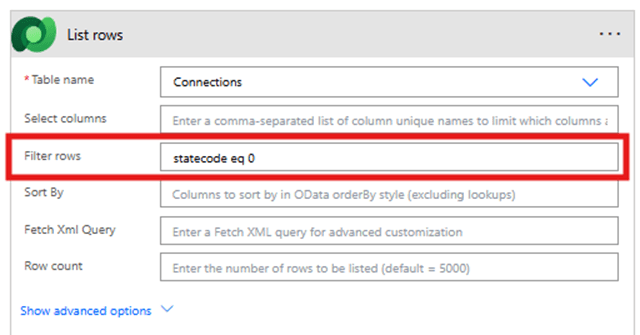
Step 2: Apply Filter Rows
- Go to Advanced options
- In Filter Rows, add your condition: statecode eq 0
This reduces the dataset and improves pagination behaviour.
Note: Pagination won’t work on Fetch XML Query
Step 3: Enable Pagination
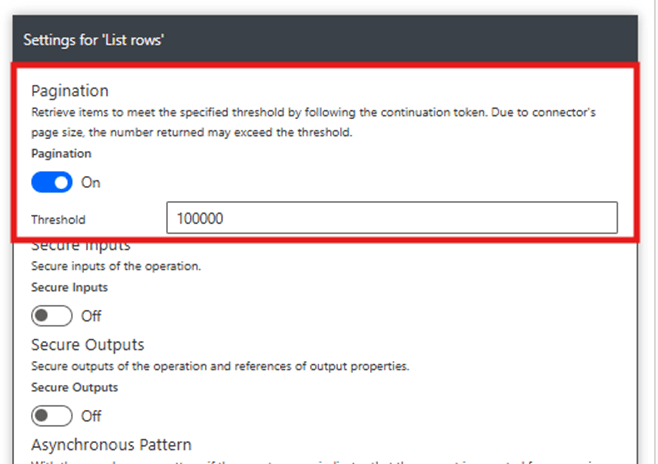
- Click on three dots (⋮) on the List rows action
- Select Settings
- Turn Pagination = ON
- Set Threshold (e.g., 100000)
Step 4: Process the Records
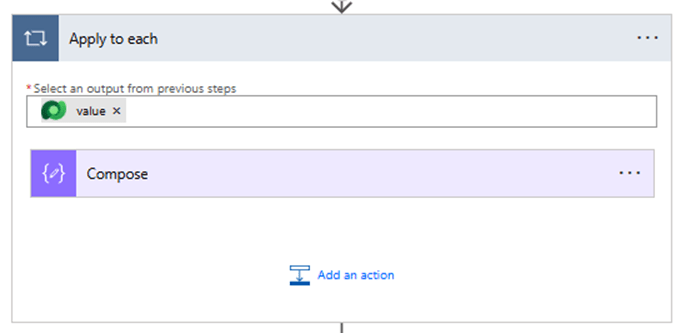
- Use Apply to each
- Pass: body(‘List_rows’)?[‘value’]
This ensures all paginated records are processed
Key Learnings
- Pagination works best with filters applied
- Always validate using length()
- Avoid fetching unnecessary columns
Pro Tip
For very large datasets (50k+ records):
- Split data using date ranges
- Process in batches
- Add retry policies for robustness
Final Outcome
- Retrieved more than 5000 records successfully
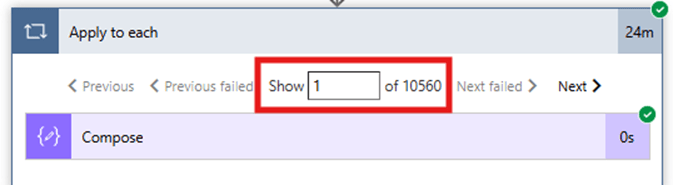
- Flow performance improved
- No data loss due to limits
Conclusion
Pagination in Power Automate is powerful—but only when combined with the right strategy.
Using Filter Rows + Pagination ensures your flows scale efficiently and reliably.
Stay tuned for more practical tips on Power Automate.
I hope this information is helpful.
Please subscribe my channel for continuous learning.
Thanks for reading.
#Let’s_Learn_Together

 Power Spark
Leave a comment