
Namaste everyone!
Introduction to Power Apps Grid Control?
In today’s data-driven world, businesses rely on efficient data management tools to streamline operations and drive growth. The Power Apps Grid Control is a versatile data visualization and interaction tool that allows users to seamlessly navigate and manipulate data within Dynamics 365 environments.
Using Power Apps Grid Control, users now can inline editing, configure jump bar, infinite scrolling, nested grids, grouping, aggregation and much more.
In this blog, we will learn how to add Power Apps Grid Control to views for an entity and will also check configuration to see nested grids.
Scenario:
Previously, if we wanted to view a list of opportunity products associated with any opportunity, we had to open each record individually. But imagine this: now you can see the list of products directly within grids inside the view. Isn’t that amazing? Of course, yes!
Microsoft has now introduced a feature to display nested grids within a view.
Let’s explore this feature!
Steps:
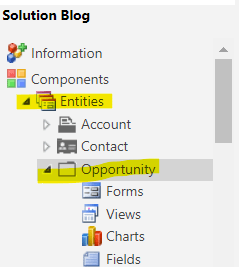
- Open Solution and select the entity wherein you want to add control. In my case, I am using Opportunity entity.
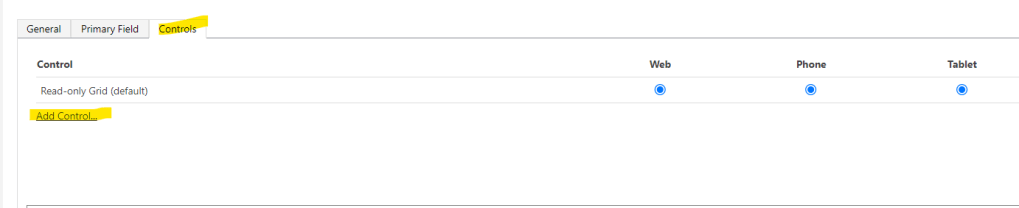
- Now, click on Controls and then “Add Controls”.
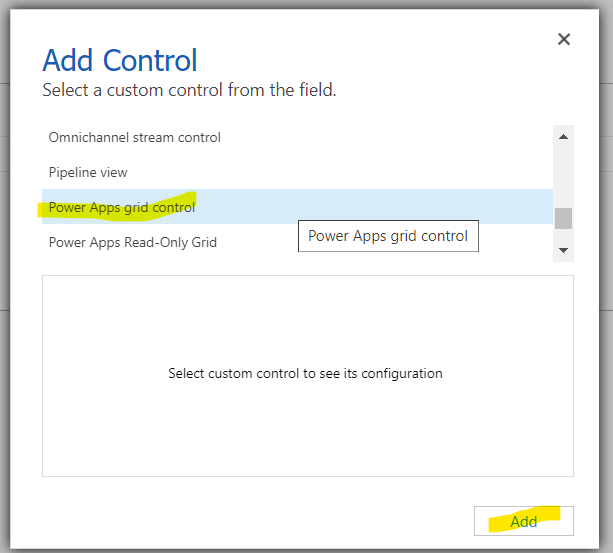
- Search for “Power Apps Grid Control” and then click on Add.
- Now, click on Child items (Preview) then edit.
- A new window will open then select “Opportunity Products” as entity and “All Opportunity Products” as View as shown in below snap then click on OK.
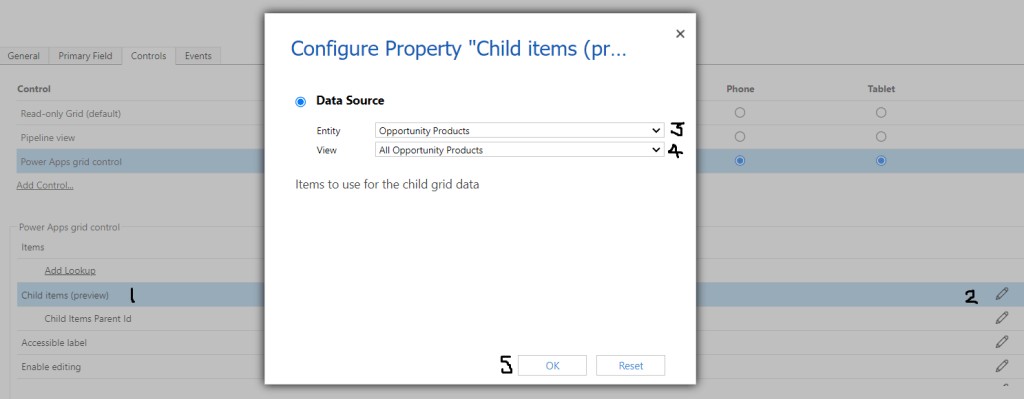
- Now, select Child Items Parent ID and click on edit icon.
- Select “opportunityid (Lookup.Simple)” under Bind to a value on a field and then click on OK
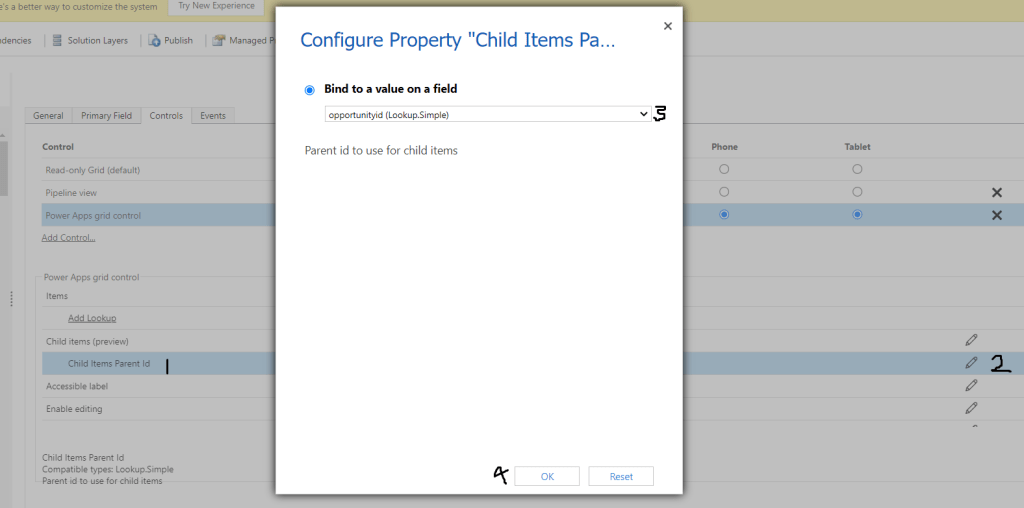
- Now, Save and Publish your changes.
To see the results:
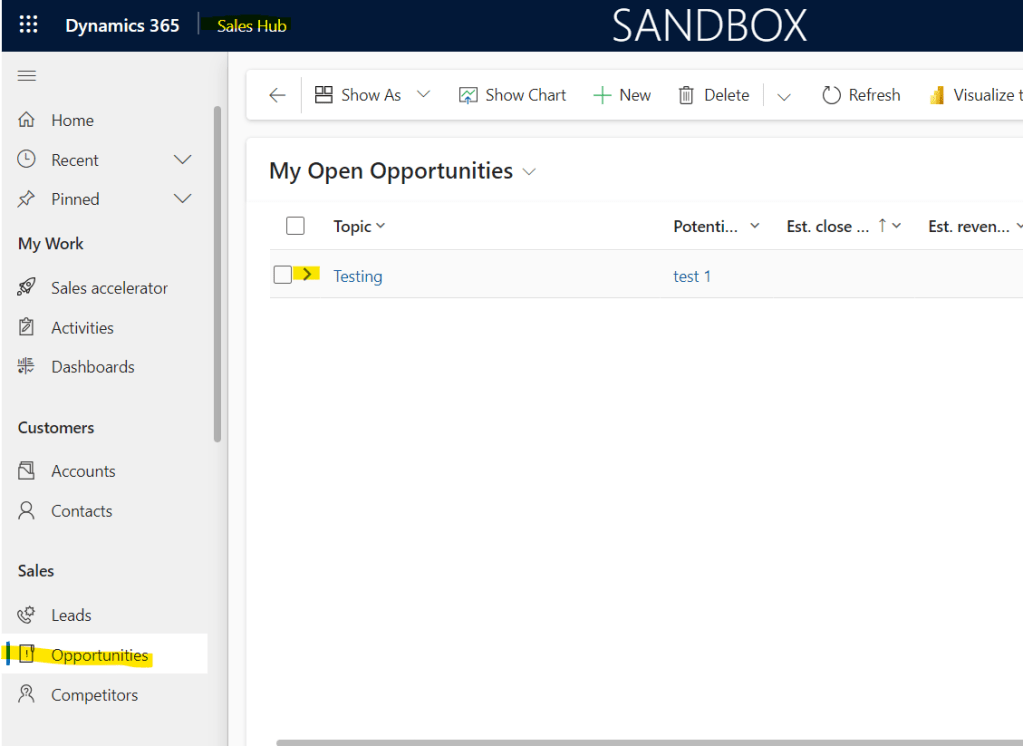
- Go to your App i.e., Sales Hub.
- Select “Opportunities” entity.
- Click on arrow next to the record under view as shown below:
- Once you click on the arrow, you can see the related Opportunity Products related to selected Opportunity.
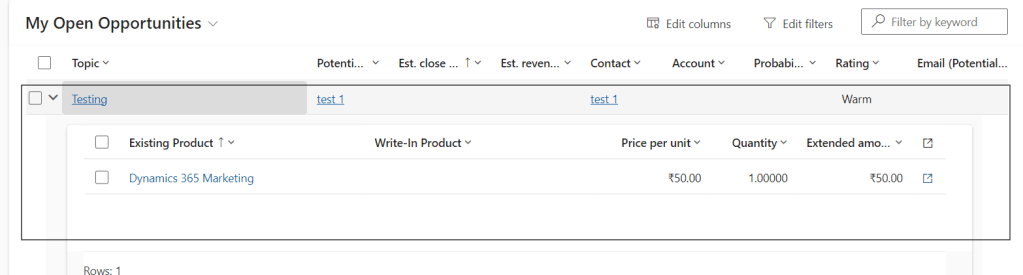
This way we can see associated records within a grid using this feature.
Hope it helps!
Thanks for reading!
Let’s_Learn_Together
Stay tuned with Power Spark for continuous learning.
Thank you 🙂

 Power Spark
Leave a comment