
Namaste everyone,
In this blog, we will learn about “Tab list” and “Progress Bar” modern controls of Canvas App.
Tab List
Incorporating a modern tab list control within a Canvas App in the Power Platform can significantly enhance user navigation and app organization. This control allows for a sleek, tabbed interface where each tab can represent a different screen or data set, making it easier for users to find what they need without overwhelming them with information. By utilizing this feature, developers can create intuitive and visually appealing apps that align with modern design principles.
Progress bar
Modern progress bar control in a Canvas App within the Power Platform, you can utilize the built-in components and customize them using properties and formulas. The ‘Progress Bar’ control can be added from the Insert pane under ‘Input’. You can then set its ‘Minimum’ and ‘Maximum’ properties to define the range and bind the ‘Value’ property to a variable that tracks progress. For a more customized look, consider using shapes like rectangles to visually represent progress and overlay text labels to show percentage completion.
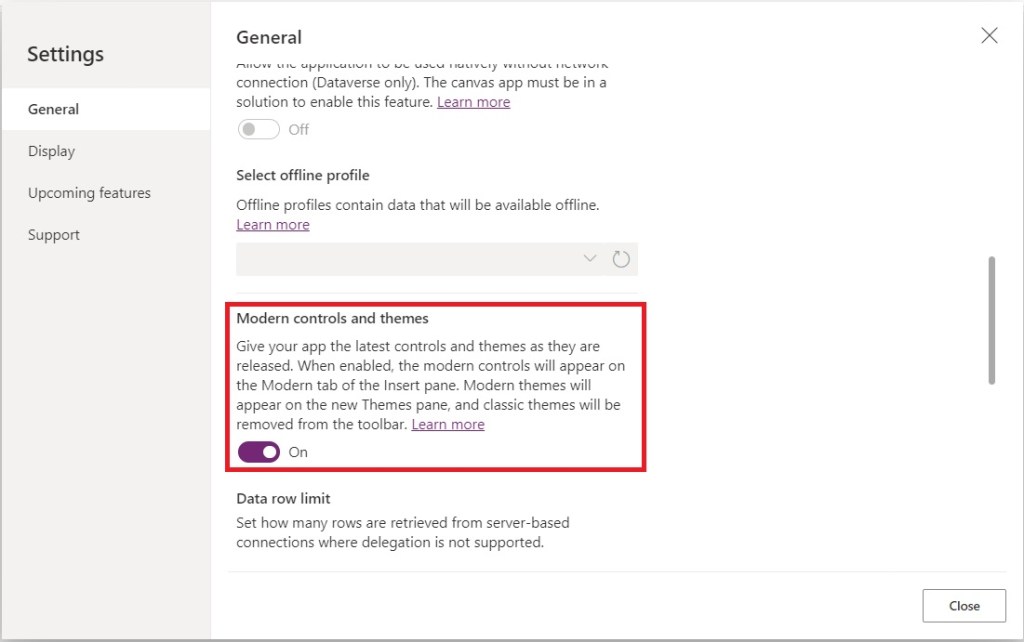
- For enabling the “Modern controls”.
- Go to the settings, In general section scroll down.
- You will get the “Modern Controls and themes”, turn on the toggle button.
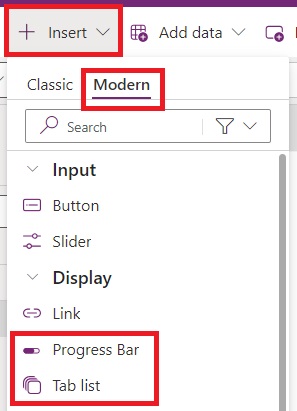
- Click on “Insert”, switch to the “Modern” tab.
- You will get the new modern controls.
Tab List:
Tab List control is a user interface element in Dynamics 365 Canvas apps that allows you to organize content into separate tabs, providing a visually appealing and organized way for users to navigate through different sections of an application. Each tab typically represents a distinct category or set of related information.
- Tab List controls help organize content into logical sections, making it easier for users to locate and access specific information within an application.
- By presenting content in a tabbed interface, users can quickly switch between different views or functionalities without feeling overwhelmed by cluttered screens.
- Tab List controls often offer customization options such as tab labels, icons, and layout configurations, allowing developers to tailor the user experience to meet specific requirements or preferences.
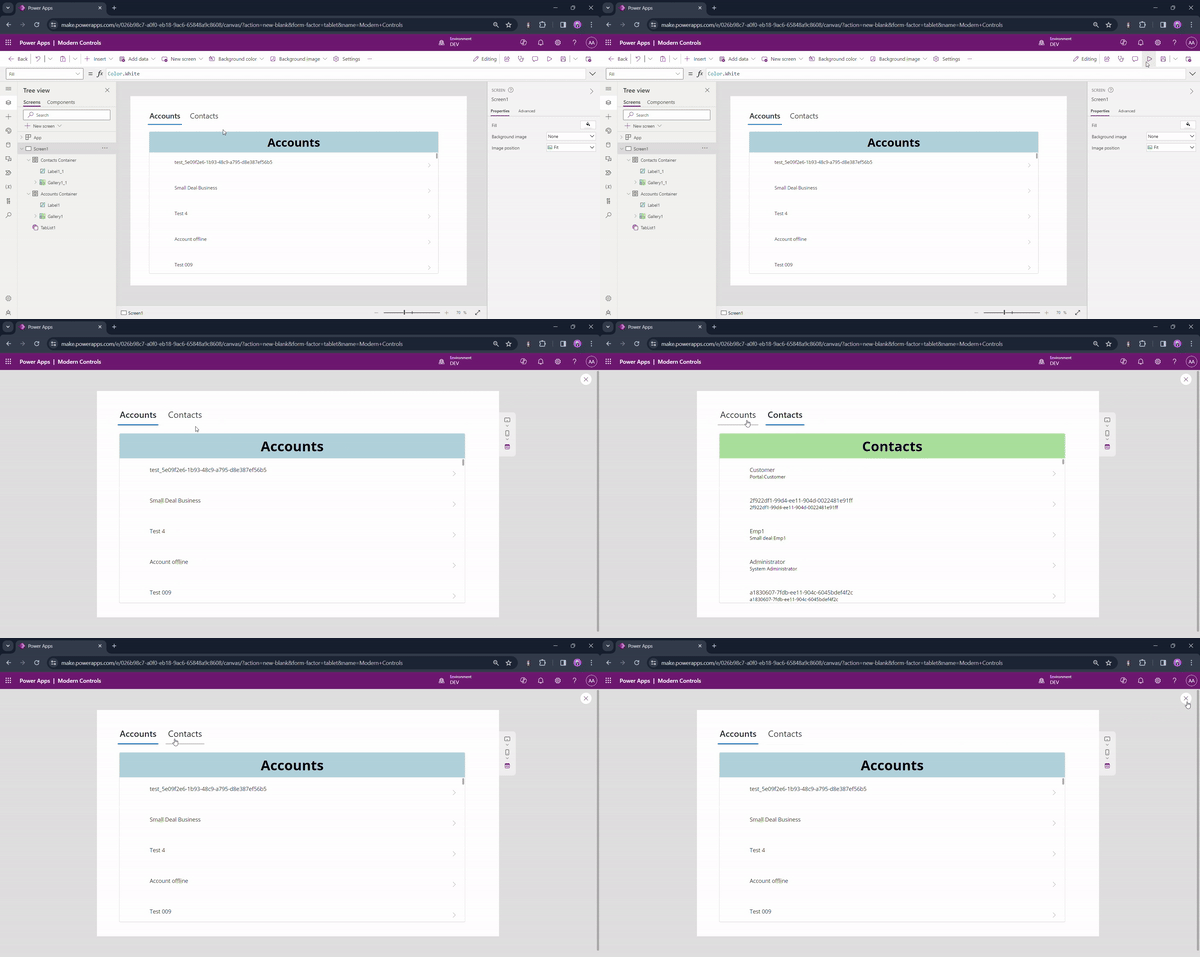
- Here, we have added 2 galleries, one is connected to “accounts and other is connected to “Contacts”.
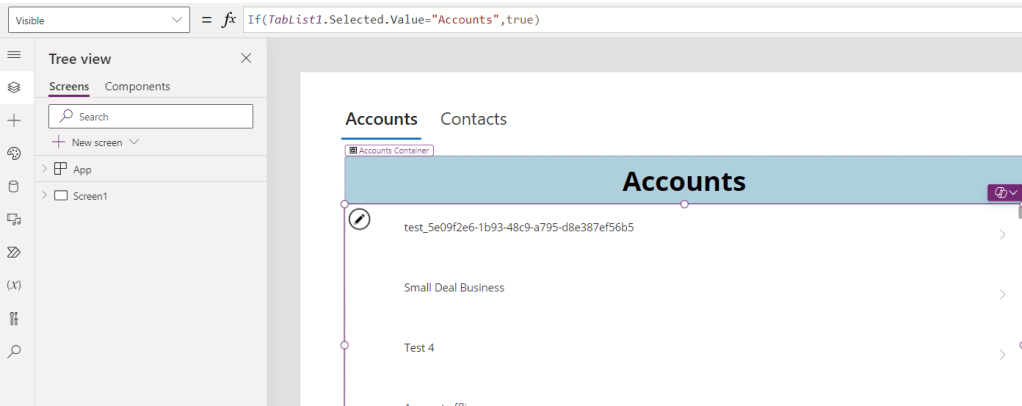
- On the visible property of galleries, we have added the following function.
Visible : If(TabList1.Selected.Value=”Accounts”,true)
Progress Bar:
Implementing a ‘Progress Bar’ in a Canvas App involves using the Power Platform’s intuitive design interface, where you can drag and drop controls onto the canvas. Once placed, you can bind the ‘Progress Bar’ to data sources or variables that represent the progress of a task. As these values change, the ‘Progress Bar’ visually updates to reflect the current status.
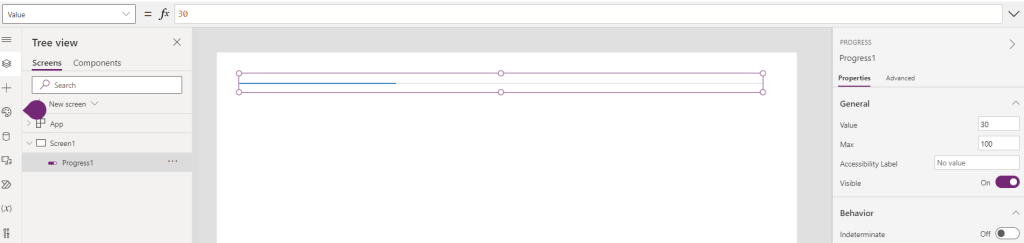
Properties of Progress bar.
- Maximum : Defines the maximum value of the progress bar.( If set to 100, the progress bar will be full when it reaches 100.)

- Minimum : Sets the minimum value of the progress bar.( If set to 10, it represents the start of a task.)

- Value : Indicates the current progress value.
Hope it helps!
Thanks for reading.
Let’s_Learn_Together
Stay tuned with Power Spark for continuous learning.
Thank you 🙂


Leave a Reply