
Namaste Everyone,
In this blog, we will learn how to enable aggregation in Model Driven App, Aggregation is a powerful feature in Dynamics 365 that allows users to gain meaningful insights from their data. With this feature, it’s easier than ever to configure and utilize this functionality to its full potential. Here’s a step-by-step guide on how to enable aggregation in Dynamics 365.
- Aggregation in Dynamics 365 allows users to gain insights by summarizing numeric data.
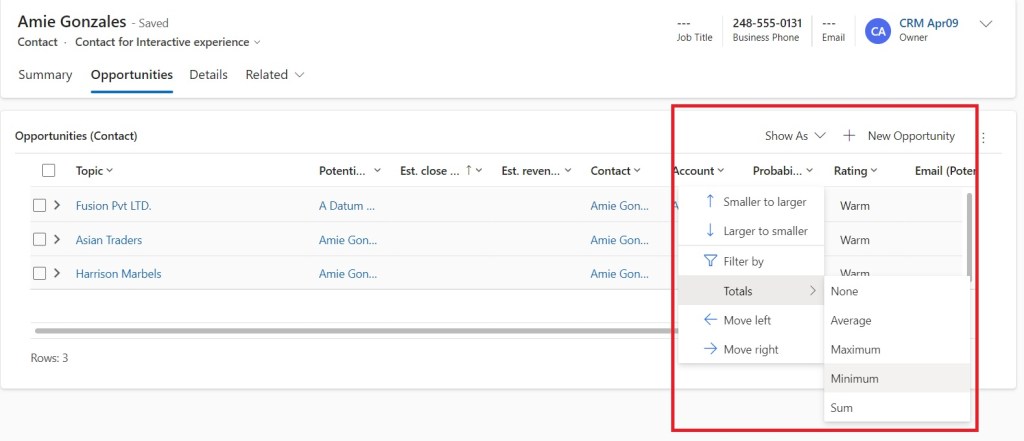
- This feature offers additional aggregation functions like total, minimum, maximum, and average.
Implementation:
- Ensure you have the necessary permissions as a System Administrator or System Customizer.
- Go to the App and edit the apps.
- Select your table in which you have your sub-grid added.
- Here I’m using the Contact table and I have Opportunity’s sub-grid on Contact.
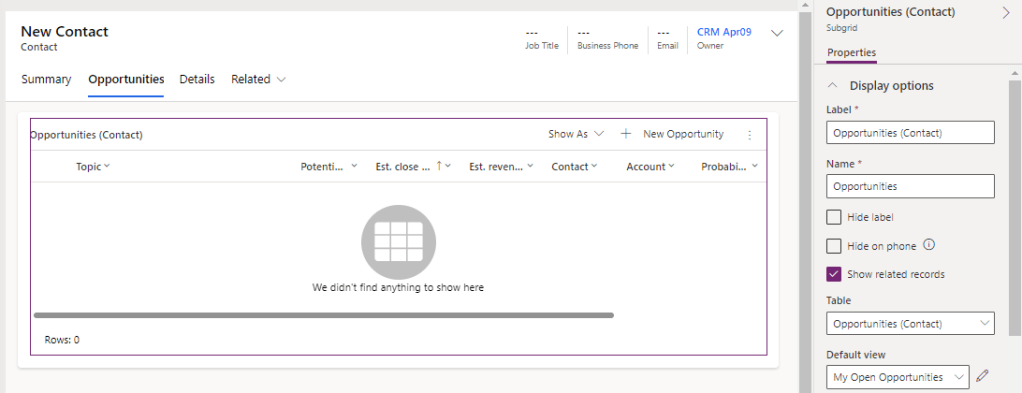
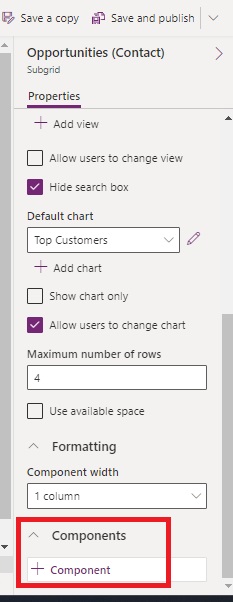
- On the right side you can see the Properties pane, scroll down and click on Components.
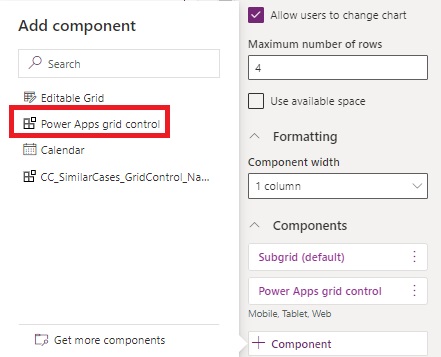
- And click on “Get Components”, select “Power Apps grid control”.

- Now click on “Power Apps grid control” from component list.
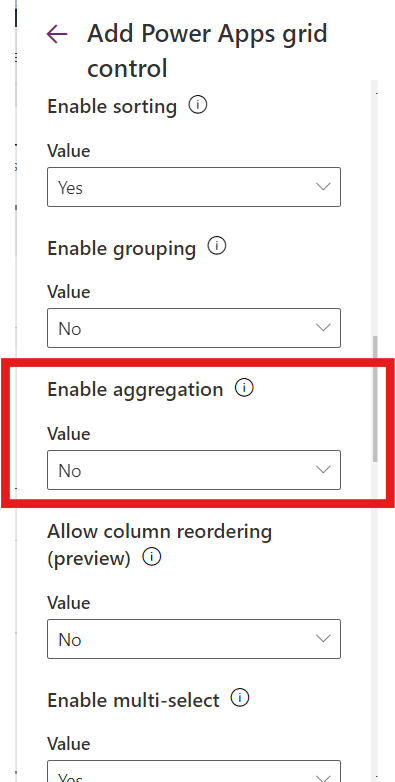
- Set the value to yes and click on save.
- Now save and Publish your app.
Output:
- Aggregation in Dynamics 365 enhances data analysis capabilities.
- It’s customizable and aligns with Microsoft’s accessibility standards and design guidance.
Hope it helps!
Thanks for reading!
Lets_Learn_Together
Stay tuned with Power Spark for continuous learning.
Thank you 🙂


 Power Spark
Leave a comment