

Hello everyone,
Hope you all are doing good!
In our last blog post, we walked you through adding a page to your Power Pages site. If you missed it, you can check it here.
In this blog post, we’ll explore how to style your site. We’ll cover the following topics:
- Updating logo
- Adjusting the theme color with a color palette
- Modifying the fonts
Updating Logo
Here are the steps to update logo to Power Pages:
- Go to Power Pages.
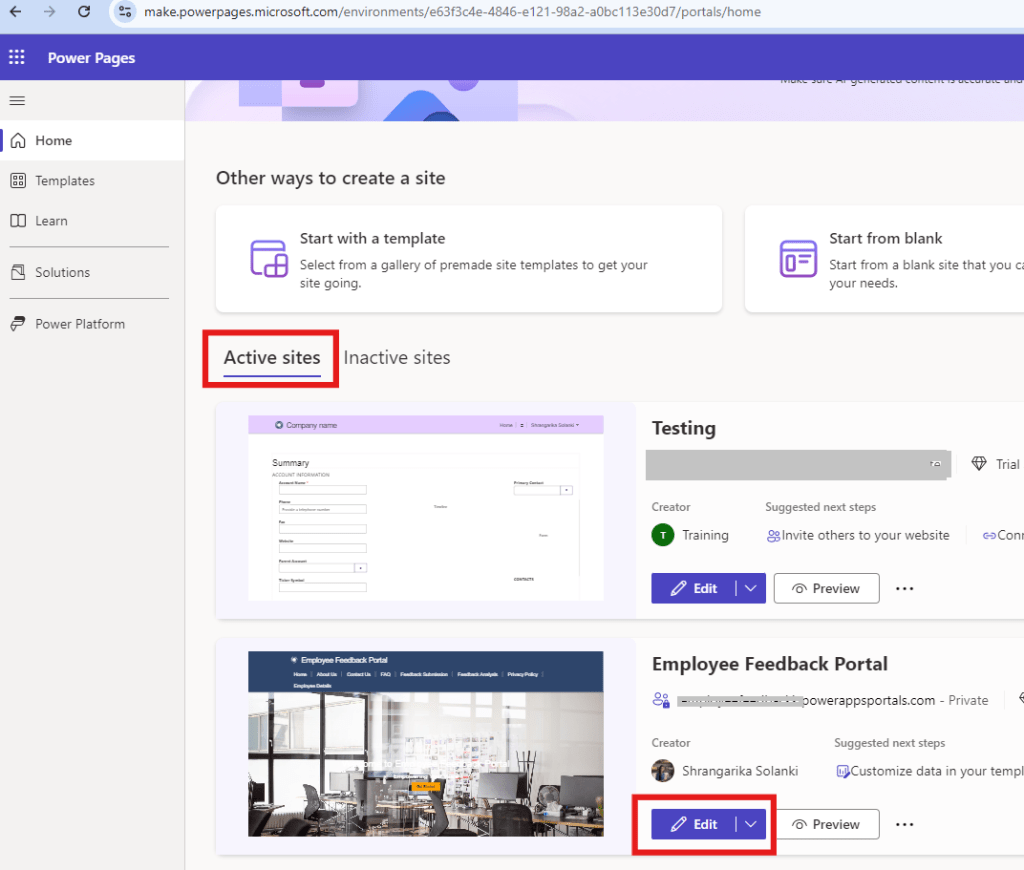
- From the “Active Sites” list, select the site you want to edit and click on “Edit”.
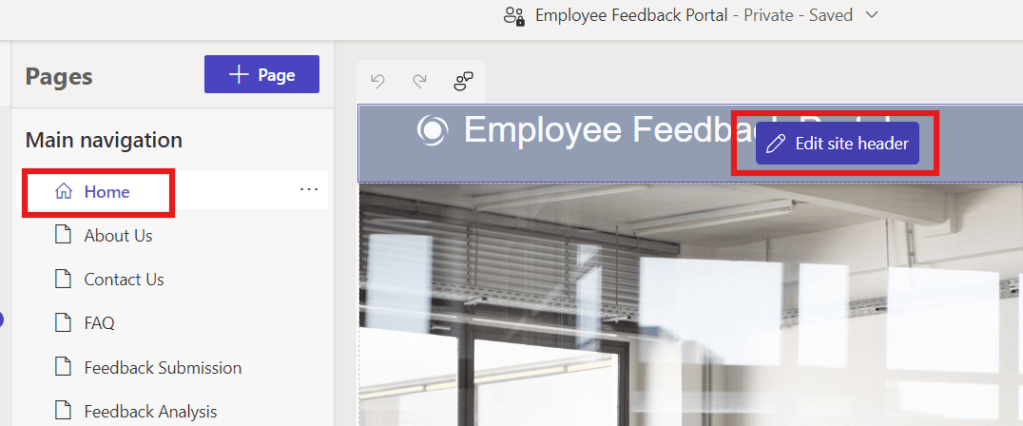
- Once you click on “Edit”, you will be redirected to the Power Pages Design Studio. Now, click on the Home Page Header and then “Edit site header”.
- From Title + logo tab, click on “Upload Image” under site logo and then select the logo of your organization. Once you will select the image a logo will be updated.

Adjusting the theme color with a color palette
In Power Pages, the brand color palette refers to a predefined set of colors that you use to maintain a consistent look and feel across your web pages. It helps align the design with your brand’s identity by setting specific colors for elements like backgrounds, text, and accents.
- Within the design studio, click on “Styling” from left navigation panel.
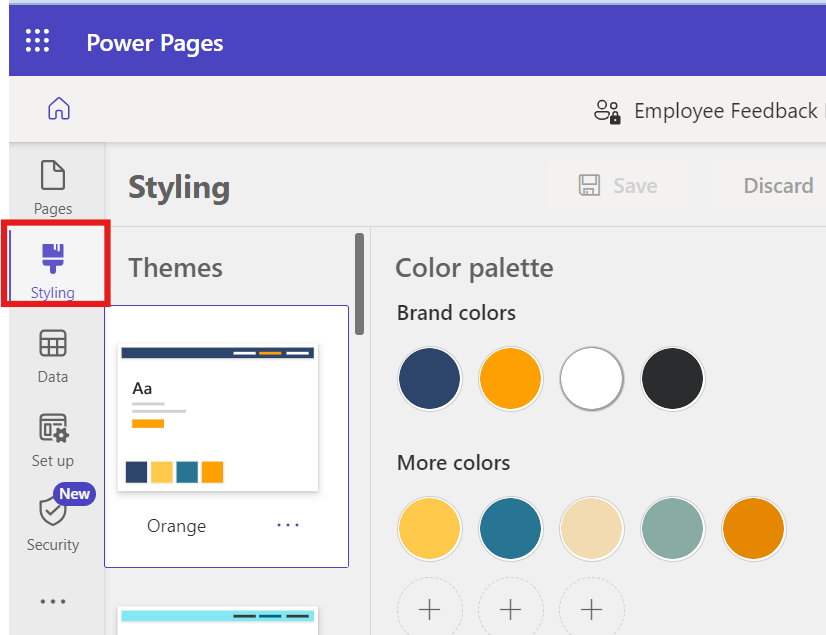
- From here, firstly you can pick the theme you want to use and then can change the colors accordingly. As soon as you will hover to the colors inside the palette, it will give you an option to change the color as shown below.
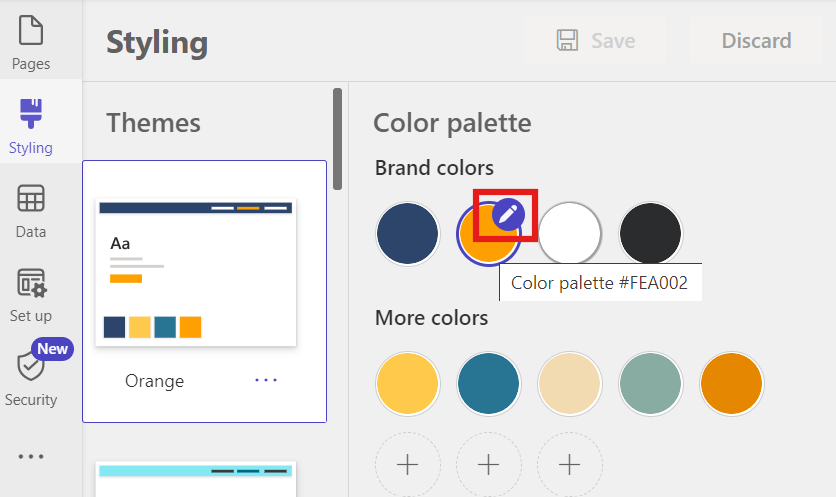
- Once done, click on “Save” to apply the changes.

Modifying the fonts
In the same styling workspace, scroll down to modify the fonts. You can set the fonts for Title, Headings, Subheadings and paragraphs as per your need.
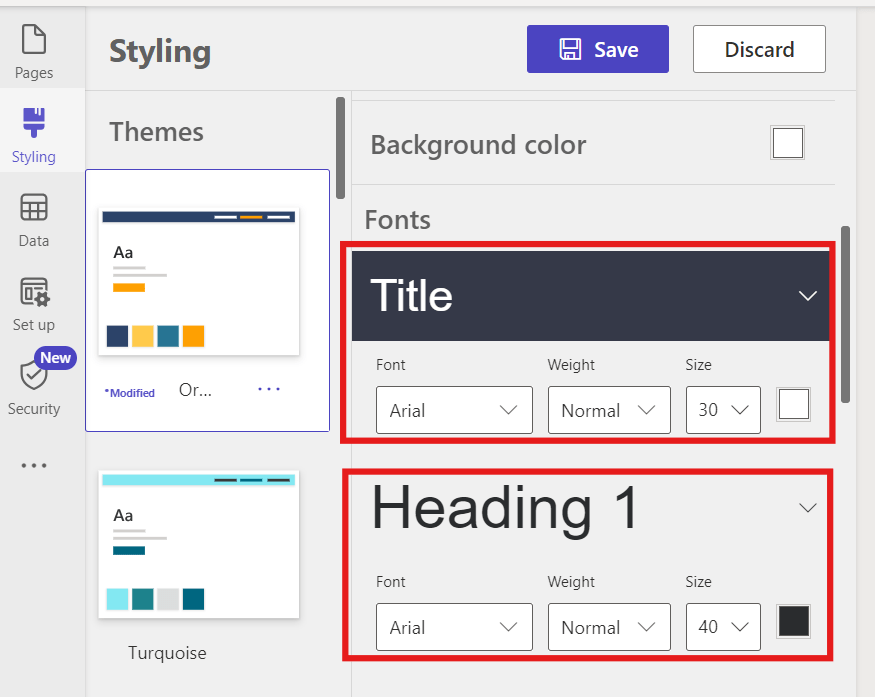
As shown in the above image, you also can change the size and color of the fonts. Once done, click on save to update the changes.
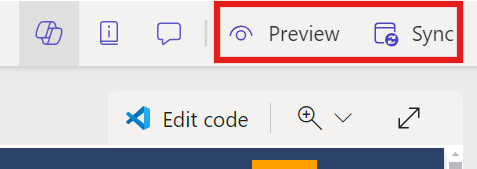
Now, Sync and Preview your changes from top-right corner.
Hope by following the above step-by-step process, you got an idea to style your site to make it interactive for users.
In case of any queries, please leave a comment in the comments section.
Thanks for reading,
Stay tuned with Power Spark for continuous learning.
#Let’s_Learn_Together

 Power Spark
Leave a reply to [Power Pages] – How to add a list to your page? – Power Spark Cancel reply