
Hello everyone,
Hope you all are doing good!
In this blogpost, we will learn how to integrate data from external sources using virtual tables in Power Pages. We will explore:
- What is Virtual Table?
- Create a SharePoint connection
- Create a Virtual Table
What is Virtual Table?
A Virtual Table in Dynamics 365 is a table type that enables you to connect to external data sources without storing the data directly in the D365 database. It allows you to view and interact with data from external systems as though it were part of D365, while the data itself remains stored externally. The external data can come from various sources, such as web services, external databases, or other systems.
Virtual table can be created using the following virtual connector providers within the Data Workspace:
- SharePoint
- SQL Server
- Microsoft Fabric
- Etc.
Steps to create a Virtual Table:
To create a new virtual table, kindly follow below steps:
- Goto Power Pages Studio
- Select and edit the site where you want to configure the virtual table.
- Click on Data from left navigation
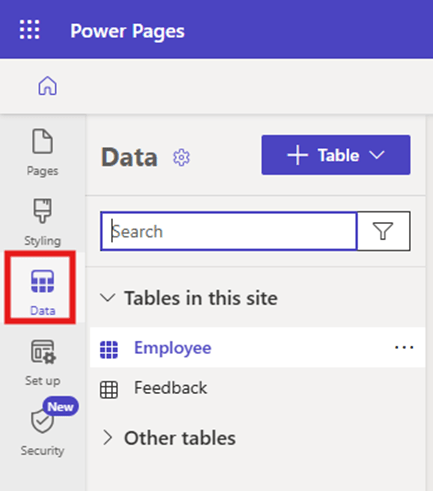
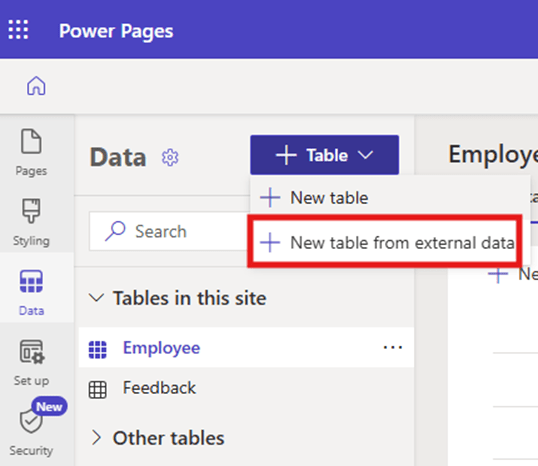
- Now, click on +Table and select “New table from external data”
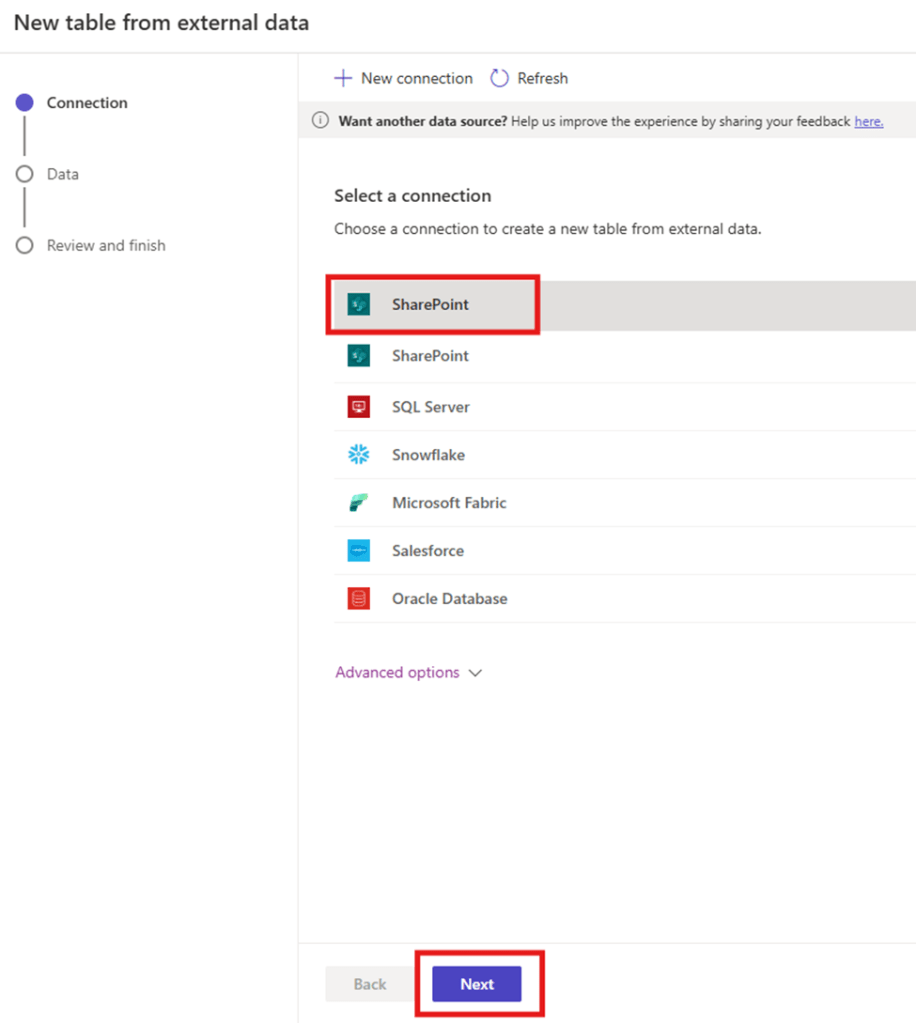
- Select a connection, in this example, we will use SharePoint as external Data Source. Click on +New Connection
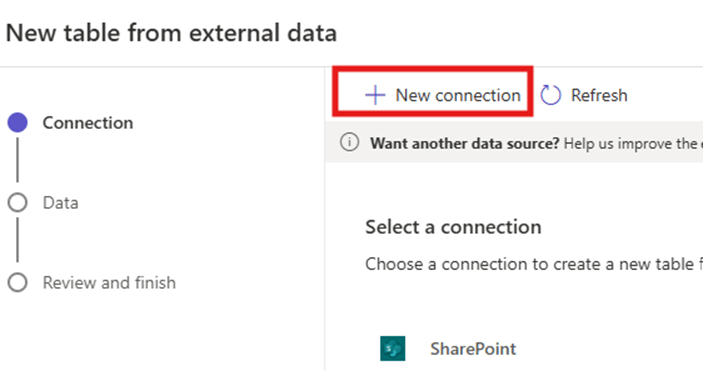
- Select “Open Connections”.
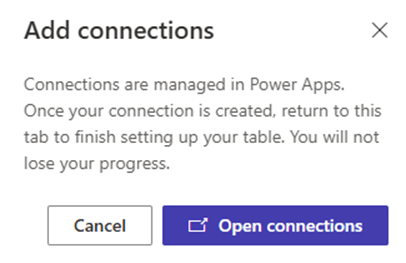
- Click on “Create” button for SharePoint.

- Complete the Sign-in process and you will see SharePoint connection Status as “Connected”

- Go back to the previous tab and click on Refresh
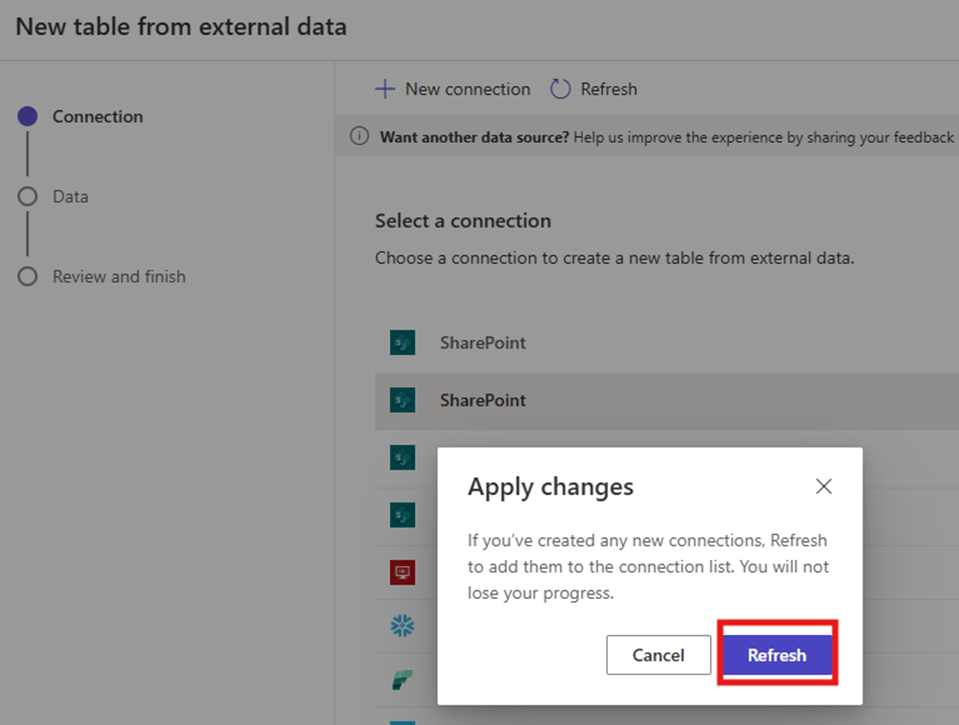
- You now will see the SharePoint Connection in the list. Select that and click on “Next”
- Make sure you have a SharePoint list already created with proper data. Here I have one SharePoint list which I am going to use in this example.
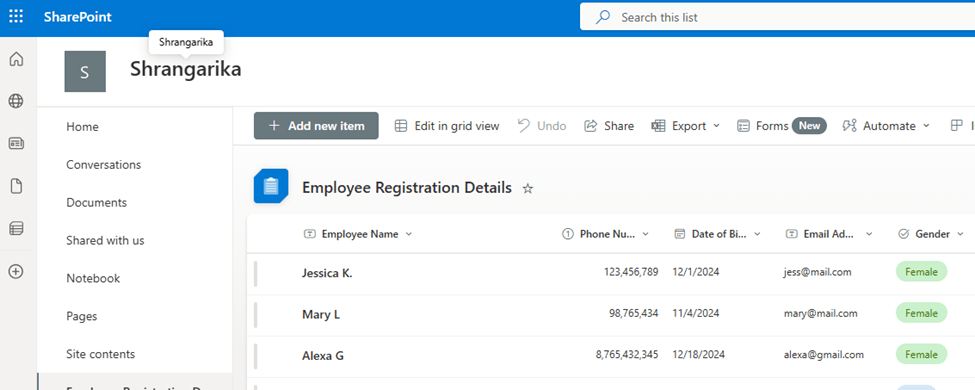
- Select the SharePoint list
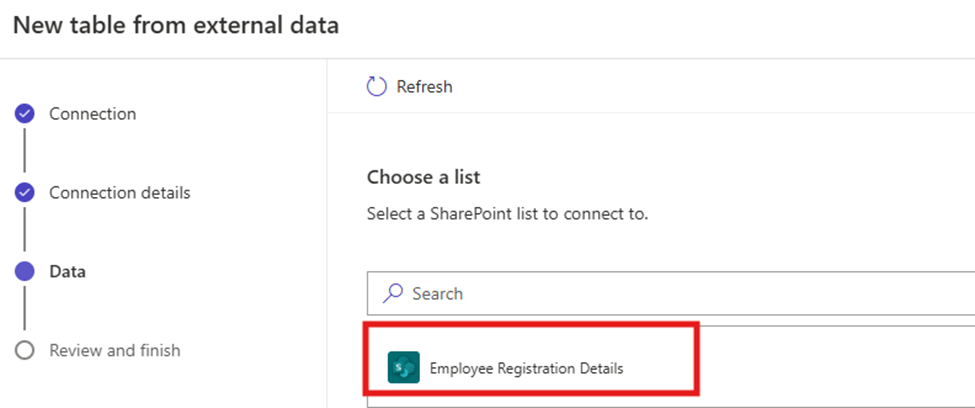
- Click Next and then Finish. [Use “Edit configuration of table” to make changes]
- Once the process is finished, you will see the virtual table in a list of table as shown below. 😊
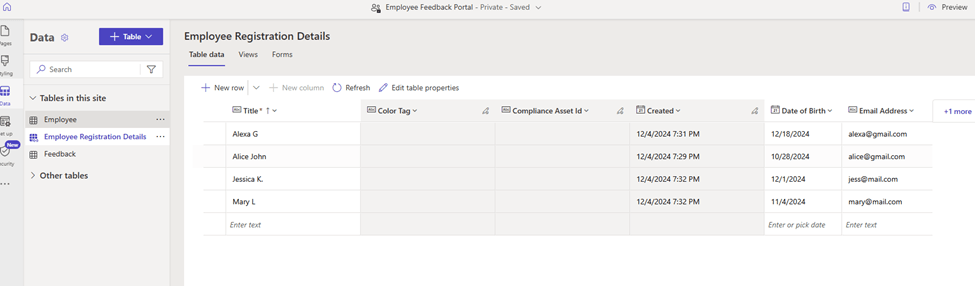
As your virtual table is successfully being set up, you can now start working with it. 😊
I hope by following the above step-by-step process, you get an idea of how to create virtual tables from external data sources.
If you find this blog useful, please like, share and subscribe to my channel for continuous learning.
Thanks for reading. 🙂
#Let’s_Learn_Together #D365 #Msftadvocate #PowerPagesLearning #Microsoft #PowerApps #Learning #Microsoft

 Power Spark
Leave a comment