
Hello everyone,
In the world of website development, creating an intuitive and efficient experience for your users is essential. With the Power Pages 2025 Wave 1 release, Microsoft is making that process even easier. One of the standout features in this update is “Add a section contextually with Copilot”—a game-changing tool that enhances how you add content and structure to your Power Pages site.
If you’ve ever struggled with deciding where to add a new section or how to make your pages more engaging, this feature is here to help. Let’s dive into what this feature is all about and how it can elevate your web development experience.
What is the “Add a Section Contextually with Copilot” Feature?
In simple terms, “Add a section contextually with Copilot” uses the power of Microsoft’s Copilot technology to make adding sections to your Power Pages site smarter and more intuitive. With Copilot’s assistance, you can insert a new section directly where it’s needed on your page—based on the context of the content you’re currently working on.
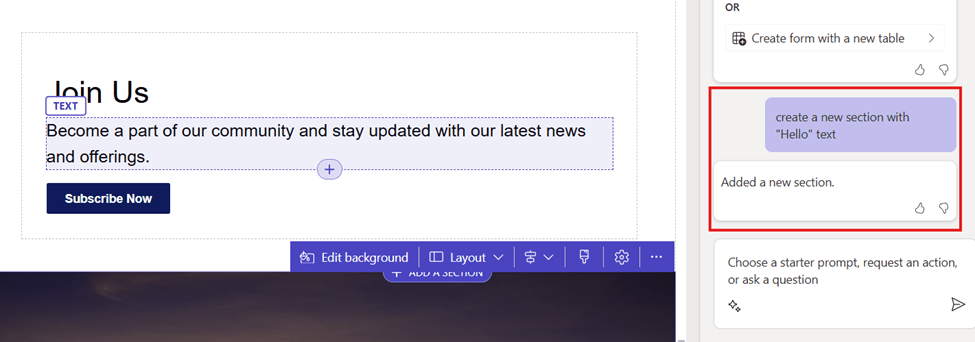
This feature takes the guesswork out of website design. Instead of manually figuring out where to place content, Copilot suggests the most relevant and logical spot for a new section, ensuring that your page remains structured, coherent, and user-friendly.
How Does It Work?
Adding a new section to your page has always been a straightforward process, but with this new feature, the experience becomes even more streamlined. Here’s how it works:
- Content Awareness: Copilot analyzes the content you’re working on in real-time. Whether you’re adding text, images, or forms, Copilot keeps track of the flow and structure of your page.
- Contextual Suggestions: Based on the content you’re adding, Copilot provides suggestions for the most relevant section type to insert. It understands the context of your current content and ensures the new section fits naturally with what’s already on the page.
- One-Click Addition: Once you’ve reviewed the suggestion, you can add the section with just a click. Copilot automatically places it where it’s needed—whether it’s a new paragraph, an image gallery, or a call-to-action button.
- Customizable: While Copilot provides suggestions, you still have full control over the final layout. You can tweak the section’s design, content, or placement to fit your vision.
Why Should You Use This Feature?
You might be wondering, “Why is this feature such a big deal?” Well, here are a few reasons why “Add a Section Contextually with Copilot” can make a real difference:
1. Save Time on Layout Decisions
Normally, deciding where to place a new section or how to structure your page can take time and effort. Copilot cuts down on that decision-making process by suggesting where and what type of section would work best for the content you’re adding. This helps you avoid the guesswork and lets you focus on creating valuable content.
2. Create Seamless User Experiences
A well-structured webpage enhances the user experience. By suggesting contextually appropriate sections, Copilot ensures that your page flows smoothly and makes sense to visitors. This leads to better engagement and a more polished website.
3. Boost Productivity
Whether you’re a beginner or an experienced web designer, this feature boosts productivity. Copilot is like having a personal assistant guiding you through the design process, allowing you to work faster while still maintaining high-quality design.
4. Simplified Website Creation
For businesses, website builders, and even developers, creating a cohesive site is essential. This feature simplifies the process of adding and placing sections on your site, reducing the chances of errors or poor design choices. You don’t have to be an expert to make a well-designed website anymore.
Use Case: Adding a Contact Form to Your Page
Let’s look at a simple example of how the “Add a Section Contextually with Copilot” feature can be used in action.
Imagine you are building a customer service page and need to add a contact form toward the end. You are writing content about customer service offers and have a few paragraphs about how to get in touch.
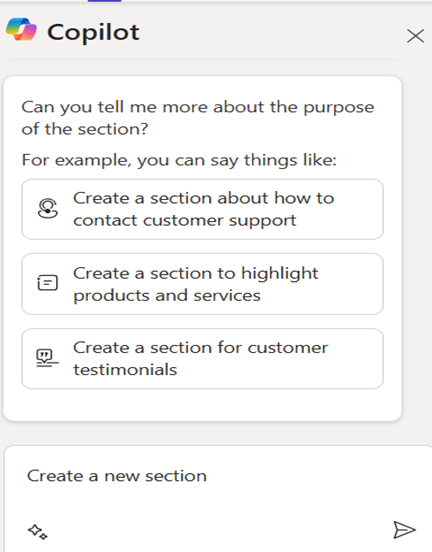
With Copilot, as you add the text, it suggests inserting a contact form section right after your content. Copilot understands the context— “Hey, you’re talking about how users can get in touch, so a contact form is a natural next step!”—and places the form in the most appropriate spot without you needing to think about it.
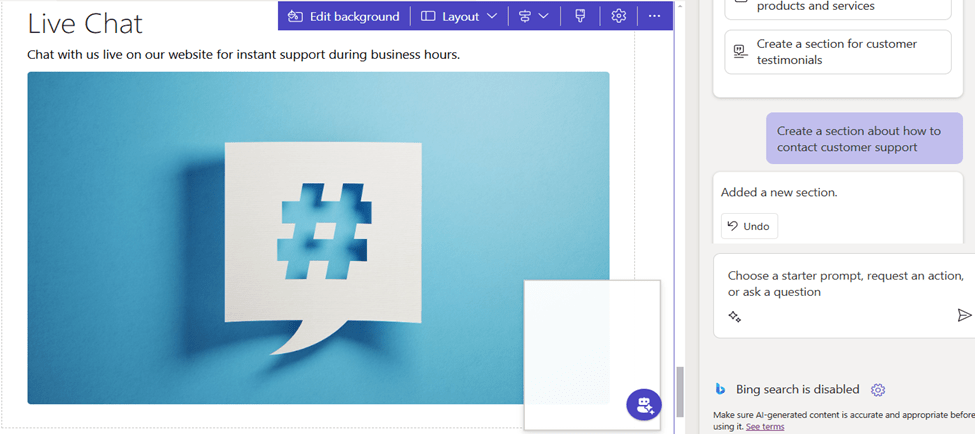
This way, you don’t waste time pondering if the form should go at the top or bottom of the page; Copilot takes care of the logic, giving you more time to focus on the content itself.
How Can You Start Using This Feature?
If you’re ready to leverage “Add a Section Contextually with Copilot” on your Power Pages site, here’s how to get started:
- Update to the Latest Version: Ensure you’re using the Power Pages 2025 Wave 1 release. You may need to check for updates within your Power Pages platform or download the latest release from Microsoft.
- Begin Editing Your Page: Open the page you want to work on and start adding content as usual.
- Use Copilot Suggestions: As you add content, keep an eye on the contextual suggestions from Copilot. When it suggests adding a section, simply review the suggestion and click to add the section to your page.
- Customize and Save: You can then customize the newly added section to match your design vision before saving and publishing your page.
Conclusion: Let Copilot Be Your Design Assistant
The “Add a Section Contextually with Copilot” feature in Power Pages 2025 Wave 1 is a huge leap forward in making website creation faster, easier, and more intuitive. By using Copilot’s smart suggestions, you can build beautiful, well-structured pages without getting bogged down in layout decisions.
Whether you’re a business owner, content creator, or web developer, this feature can save your time, enhance your page’s usability, and help you deliver a better user experience. Embrace the future of web design—let Copilot help guide you to better, more effective website creation today!
Stay tuned, as per the official announcement, this feature will be in public preview from April 2025!
If you find this blog useful, please like, share and subscribe to my channel for continuous learning.
Thanks for reading. 🙂
#Let’s_Learn_Together #D365 #Msftadvocate #PowerPagesLearning #Microsoft #PowerApps #Learning #Microsoft

 Power Spark
Leave a comment